


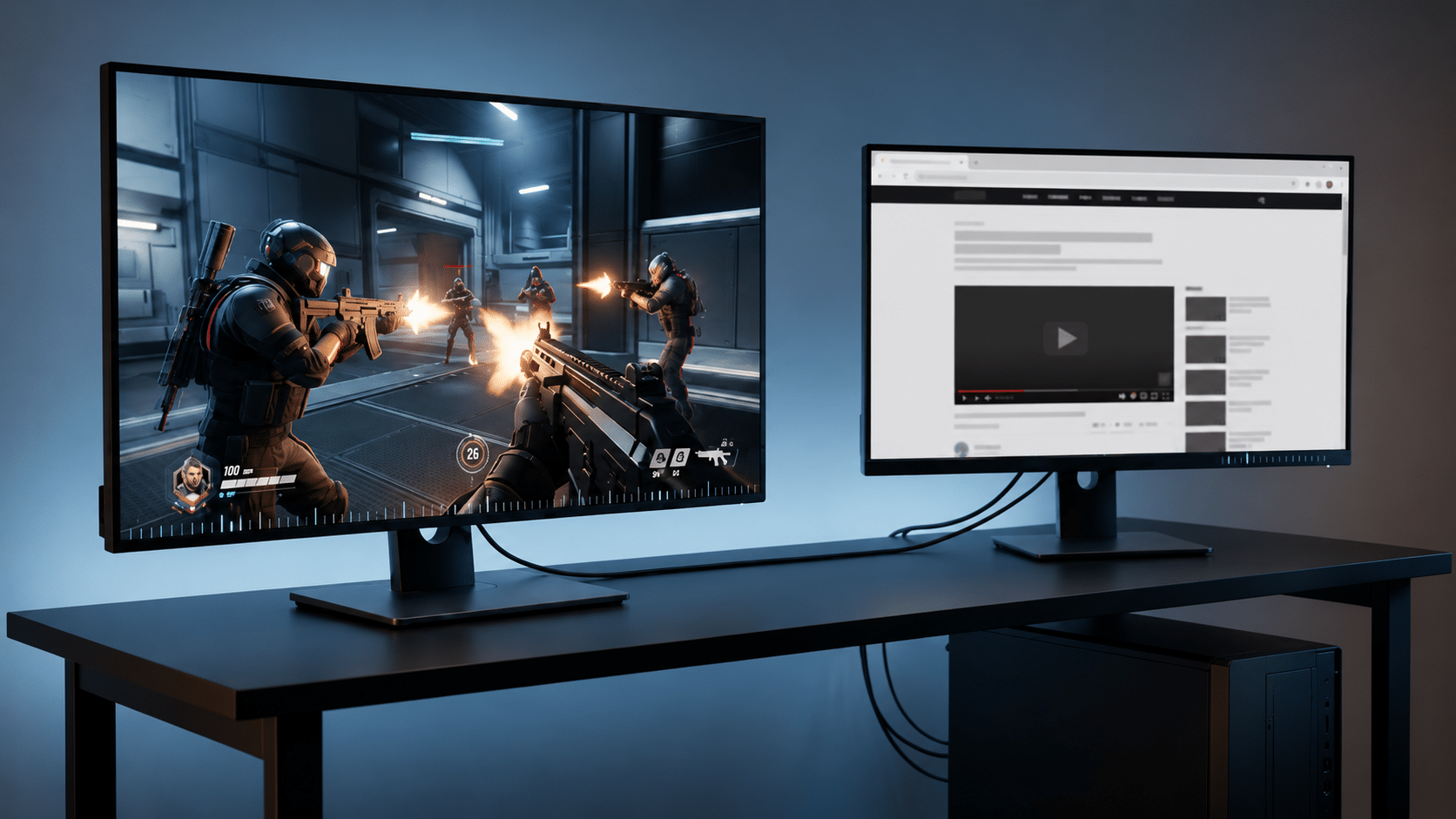
You know the drill. You start a game, everything feels buttery smooth, then you notice your second monitor is still plugged in. The moment you extend the desktop onto that second screen or even just have it connected, the game turns into a stuttery mess. The frame times spike, mouse movement feels sluggish, and microstutter ruins every fast-paced scene. Unplug the second monitor and the problem vanishes. This isn’t a broken GPU or a dying cable—it’s a display conflict, and it’s solvable.
Below we’ll work through exactly why a second monitor can tank game smoothness and how to fix it without physically yanking cables every time you sit down to play.
Understanding Why a Second Monitor Triggers Stutter in Games
Windows runs a desktop compositor (DWM) that draws every visible surface. When you add a second display, the compositor must handle two independent screen buffers, refresh cycles, and often two completely different sets of timings. Even if you’re only playing on one monitor, the mere presence of an active second display forces the graphics driver to manage multiple output paths simultaneously.
The most common root cause is a refresh rate mismatch. If your primary gaming monitor runs at 144 Hz and the secondary sits at 60 Hz, the compositor frequently locks its render cadence to the lowest common denominator or runs into frame-pacing conflicts. Hardware-accelerated apps on the second screen (browser, Discord, video players) can amplify the fight for GPU scheduling time.
Resolution differences add another layer. Scaling a 1440p game image while a 1080p secondary display is active forces Windows to juggle two separate display coordinate systems. Even with identical resolutions, different timings, variable refresh rate (VRR) implementations, or HDR/SDR states can cause the driver to hiccup every few seconds.
In some configurations, Windows’ Transient Multi-Monitor Manager (TMM) triggers display re-detection during gameplay, which briefly stalls rendering. And on systems with both a discrete GPU and integrated graphics, the way each display is wired can create unnecessary buffer copies that chew through PCIe bandwidth.
If your game also stutters with only one monitor connected—or the problem is triggered by Alt-Tab, mouse movement, driver changes or high GPU load—use our PC game stuttering troubleshooter to find the symptom path that better matches your issue.
Quick Diagnostic: Narrow Down the Conflict
Before applying any fix, run a diagnostic sequence. The goal is to isolate whether the stutter comes from software, signal management, or hardware pipeline issues.
- Baseline with one monitor. Physically disconnect the second monitor entirely (power and signal cable). Launch the problem game and confirm it’s stutter-free. Play for five minutes to rule out shader compilation stutter.
- Reconnect but disable via software. Plug the second monitor back in, but press Win + P and select PC screen only so Windows treats the second display as disconnected. Test again. If it stays smooth, the conflict is purely within Windows’ extended desktop handling—not power delivery or a faulty port.
- Enable extended desktop. Set the second display to Extend. Make sure nothing GPU-heavy is running on it. If stutter returns immediately, proceed to refresh rate and resolution checks. If the game remains smooth until you actually click the second display, the connection itself probably isn’t the trigger. See our guide to FPS drops caused by clicking a second monitor.
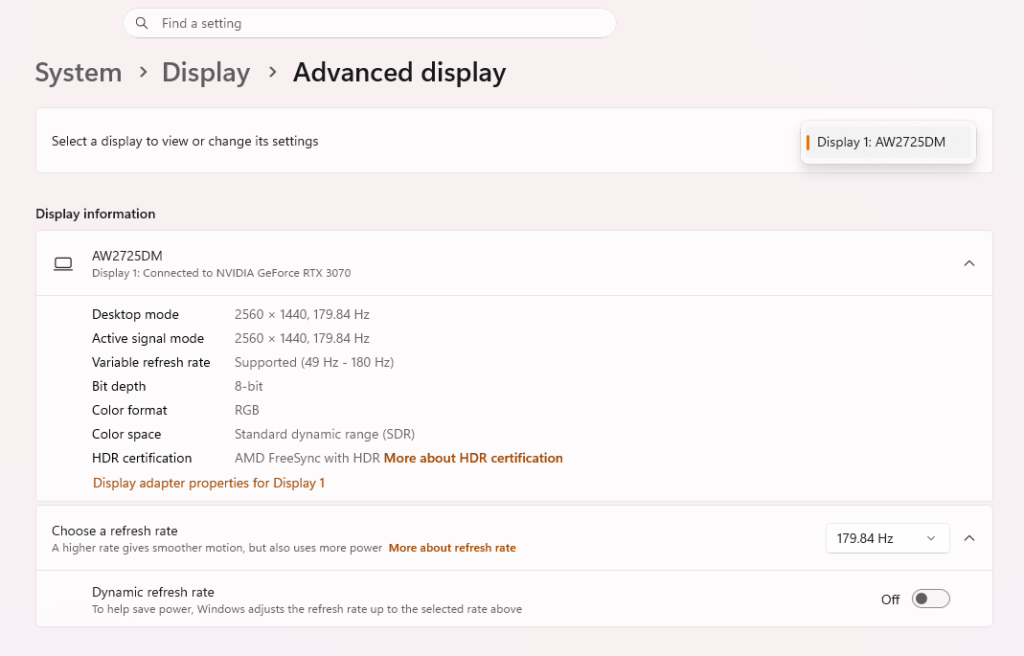
- Check refresh rates and resolution. Open Settings → System → Display → Advanced display. Verify the reported refresh rate and resolution for each monitor. Common red flags: 60 Hz vs. 144 Hz, one monitor running 4K scaled to 150% DPI while the other is 1080p at 100%, or one using 10‑bit colour depth and the other 8‑bit.
- Duplicate test. Switch to Duplicate mode. This forces both screens to the same signal, usually capping the gaming monitor at the secondary’s specs. If stutter disappears, the mismatch is confirmed.
Once you know which configuration triggers the problem, move through the fixes in order. For the broader display-side diagnosis covering Alt-Tab behaviour, fullscreen modes, VRR and second-monitor conflicts, see our guide to game stuttering caused by display and focus changes.
Safe Troubleshooting Order: From Simple to Advanced
1. Match refresh rates and resolutions as closely as possible
Set both monitors to the same resolution and refresh rate in Windows or the GPU control panel. If your secondary screen is limited to 60 Hz, temporarily lower the gaming monitor to 60 Hz just to test. No, you don’t want to game at 60 Hz permanently, but this test confirms whether refresh sync is the culprit. If it works, consider an alternative like connecting the secondary display to the motherboard’s iGPU (see step 6) to let the gaming monitor run at its native high refresh.
2. Correct the primary display assignment
Right-click the desktop → Display settings. Drag the monitor tiles so they mirror your physical layout. Click the gaming monitor, scroll down, and check Make this my main display. Games that launch in fullscreen usually default to the main display; an incorrect main-display assignment can cause a game to render on the secondary screen and be copied back, introducing latency and stutter.
3. Turn off hardware-accelerated GPU scheduling
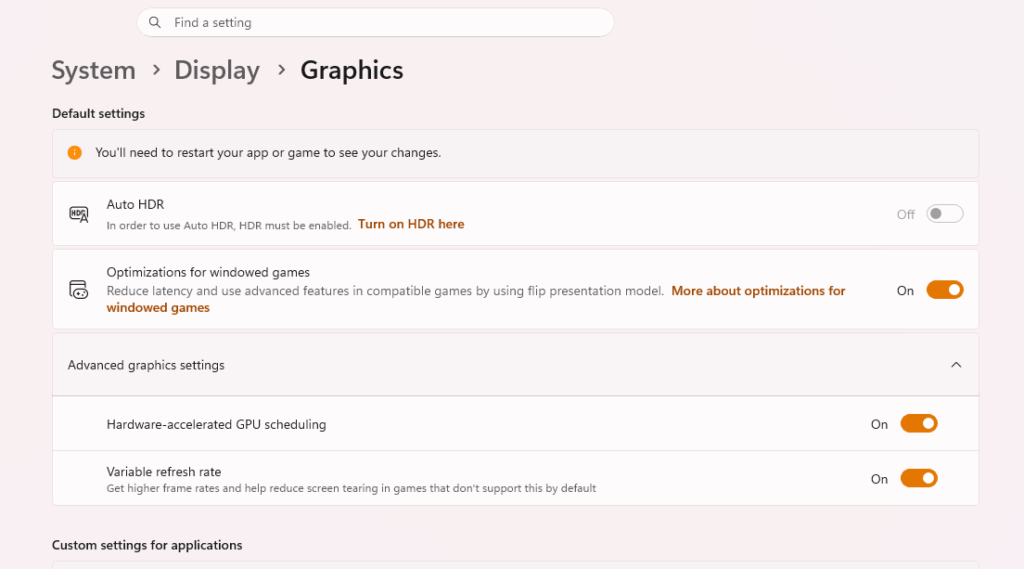
Windows’ Hardware-accelerated GPU scheduling can conflict with multi-monitor setups. Open Settings → System → Display → Graphics → Change default graphics settings and disable the toggle. Reboot and test. If it fixes the issue, leave it off. If it makes no difference, re-enable it—modern drivers sometimes require it for certain optimisations, but on older builds or with certain GPU generations it’s a known troublemaker.
4. Disable fullscreen optimisations for the stuttering game
Find the game’s executable, right-click → Properties → Compatibility, and check Disable fullscreen optimisations. This forces the game into classic exclusive fullscreen, reducing DWM’s interference with the second monitor. Then, in the game’s video settings, pick Fullscreen (not borderless windowed). Test; if the stutter drops, the compositor was the weak link.
5. Use “Show only on 1” while gaming
If you don’t need the second monitor during play, turn it off logically without unplugging it. Press Win + P and choose PC screen only before launching the game; switch back to Extend when you’re done. This is the lowest-risk workaround and effectively tells Windows to ignore the second display entirely.
6. Route the secondary display through the iGPU (when available)
If your CPU has integrated graphics and your motherboard offers video outputs, enable the iGPU in BIOS (Multi-Monitor support or iGPU Multi-Monitor), install the iGPU driver, and plug the secondary monitor into a motherboard port. The discrete GPU handles only the gaming monitor. This sidesteps almost all driver-level VRR and refresh-rate battles. Restart Windows and wait up to a minute for the iGPU driver to initialise. This solution is especially powerful when you run a high-refresh primary monitor alongside a 60 Hz secondary.
7. Disable the Transient Multi-Monitor Manager (TMM) task
TMM can trigger display reconfiguration events that cause microstutter. Open Task Scheduler (taskschd.msc), navigate to Task Scheduler Library → Microsoft → Windows → MobilePC, find the TMM task, right-click and Disable it. Restart. Skip this step if you frequently hot-plug projectors or external displays; TMM helps with automatic detection. For a desktop setup that never changes, disabling it is safe.
8. Update GPU drivers and monitor firmware
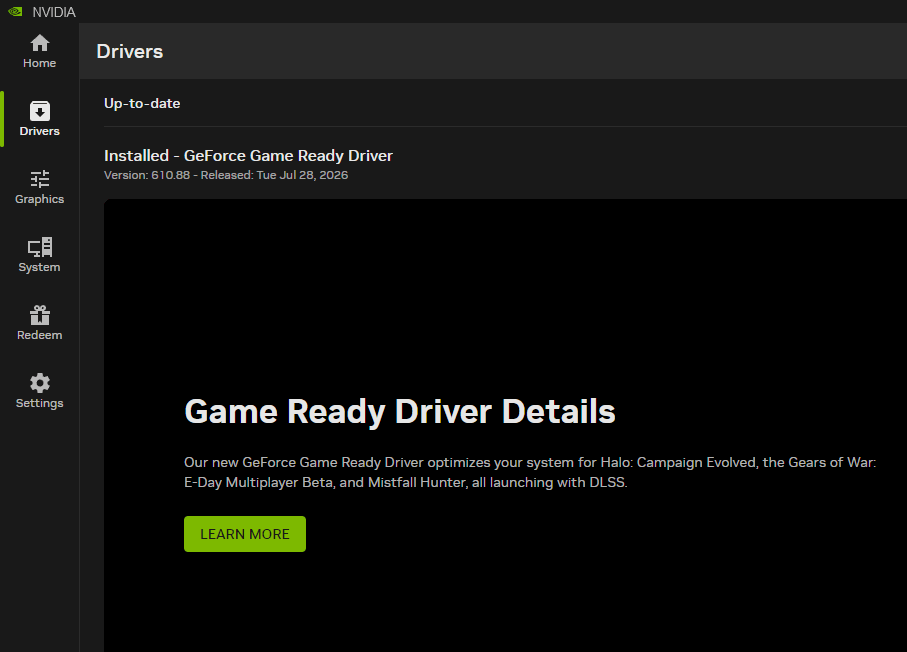
Use Display Driver Uninstaller (DDU) in safe mode to remove the current driver, then install the latest driver directly from AMD, NVIDIA, or Intel. Next, visit the monitor manufacturer’s support page and check for firmware updates—especially for gaming monitors where out-of-date EDID or VRR tables can provoke handshake stutter when a second monitor is connected.
9. Unify VRR, HDR, and colour depth settings
If the gaming monitor uses G‑Sync or FreeSync, enable it there but suspend VRR on the secondary display unless you know both panels share the same VRR range and technology. Mixed VRR states often cause the driver to stutter. Similarly, keep both monitors in SDR or both in HDR; mixing modes forces constant tone-mapping switches. In NVIDIA Control Panel, under Adjust desktop colour settings, match the colour depth to 8 bpc or 10 bpc consistently.
10. Switch to borderless fullscreen with cautions
If disabling fullscreen optimisations didn’t help, try borderless fullscreen. The game then renders as a window on the compositor, which sometimes handles mismatched displays better—at the cost of slightly higher latency. This trade-off is often acceptable in single-player titles where stutter is more distracting than a few milliseconds of input lag.
11. Test with identical cables and ports
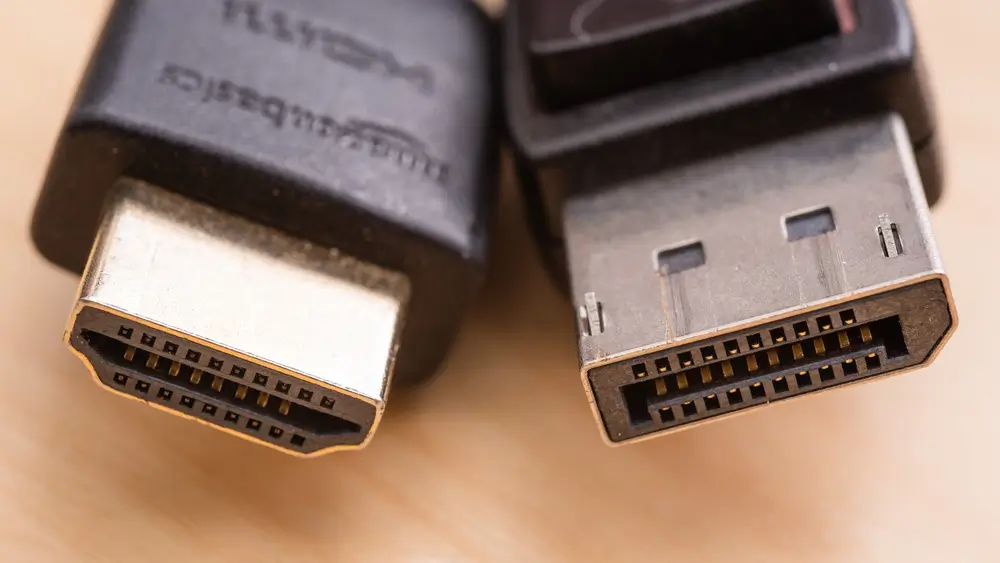
Different cable types (DisplayPort 1.2 vs. HDMI 2.0) can introduce subtle timing discrepancies. Whenever possible, use identical cable models and the same output type for both monitors. Avoid daisy-chaining monitors over DisplayPort MST—it adds latency and bandwidth constraints that can manifest as stutter while gaming.
12. Windows and BIOS updates
Install all pending Windows updates, especially “optional” driver updates that occasionally resolve display topology bugs. Check your motherboard vendor’s site for a BIOS update that mentions display compatibility or PCIe enumeration fixes.
Common Mistakes That Make Stutter Worse
- Hardware-accelerated apps on the secondary monitor: A browser playing a YouTube video or Discord streaming a screen uses GPU 3D resources. While gaming, this competition forces the GPU to context-switch, resulting in frame-time spikes. Close or pause such content, or disable hardware acceleration in the browser’s settings. If the second display causes problems specifically when a video is playing, see our guide to fixing YouTube or Twitch stutter on a second monitor while gaming.
- Mixing HDR and SDR across monitors: Windows shifts the entire graphics pipeline whenever HDR toggles. If one monitor is HDR and the other is SDR, even a mouse movement across the boundary can trigger a brief stutter. Enable HDR on both or leave Windows in SDR globally.
- Forgetting the primary display: A game might launch on the secondary 60 Hz screen and be mirrored or stretched back. The “Make this my main display” checkbox must be selected on the intended gaming monitor.
- Ignoring per-monitor refresh rate settings: In Windows 11, advanced display settings let you set refresh rates individually; don’t assume both screens are running at their advertised figures. Recheck after driver updates.
- Using third-party multi-monitor tools without understanding them: Utilities that manage wallpaper spanning and taskbar customisation often inject into DWM and can interfere with fullscreen rendering. Disable them for testing.
Edge Cases: When Matching Everything Still Doesn’t Work
You’ve matched refresh rates, unified the pipeline, and yet the stutter persists. A few rarer scenarios:
- Extreme refresh rate gaps (360 Hz + 60 Hz): Windows DWM struggles when frame delivery intervals have no common divisor. In such cases, route the 60 Hz display through the iGPU or set the secondary to a refresh rate that is a clean multiple (e.g., 120 Hz) if possible. Some users have to accept using PC screen only mode during competitive play.
- Laptop with hybrid graphics: Ensure the discrete GPU is assigned to the game (NVIDIA Control Panel → Manage 3D settings). The secondary monitor might be tied to the iGPU, and Windows’ OS-level GPU routing can create an extra copy. Plugging the secondary display into a port directly connected to the same GPU as the gaming monitor often resolves the bottleneck.
- Overclocked monitors: A “165 Hz overclocked” setting can cause instability when a second display is active. Revert the gaming monitor to its factory default refresh rate and test. Some panels drop frames internally when an overclock is paired with a second output.
- Docks and USB‑C display adapters: These use DisplayLink or similar compressed transport that adds latency. Avoid them for the gaming monitor. Connect the gaming display directly to the discrete GPU and relegate the secondary to a dock only if you’re not sensitive to occasional stutter spikes.
- SLI/CrossFire remnants: Modern drivers have dropped multi-GPU support, but if you’re on older hardware, disable SLI or CrossFire in the driver control panel; multi-monitor surround modes often introduce microstutter with mismatched displays.
FAQs
Why does the stutter happen only when a video is playing on my second monitor? Video decoding and rendering use GPU hardware acceleration. When a game demands 100% GPU time and a browser simultaneously requests a slice for video playback, the driver must rapidly switch contexts. This produces visible frame-time spikes even if average FPS looks okay. Disable hardware acceleration in your browser’s settings or pause the video while gaming. Alternatively, route the secondary monitor through the iGPU so the browser’s video workload lands on a separate graphics engine.
Can different monitor brands or models alone cause stutter? Brand identity doesn’t matter, but different EDID profiles and timing controllers do. Even two “identical” refresh-rate panels from different manufacturers may use slightly different pixel clocks. Windows and the GPU driver sometimes resynchronise constantly, causing repeated microstutter. Using the same cable type, matching refresh rates exactly, and disabling TMM typically neutralise brand-related EDID chatter.
Is it better to use Duplicate or Extend mode for gaming? Extend offers far more flexibility, but Duplicate can bypass certain compositor conflicts because both outputs share a single framebuffer signal. The huge downside: Duplicate forces the gaming monitor down to the lowest common resolution and refresh rate. If you’re willing to accept that temporary cap — for instance, dropping to 60 Hz during a casual session — Duplicate can be a quick sanity check, but Extend with proper primary display assignment and matched timings is the goal.
A stutter-free dual-monitor gaming setup is possible without constantly reaching behind the PC to unplug cables. Start with the least invasive steps — matching refresh rates and disabling hardware-accelerated scheduling — and escalate only if needed. If you end up routing the secondary display through the iGPU, you’ll likely solve the problem permanently while keeping every hertz of your main gaming monitor intact.
