


You launch a game on your primary monitor, glance at the side display to watch a Twitch stream or a YouTube walkthrough, and the video immediately turns into a slideshow while audio keeps playing. This is not a random glitch. It is a resource conflict, a scheduling mismatch, or a presentation quirk between your game and the browser’s video pipeline. The most frustrating part is that it disappears the moment you alt-tab out of the game, which immediately points to how Windows and your GPU are handling foreground and background workloads.
The core conflict is simple: modern games demand near-total dedication from your GPU, especially when using exclusive fullscreen or when GPU hardware scheduling is active. At the same time, the browser needs a slice of GPU acceleration to composite and decode video frames. If the game is configured to hog the GPU’s time or the Windows Desktop Window Manager (DWM) is forced to juggle mismatched refresh rates, video playback on the second screen suffers. This can happen even on a high-end PC because the problem is often timing, not raw performance.
Before you start swapping hardware, accept this rule: a perfectly fine multi-monitor setup can break the moment a game pushes the GPU into a state where the browser’s video rendering is starved or desynchronised. The fixes that follow target the underlying mechanism, not just the symptoms.
If the game itself is stuttering rather than only the video on your second monitor, use our PC game stuttering troubleshooter to find the symptom path that better matches the problem.
Diagnose Before You Fix: The Two-Minute Triage
Skip the guesswork. Run these quick tests to narrow the cause.
- Unplug the second monitor physically. If the stutter stops (and you’re only watching for stutter in the game’s frame time, not the absent video), you know the secondary display itself is triggering the conflict. If simply having the second monitor connected causes the game itself to stutter—even with no video playing—follow our guide to fixing game stutter caused by a second monitor instead.
- Change the game to windowed mode, not borderless, just plain windowed. If video playback improves, the issue is tied to the game’s fullscreen presentation mode and how Windows handles GPU scheduling in exclusive or borderless flip modes.
- Drop the game’s resolution or frame rate cap significantly (e.g., 60 FPS cap). If video playback returns to normal, you have a straightforward GPU resource deficit—your graphics card is fully saturated and has no time slice left for the browser’s decode and render tasks.
- Mute the browser tab or disable hardware acceleration in the browser. If the problem vanishes, the GPU media decoder engine is the bottleneck, or the audio subsystem is introducing a scheduling hiccup.
These four steps will categorise your stutter into one of three buckets: refresh rate mismatch plus DWM composition issues, GPU saturation and scheduling starvation, or a software-layer decoding conflict. Now apply the fixes in the exact order below—cheapest and least disruptive first.
If the problem appears to involve the wider display setup—such as Alt-Tab behaviour, fullscreen mode, VRR or focus changes—use our Alt-Tab and second-monitor stuttering guide for the broader display-side diagnosis.
The Safe Troubleshooting Order
1. Match All Monitor Refresh Rates
The DWM in Windows 10 and 11 still struggles when displays run at different refresh rates, even on the same GPU. For example, a 144 Hz gaming panel paired with a 60 Hz office monitor forces the compositor into a lower common denominator for certain flip models, causing dropped video frames on the secondary screen. Set every connected monitor to the same refresh rate temporarily. If your second screen cannot match your gaming monitor’s refresh rate, lower the gaming monitor to 60 Hz as a test. If the stutter disappears, you have identified a refresh mismatch issue that is not truly “fixed” but is now diagnosed.
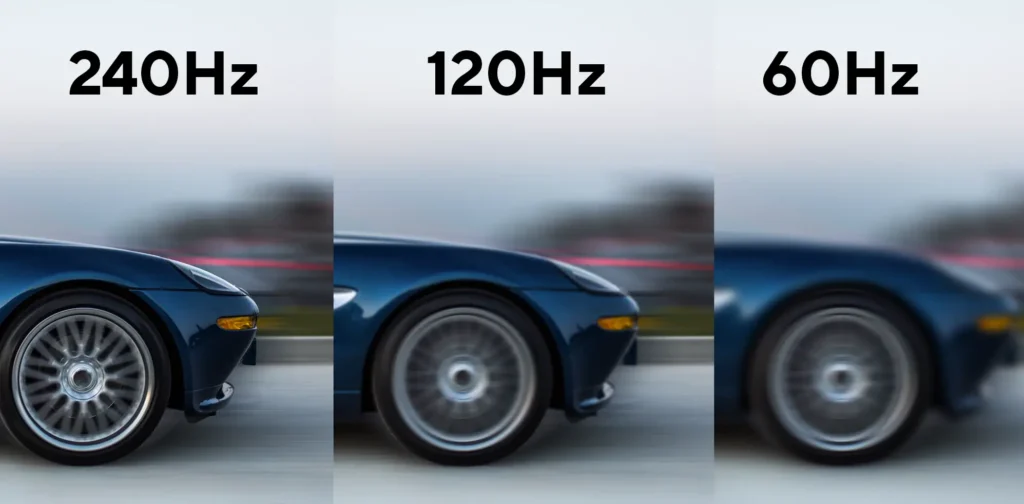
A long-term workaround when monitors cannot match is moving the secondary displays to your CPU’s integrated graphics, if your processor has an iGPU. Plugging auxiliary monitors into the motherboard outputs keeps them off the dedicated GPU and prevents DWM from tying the compositor to the lowest common refresh rate on the gaming card. This immediately resolves many persistent stutters without swapping hardware. Enable the iGPU in BIOS, install its driver, and connect secondary monitors there. Your primary gaming display remains on the discrete GPU.
2. Disable Browser Hardware Acceleration
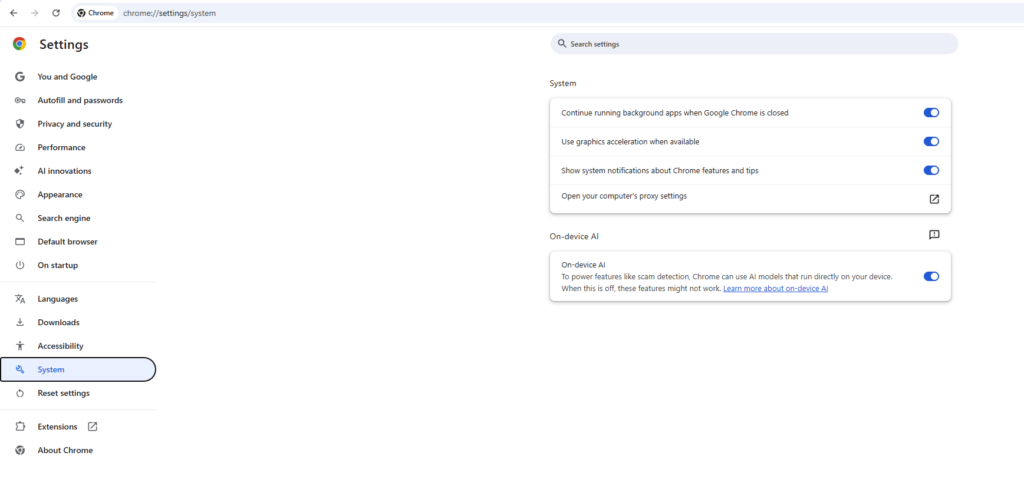
The browser offloads video decoding and rendering to the GPU. While efficient during normal desktop use, this competes directly with the game when the GPU is under load. In Chrome, Edge, or Firefox, turn off “Use hardware acceleration when available” in advanced settings. Relaunch the browser and test a stream. If the video now plays smoothly, your GPU’s media engine was being choked. If Chrome, Discord or Game Bar is also affecting the game’s performance, follow our guide to stopping background apps from draining GPU resources while gaming. The trade-off is slightly higher CPU usage for video decode, but modern six‑core CPUs handle this without issue.
If you rely on hardware decoding for high-resolution streams (4K AV1 on a weaker CPU), you can instead try launching the browser with a flag that reduces its GPU priority. In Chrome-based browsers, use --disable-gpu-vsync and --disable-frame-rate-limit as an experimental lever to stop the browser from synchronising with the game’s render cadence. This is not a permanent fix, but it can confirm the scheduling conflict.
3. Force the Game to Run in a Specific Presentation Mode
“Exclusive Fullscreen” hands the entire framebuffer to the game and often starves secondary compositing. “Borderless Windowed” keeps DWM in charge, but on some setups the fast‑flip optimisation still causes stalls. Test each mode. If exclusive fullscreen causes trouble but borderless does not, stick with borderless. If both modes break video but plain windowed mode works, the game’s fullscreen optimisations are the culprit. In that case, right‑click the game executable, go to Properties → Compatibility, and check “Disable fullscreen optimisations”. This forces legacy presentation, which may introduce a tiny input lag penalty but solves the stutter entirely.
4. Turn Off Windows GPU Hardware‑Accelerated Scheduling
The Hardware‑Accelerated GPU Scheduling feature (Graphics Settings → Advanced) changes how the GPU manages its memory and command buffers. It can improve game latency, but it also modifies how background applications get GPU time. Disable it and reboot. This setting is known to resolve video playback freezing on secondary monitors for many dual‑GPU or multi‑monitor configurations. If you see no difference, re-enable it; you’ve ruled out a variable without permanent cost.
5. Adjust Power Management and PCI Express Link State
Windows power plans that allow the GPU or PCIe link to idle down can create spikes when the game loads and the video pipeline suddenly starves. Set the power plan to “High performance” or, better, “Ultimate Performance” if available. In Advanced power settings, set “PCI Express” → “Link State Power Management” to “Off”. Also, inside the NVIDIA Control Panel under “Manage 3D settings”, find “Power management mode” and set it to “Prefer maximum performance”. For AMD, Radeon Software has a similar GPU workload setting; prefer “Maximum Performance”. These changes prevent the GPU from dipping into a low‑power state that cannot sustain two concurrent render workloads.
6. Clear the Browser’s Video Decode Cache and Look for Extensions
Hardware‑related stutter can be amplified by a corrupted cache or a rogue browser extension that hijacks video rendering. Test in a clean browser profile without extensions. Some ad‑blockers and privacy extensions inject scripts that interfere with video playback timing. If the clean profile works, re‑enable extensions one by one. Also, disable “Use graphics acceleration when available” inside the browser flags area (not just settings) for low‑level control. This step is often overlooked, yet it resolves bizarre edge cases where only Twitch freezes while YouTube plays fine, or vice versa.
7. Lower the Game’s Visual Settings to Free Up GPU Headroom
If your diagnostic test with a capped frame rate removed the stutter, your GPU is simply oversubscribed. Reduce texture resolution, disable ray tracing, lower shadow quality, or cap the frame rate to a value your card can maintain without 100% utilisation. Use tools like MSI Afterburner and Rivatuner to watch GPU usage. A GPU constantly pegged at 99% will not reliably service secondary video. Aim for roughly 90–95% peak usage, leaving a small buffer for background compositing.
8. Try a Different Browser or Standalone App
Sometimes the browser’s video pipeline has a latent conflict with a specific game’s anti‑cheat or overlay. Test the same stream using a dedicated app like the Twitch desktop client, VLC with a stream URL, or a different browser such as Firefox instead of Chrome. If the alternative client works flawlessly, you have found a software‑specific incompatibility. This is a practical workaround when you cannot change the game or monitor setup.

9. Update Monitor Drivers and Check GPU Driver Settings
Monitor drivers, not the generic PnP one, sometimes carry timing descriptors that affect DWM behaviour. Download the signed driver from the monitor manufacturer’s website for each display, install via Device Manager under “Monitors”, and reboot. Also, inside your GPU control panel, under “Adjust desktop size and position”, ensure scaling is performed on the GPU and not the display, which can alter the timing budget. Reset any custom colour profiles or gamma settings as a test—corrupt colour management can introduce compositing lag.
10. Test with Streamlined Desktop Configuration
As extreme as it sounds, some configurations cannot co-exist without compromise. If you must have unmatched refresh rates and you lack an iGPU, a powered USB‑to‑HDMI adapter that uses its own simple display driver can off‑load the secondary monitor from the gaming GPU entirely. Picture quality is fine for a video feed, and it eliminates the compositor conflict. This is not a “gaming monitor” solution, but it works for a chat or YouTube side panel.
Common Mistakes That Keep You Stuck
- Assuming a GPU can multitask video decode and 3D rendering without a scheduler conflict. Even powerful cards can have their media engine starved if the game’s command stream is relentless.
- Leaving VSync on globally or in the browser while the game uses a different sync interval. VSync adds a timing barrier that can cause one display’s frame to wait on the other, creating visible stutter.
- Running OBS or streaming software on the same GPU while trying to watch a video on a second monitor. This triples the decode/render pressure. If you’re streaming, off‑load OBS preview and Twitch feed to the iGPU or a second PC entirely.
- Blindly changing driver versions without isolating the root cause. A driver swap might hide a scheduling nuance, but it rarely fixes a fundamental resource or refresh conflict.
- Overlooking the “Disable display scaling on high DPI settings” option for the game executable. If Windows scaling is active, the DWM does extra work that can delay presentation for the secondary monitor.
Edge Cases When the Fixes Don’t Work
- Live sports or high‑motion streams only freeze, while static YouTube videos play fine. This points to the media decoder being the exact bottleneck. The high bitrate or codec variation overloads the part of the GPU that also serves the game’s texture streaming. In this case, forcing software decoding (disabling hardware acceleration) is the fastest solution, even if CPU usage jumps.
- Path of Exile or other CPU‑intensive games cause a complete freeze of the video feed. PoE’s asset streaming and shader compilation can spike CPU load to the point where the browser’s decode thread gets no time slice. Setting the browser’s process priority to “Above normal” in Task Manager sometimes helps, but the cleaner fix is to cap the game’s engine frame rate using the in‑game limiter so the CPU isn’t redlined.
- Video stutters only when sound is playing on the second monitor with a Bluetooth audio device. The Bluetooth stack introduces latency spikes in the DPC pipeline, which can delay DWM composition. Switch to a wired audio output for the secondary monitor or disable audio on the stream to isolate.
Frequently Asked Questions
Why does the video freeze completely but audio continues?
This typically indicates the GPU video decoder has stalled while the audio pipeline is still being serviced by the CPU or a separate audio processor. The browser has separated the two streams; when the decoder can’t deliver video frames in time, it drops them entirely. The audio buffer, being smaller and processed differently, continues. Disabling hardware acceleration or freeing GPU resources resolves it.
Is it okay to use integrated graphics for a second monitor when gaming on a discrete GPU?
Yes, and it’s one of the most reliable solutions for mismatched refresh rates or GPU starvation. Enable the iGPU in BIOS, install its driver, and plug auxiliary screens into the motherboard outputs. The dedicated GPU handles the game exclusively, and the iGPU manages desktop compositing and video playback. Expect a minor CPU overhead, but it’s negligible on modern platforms.
Will capping my gaming FPS really stop the stutter?
If the GPU is fully saturated, absolutely yes. A cap at 60, 120, or a value below your card’s maximum sustained output leaves a tiny amount of overhead for background tasks like video compositing. Use Rivatuner or the in‑game limiter. Combine this with a power management preset that discourages low‑power states, and you often eliminate the conflict without any other change.
