


In the world of modern computing, hardware acceleration has become a buzzword that many users are familiar with, especially gamers, streamers, and content creators. But while it can improve performance, it often comes with a hidden cost: excessive usage of GPU resources.
In this guide, we will explore how applications like Discord, Chrome, and game bars can drain your GPU resources, leading to performance issues. In addition, we will provide detailed step-by-step fixes, insights into advanced settings, and common mistakes users make.
If you have not yet confirmed that background applications are causing the problem, use our PC game stuttering troubleshooter to compare this symptom with frame-pacing, display, driver and hardware-related stutters.
Why Do Background Apps Drain Your GPU?
Hardware acceleration refers to the use of specialized hardware to perform certain tasks more efficiently than software running on a CPU. For example, in graphics-heavy applications, the GPU can take over rendering tasks that would otherwise burden the CPU.
However, in some cases, particularly when multiple applications are utilizing hardware acceleration at the same time, this can lead to resource contention. In this scenario, users may experience lag, high CPU or GPU usage, or even crashing applications. If you are experiencing maxed-out utilization but terrible frame rates, check out our deep dive on why 100% GPU usage can cause low FPS.
What Causes Hardware Acceleration to Drain Your GPU?
Understanding the root causes of GPU resource depletion due to hardware acceleration in Discord, Chrome, and game bars is crucial for developing effective solutions. If Chrome or another browser works normally until you play a game and then YouTube or Twitch begins stuttering on your second monitor, follow our dedicated dual-monitor video playback troubleshooting guide.

Discord
- High GPU Usage: When hardware acceleration is enabled, Discord may engage more of the GPU resources, especially during gaming or streaming sessions. This can become problematic when users try to multitask.
- In-Game Overlay Feature: This feature can consume significant GPU resources, particularly when it overlays graphics onto games. This resource drain is often unnoticed during a gaming session.
Chrome
- Background Tab Activity: Chrome can strain the GPU even when reduced to the background. It can continually submit GPU frames to the Windows compositor (
dwm.exe), causing high GPU usage. - Hardware Acceleration Effects: When hardware acceleration is active in Chrome, particularly with multiple tabs open, it can lead to high GPU load, thus affecting overall system performance.
Game Bars
- Competing for Resources: Game overlays and bars often contend for GPU resources with the running game. This not only affects gaming performance but can also lead to stuttering or frame drops during gameplay.
Step-by-Step Fixes
If you’re looking to optimize your PC’s performance and prevent GPU resource depletion, follow these step-by-step fixes for each application.
Discord
Disable Hardware Acceleration:
- Open Discord and go to User Settings.
- Navigate to the Advanced tab.
- Toggle off Hardware Acceleration.
Disable the In-Game Overlay:
- Go to User Settings.
- Select Game Overlay.
- Toggle off Enable in-game overlay.
If Discord itself seems fine but FPS drops or frametime spikes appear specifically when the in-game overlay is active, follow our guide to testing Discord overlay FPS drops and stutters.
Chrome
Disable Hardware Acceleration:
- Open Chrome and go to Settings.
- Click on System.
- Toggle off Use graphics acceleration when available.
- Relaunch Chrome for the settings to take effect.
Suspend Background Tabs:
- Consider using extensions that suspend inactive tabs. This not only reduces GPU load but also improves overall browser performance.
Game Bars
- Disable or Configure Game Bars:
- Access settings for the specific game bar you are using.
- Disable any unnecessary overlays or limit notifications to minimize GPU usage during gaming sessions.
Advanced Insights: The Hardware Acceleration Trade-Off
Understanding how hardware acceleration works can provide further insights into optimization.
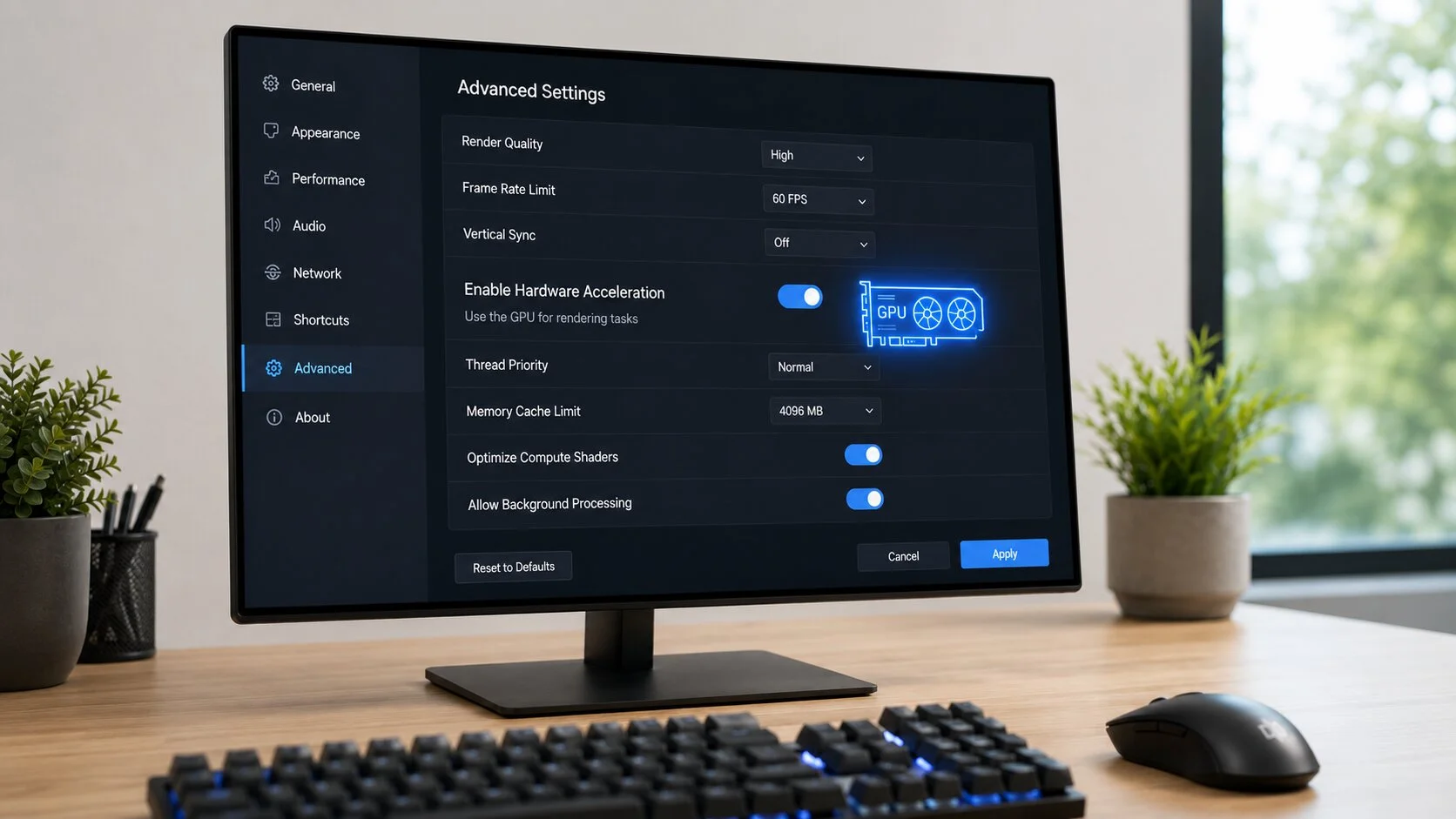
Hardware acceleration can offload specific tasks, enabling smoother performance in ideal conditions. For instance, using hardware acceleration in video streaming can lead to high-quality playback. However, in systems with limited GPU capacity, such specific tasks can overwhelm the GPU.
How Background Processes Impact System Overhead
Applications that remain open in the background can still use system resources. Therefore, keeping unnecessary programs running may lead to a significant drain on GPU and CPU resources.
Common Mistakes to Avoid When Optimizing Background Apps
Even experienced users can make mistakes that negatively affect performance. Some common pitfalls include:
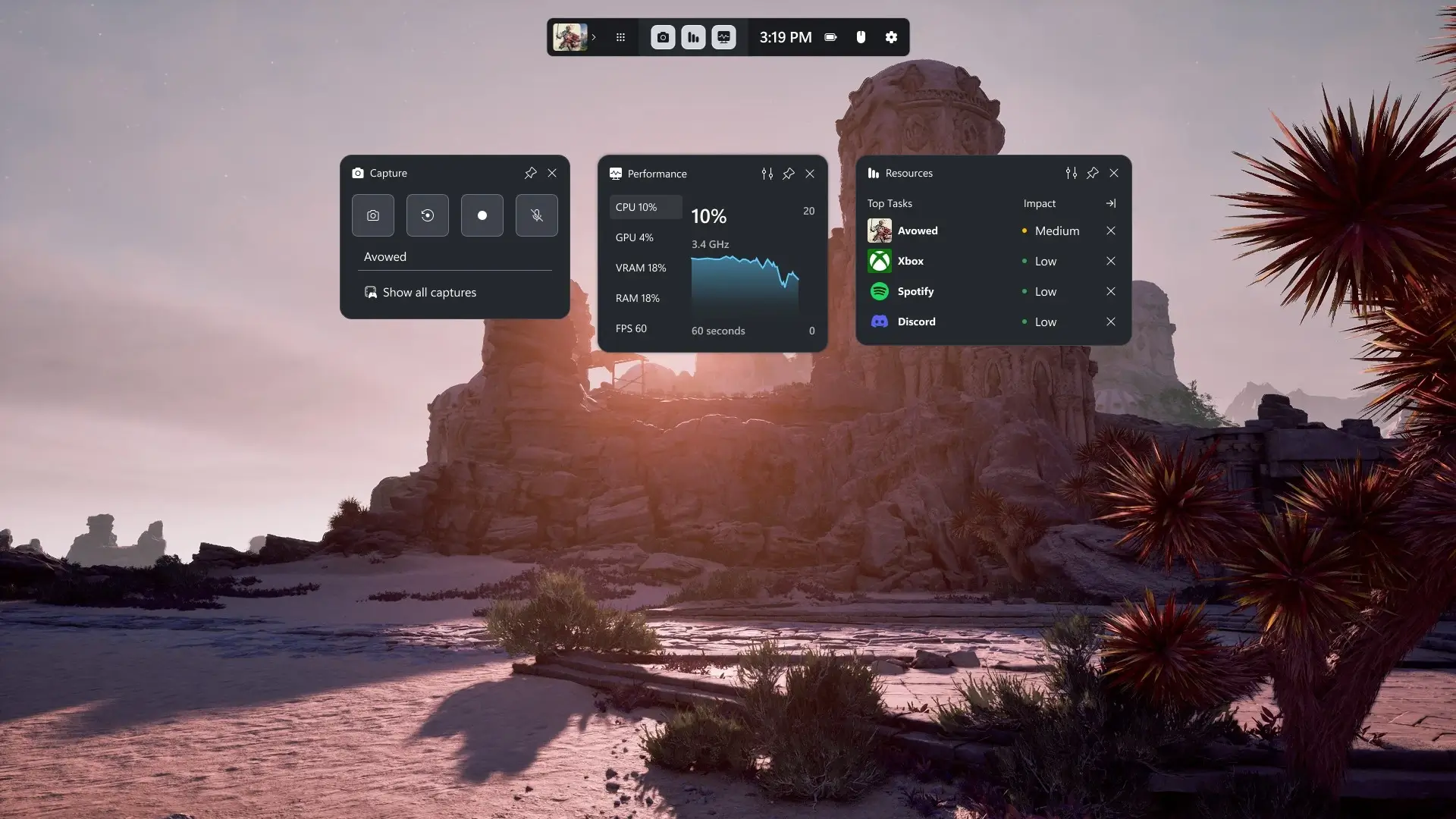
- Not Monitoring Resource Usage: Failing to keep an eye on which application is consuming the most resources can lead to overlooked performance issues. Use Task Manager to monitor this.
- Leaving Unnecessary Applications Open: Keeping many applications running simultaneously can lead to resource congestion, impacting performance.
- Overlooking Driver Updates: Neglecting to regularly update your GPU drivers can prevent your system from achieving optimal performance.
FAQ
Q1: Will disabling hardware acceleration completely impair my performance?
A1: While disabling hardware acceleration may limit some functionalities, it can improve overall system performance, especially in resource-constrained environments.
Q2: Can I selectively enable hardware acceleration for certain applications?
A2: Yes, some applications allow selective enabling. Be mindful of how they function in your workflow and adjust settings accordingly.
Q3: Is it possible to run optimally on both Discord and Chrome without any performance drop?
A3: It’s achievable by adjusting settings as mentioned above and actively managing background processes. Keeping your applications up-to-date and regularly cleaning your system can also help.
Hardware acceleration can undoubtedly embellish your experience by enabling high-performance tasks. However, it can also lead to GPU resource theft if not managed correctly. Discord, Chrome, and various game bars can consume crucial GPU and CPU resources when they are least needed, resulting in resource contention and performance drops.
By following the solutions outlined in this guide and actively monitoring your applications’ behavior, you can strike a balance between enhanced performance and resource efficiency, maximizing your system’s capabilities for gaming, streaming, and productivity.
