


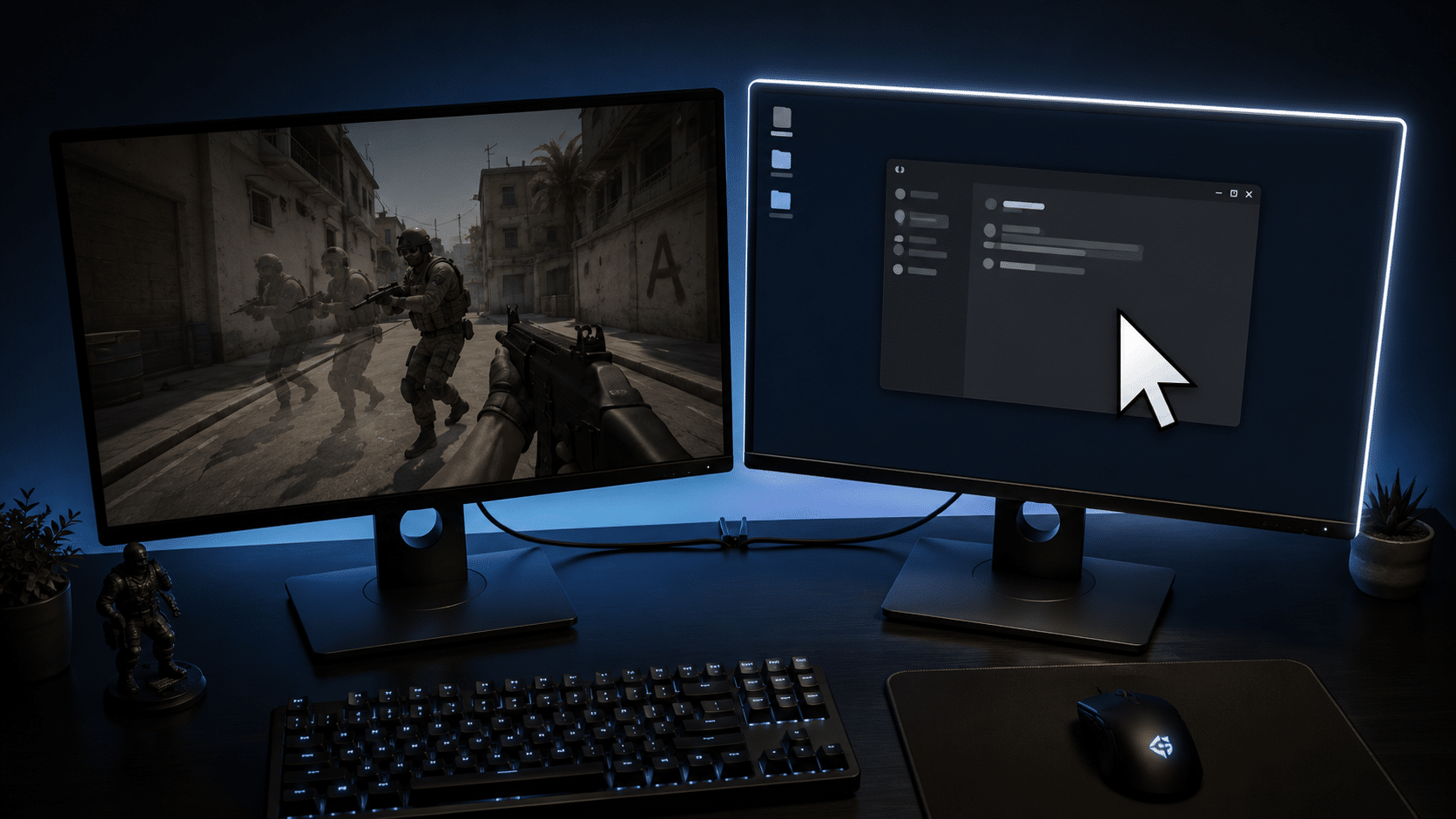
A game can run at a clean frame rate right up until you click Discord, a browser, or a video on your second monitor. The moment focus leaves the game, the counter tanks, stutters, or becomes uneven. When you click back, the problem often disappears. That pattern rules out a lot of generic GPU issues.
The drop usually comes from one of three systems interfering: foreground focus behaviour, GPU video decode and compositing load, or refresh rate and frame cap mismatch. The correct fix depends on which one you are actually triggering.
If your game loses FPS even when you stay on the primary monitor—or the stutter is triggered by mouse movement, GPU load, updates or another unrelated symptom—use our PC game stuttering troubleshooter to find the diagnostic path that better matches the problem.
Diagnose the Drop Before Changing Any Settings
Start by reproducing the issue deliberately. Do not change drivers, registry keys, or control panel settings until you know which failure mode you have.
Step 1: Check Whether Video or Animation Is Running on the Second Monitor
Pause any video, close animated wallpapers, and mute Discord overlays or stream previews. Then click the second monitor again.
If FPS stays stable with video paused but drops when video plays, you are dealing with GPU decode or compositing contention. A hardware-accelerated browser or app is using part of the GPU for video decode, and the game no longer has enough frame time headroom.
If FPS drops even with a blank second monitor, the problem is not video decode. It is focus handling, refresh rate, or display arrangement.
Step 2: Watch the Frame Rate When You Click Back
Click the game window again. If FPS recovers instantly, the game or Windows is treating the second-monitor click as a background state change.
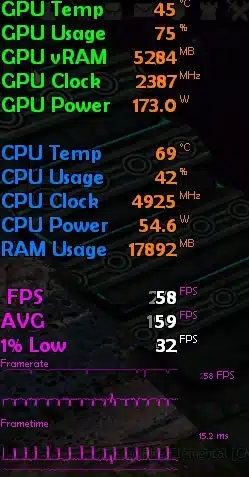
Many games have an in-game background frame rate limiter. Others use fullscreen optimisations that behave like borderless windowed mode. When the game loses foreground focus, Windows may apply different compositing behaviour, and the game may cap itself until it regains focus.
Step 3: Check GPU Utilisation and Video Decode Load
Open Task Manager, go to the Performance tab, and select your GPU. Reproduce the drop while watching the 3D and Video Decode graphs.
If Video Decode spikes when you click a browser on the second monitor, that is your answer. If 3D usage is already at 95–100 percent before the click, any extra compositing work from the second monitor is likely causing frame time spikes.
Step 4: Test with the Second Monitor Disconnected
This is not the fix, but it is a useful diagnostic. Disconnect or disable the second monitor and run the game normally. If the problem disappears completely, the issue is not the game’s render load alone. It is the dual-monitor configuration, device arrangement, or accelerated content on the second display.
If simply having the second monitor active makes the game stutter—even before you click it—follow our guide to fixing game stutter caused by a second monitor connection.
If the problem persists on one monitor, you are chasing the wrong cause.
Step 5: Check Display Arrangement and Refresh Rates
Open Windows display settings and look at how the monitors are arranged. If the second monitor is placed to the left of the primary monitor, it gets negative horizontal coordinates in Windows. Some games and drivers handle negative coordinates poorly, causing stutter or FPS drops when focus changes.
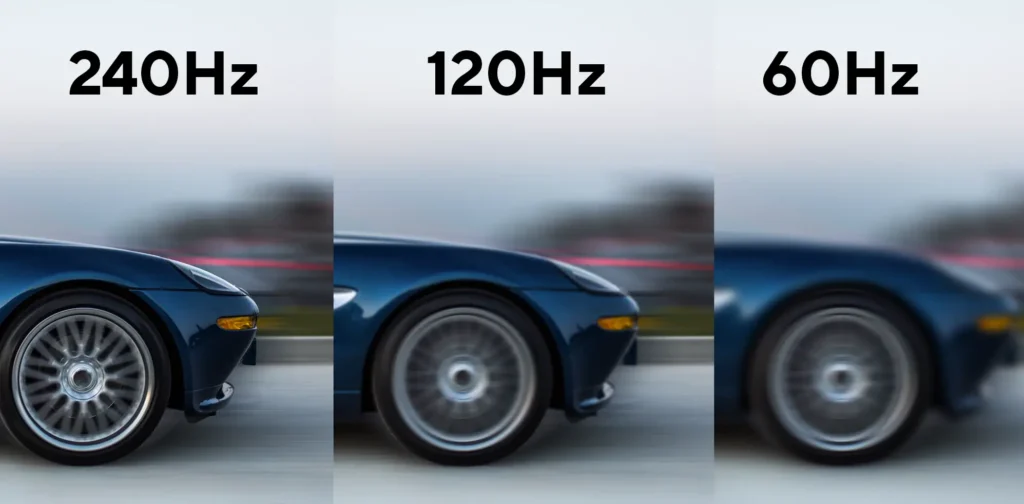
Also compare refresh rates. A common setup is a 144 Hz or 240 Hz primary monitor beside a 60 Hz secondary monitor. That is generally workable, but it can interact badly with frame caps, V-Sync, and desktop compositing during focus changes.
For the broader display-side diagnosis covering Alt-Tab behaviour, second monitors, fullscreen modes, VRR and focus changes, see our Alt-Tab and second-monitor game stuttering guide.
What Your Test Results Mean
Cause 1: Foreground Focus Is Triggering a Background FPS Limit
If FPS drops the instant the game loses focus, even with nothing demanding on the second monitor, the game is probably applying a background frame limiter. If the game instead becomes smooth while unfocused but starts stuttering again as soon as you click back into it, see why games can stutter after Alt-Tab when they regain foreground focus. Some games expose this as “Background FPS,” “Maximum Frame Rate When Inactive,” or “Pause Rendering on Focus Loss.”
Fullscreen optimisations can make this worse because the game may not fully behave like exclusive fullscreen. Windows can still treat the click as a focus change while the desktop compositor remains active.
Cause 2: Hardware-Accelerated Video Is Overloading the GPU
This matches the classic “video on second monitor while gaming” failure. The game may be using almost all of the GPU. A browser playing Twitch, YouTube, Discord stream preview, or even animated UI can force extra decode and compositing work onto the same GPU.
You do not need to be running a weak card for this to happen. If the game is already near full GPU load, a small additional 5–10 percent decode or compositing spike can shift frame times enough to feel like a major FPS drop.
Cause 3: Refresh Rate and Frame Cap Mismatch
If your primary monitor runs at 144 Hz and your FPS is uncapped, the game can push far beyond the refresh rate. That looks smooth in the frame counter, but it can create uneven frame delivery and extra GPU load.
When you click a second monitor, the desktop compositor may synchronise to the slower display. This can suddenly change frame pacing. Capping the game below the primary monitor’s refresh rate reduces this pressure and keeps frame delivery more consistent.
Adaptive Sync and V-Sync interact with this. A common reliable setup is Adaptive Sync on, V-Sync managed carefully, and an in-game frame cap a few frames below the monitor’s maximum refresh rate. For a 144 Hz monitor, try 140 or 141 FPS. For 60 Hz, try 57 or 58 FPS. The exact value matters less than staying below the ceiling.
Cause 4: Display Arrangement or Scaling Problems
A second monitor placed left of the primary creates negative coordinates in Windows. Some games and drivers do not handle focus changes cleanly when negative coordinates are involved. This can produce stutter that disappears when the monitor is moved to the right in display settings, even without physically moving the panel.
Mismatched scaling factors can also force extra compositing work. A 4K monitor at 150 percent scaling next to a 1080p monitor at 100 percent is not automatically broken, but it adds another variable to test.
Safe Troubleshooting Order
Follow this order. Each step is low-risk and easy to reverse. Make one change at a time and retest the click on the second monitor.
1. Disable Hardware Acceleration in the Apps You Use on the Second Monitor
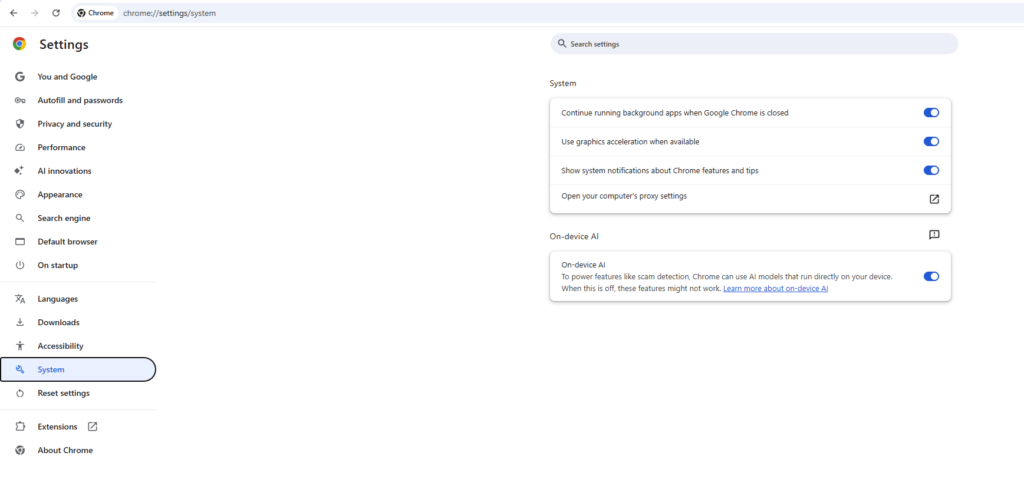
Start with the browser, Discord, Spotify, Slack, and any app showing video or animated previews. In most browsers, the setting is under System or Advanced settings: turn off “Use hardware acceleration when available.”
Why this helps: it shifts video decode and UI compositing workload away from the GPU, freeing frame time for the game.
When to skip: if you watch 4K video on a low-end CPU and disabling acceleration makes the video stutter, leave acceleration on and instead pause video while gaming.
2. Set a Background FPS Limit in the Game
Check the game’s video or display settings for a background frame rate option. Set it to the same cap as your foreground cap, or at least 30 FPS if you only care about avoiding a sudden jump.
Why this helps: if the game caps itself when unfocused, the drop becomes predictable and less jarring. It also prevents the game from wasting GPU cycles while you are using the other monitor.
When to skip: if the game has no such setting, use the next step.
3. Cap the Main Game Frame Rate Below the Monitor’s Refresh Rate
Use the in-game frame rate limiter first. If the game does not have one, use the driver control panel or a reliable external limiter.
For 144 Hz, try 140 or 141. For 165 Hz, try 160. For 240 Hz, try 235. The point is to stay below the refresh ceiling so Adaptive Sync or V-Sync does not engage unpredictably during focus changes.
Why this helps: it lowers GPU load, reduces frame time spikes, and improves consistency when a second monitor is active.
When to skip: if you play competitive games and deliberately run uncapped for minimum input latency, do not apply this globally. Use per-game settings and only cap games where the drop is severe.
4. Change the Game’s Display Mode
Test borderless windowed if you are currently using fullscreen exclusive, and vice versa.
Borderless windowed often prevents the jarring focus-loss FPS drop because the game never truly leaves the compositor. The trade-off is slightly increased input latency and a forced desktop compositing path.
Fullscreen exclusive can reduce compositor overhead, but it may minimise or stutter when you click away. Some games also have a separate “Disable fullscreen optimisations” option in the executable properties. Test it only if the standard modes do not help.
When to skip: do not disable fullscreen optimisations globally. Apply it per game, and revert it if it breaks overlays or causes worse behaviour.
5. Move the Second Monitor to the Right in Windows Display Settings
Open Settings > System > Display, drag the secondary monitor tile to the right of the primary, and apply.
Why this helps: it avoids negative coordinates. This is the fix mentioned in dual-monitor troubleshooting threads where the left-side monitor was the trigger.
When to skip: if your monitor is already on the right or you physically need it on the left, test it anyway. You can move it back if there is no change.
6. Match Refresh Rates Temporarily for Testing
Set both monitors to 60 Hz, or the highest common refresh rate, and reproduce the click. If the FPS drop disappears, refresh rate mismatch is involved.
After the test, return the primary monitor to its native high refresh rate. Use a frame cap from step 3 instead of leaving both at 60 Hz.
When to skip: if your second monitor cannot match the primary at all, do not leave it at an unstable custom refresh rate. Move on to display arrangement and capping.
7. Pause or Close Second-Screen Video During Demanding Games
This is not always a permanent fix, but it is the cleanest way to remove GPU decode contention. Pause Twitch, YouTube, or stream previews before hitting a ranked match.
Why this helps: video decode and compositing load drop to near zero, leaving the GPU for the game.
When to skip: if you need the second monitor for chat or audio only, this is fine. If you must watch video while gaming, combine this with a frame cap and hardware acceleration disabled where possible.
Common Mistakes That Keep It Stuck
Capping at Exactly the Refresh Rate
Capping at 144 FPS on a 144 Hz monitor can still cause frame delivery problems. The game may repeatedly hit the refresh ceiling and trigger V-Sync or Adaptive Sync engagement. Cap a few frames below the refresh rate, not exactly at it.
Changing Too Many Settings at Once
If you disable hardware acceleration, change display mode, and move the monitor all at once, you will not know which change fixed it. Test one change at a time.
Assuming the FPS Counter Is Always Showing the Truth
Sometimes the game FPS does not drop, but video on the second monitor stutters. That is a different problem. A browser video stutter while the game stays smooth is often a decode or refresh mismatch issue, not a game FPS drop. Diagnose the right symptom before applying game fixes.
Blaming the GPU Without Checking Background Limits
A 5 FPS drop when clicking a second monitor can feel like a performance problem, but it may just be a 30 FPS background limiter activating. Check the game’s inactive frame rate setting before touching drivers or power settings.
Leaving Hardware Acceleration On Because “It Is Just a Browser”
A browser playing 1080p or 4K video can use meaningful GPU decode and 3D compositing resources. When a game is already at high GPU utilisation, this is enough to create frame time spikes.
Edge Cases Where the Standard Fix Changes
The Second Monitor Is Connected to the Motherboard Instead of the GPU
If you have an integrated GPU and a dedicated GPU, make sure both monitors are connected to the dedicated GPU if possible. A second monitor on integrated graphics can still work, but the desktop compositor may need to copy frames between GPUs. This can create focus-related stutter or extra latency. Connect both displays to the same GPU to rule this out.
HDR Is Enabled on the Second Monitor
HDR on a secondary display can increase scanout and compositing cost. If you do not need HDR on that monitor during gaming, turn it off in Windows display settings and retest.
The Game Has a Separate “Focused” and “Unfocused” FPS Cap
Some games expose both values. Set them close together. A large gap, such as 144 FPS focused and 20 FPS unfocused, makes the drop extremely noticeable. Raising the unfocused cap to 60 or matching it to the focused cap can make the transition feel smooth.
G-Sync or FreeSync Is Enabled in Windowed Mode
Some setups run Adaptive Sync only in fullscreen mode, while others enable it for windowed mode. If clicking a second monitor causes sudden stutter, try changing the Adaptive Sync mode in the driver control panel. Fullscreen-only can behave more predictably in some dual-monitor configurations.
Frequently Asked Questions
Why does my FPS drop when I click my second monitor even when nothing is playing on it?
The game is likely losing foreground focus and applying a background frame rate limit. Windows fullscreen optimisations can also keep the compositor active, changing frame pacing when focus moves. Check the game’s background FPS setting and test borderless windowed mode.
Should I cap FPS below my refresh rate if I do not use V-Sync?
Yes, in many cases. A cap a few frames below the refresh rate is useful even without V-Sync because it prevents the game from slamming into the refresh ceiling and reduces GPU load during dual-monitor use. If you are playing a competitive game where maximum FPS matters more than frame pacing, skip the cap for that title.
Does hardware acceleration in a browser really affect game performance?
Yes. Hardware-accelerated video and UI compositing use the same GPU as the game. If the game is already using most of the GPU, a browser playing video or animated content can cause frame time spikes. Disabling hardware acceleration or pausing video is a valid first test.
