


Planning storage for a large PC game library works best when you start with the drives you already have rather than choosing a new SSD size from a generic rule. Windows 11 can show how storage is being used, how much capacity remains available, and how usage is distributed across connected drives. Those measurements let you build a plan around the actual state of the PC instead of assumptions. This guide stays focused on capacity and drive-layout planning rather than migration, hardware installation, SSD-health checks, update behavior, or troubleshooting.
The goal is to separate measured facts from planning decisions. Windows can tell you how much capacity exists, how much is already in use, which categories are consuming space, and when a drive has entered a low-space state. You can then decide what role each drive should have and how much future demand you expect it to absorb. Microsoft does not define one universal free-space percentage for every drive, so the plan should rely on current measurements and warning states instead of a made-up reserve rule.
Measure the Storage You Already Have
Begin in Windows Settings by selecting System and then Storage. Microsoft documents this as the route to Storage settings, where usage is divided into categories such as Installed apps, Temporary files, and System & reserved. That breakdown matters because a Windows drive contains more than games and launchers. It gives you a clearer picture of what is competing for capacity before you make decisions about the game library.
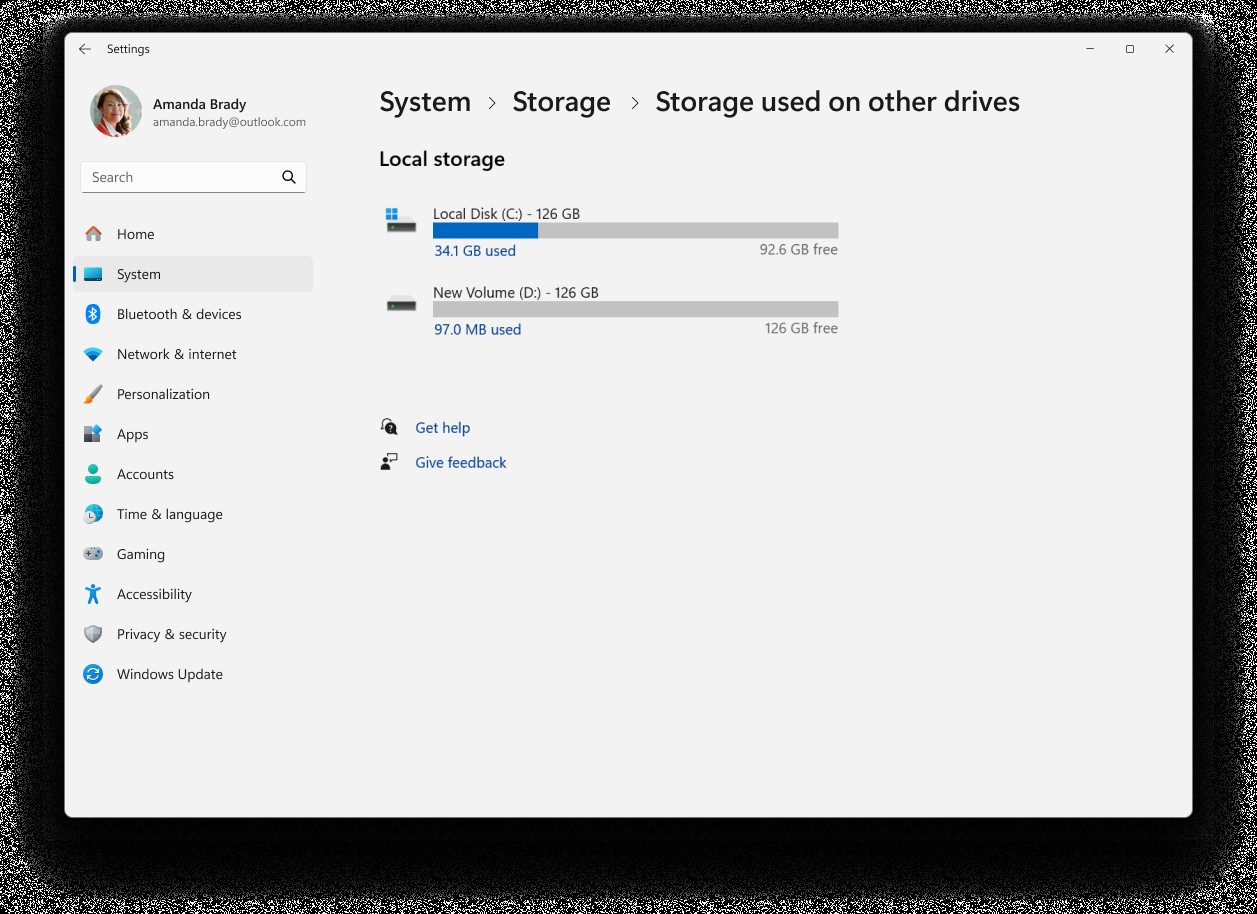
If the PC has more than one drive, continue through Advanced storage settings > Storage used on other drives. Microsoft says this view includes connected internal and external drives and can show the storage consumption of each one. Selecting an individual drive can also reveal a categorized breakdown of its usage. This gives you a per-drive view instead of treating every storage device in the PC as one combined pool.
Record the available storage for every drive that matters to the library plan. Microsoft specifically documents that the multi-drive view can show available storage across all drives at once, while Windows Storage is also a supported way to check how much disk space is available. Available storage is the key current-state measurement because total capacity alone does not show how much room remains after existing content is taken into account. A drive can have a large total capacity while still having relatively little usable room left.
Windows 11 also provides another supported way to confirm remaining capacity through File Explorer. Microsoft says you can open File Explorer, select This PC, and view available space under Devices and drives. That gives you a useful second reference point when you want to confirm the state of a particular drive. This planning method therefore does not depend on measuring the installed size of every individual game.
For a more complete inventory, record disk type, total capacity, and current usage where those values help distinguish devices. Microsoft documents that Windows can expose whether connected storage is an SSD or HDD as well as its capacity and current usage. Treat those values as identification and capacity facts rather than as performance judgments. The purpose is to keep every measurement attached to the correct drive in a multi-drive system.
| Planning field | What to record | Why it matters |
|---|---|---|
| Drive identity | The drive or volume being planned | Keeps measurements tied to the correct storage device |
| Disk type | SSD or HDD as reported by Windows | Helps distinguish connected devices |
| Total capacity | The drive's reported capacity | Shows the overall storage limit |
| Current usage | Space already in use | Shows how much capacity is committed |
| Available storage | Space currently remaining | Shows what capacity is free now |
| Low-space state | Whether Windows reports a low-disk condition | Provides a supported warning condition |
| Intended role | Your planned use for the drive | Separates planning decisions from measured facts |
Treat the Windows System Drive Separately
The drive that already contains Windows should have its own line in the plan. Microsoft says Windows reserves part of the system drive for temporary files, caches, and other files used for operating needs. That reserved space means the Windows drive should not be treated as though all of its remaining capacity exists solely for game installations. It has operating-system responsibilities that secondary storage does not necessarily share.
You can inspect system-reserved storage from Storage settings by selecting Show more categories. That gives you a documented way to distinguish operating-system storage from other usage on the drive. The objective is not to calculate one fixed reserve amount that every PC must preserve. Instead, the point is to recognize that some system-drive capacity exists for Windows rather than for the game library.
Microsoft also warns that low free space can affect device performance and make system upgrades more difficult to receive. Windows identifies a low-disk state by turning the capacity bar in Storage settings red. Use that as a supported warning condition when reviewing the layout rather than as a target to approach. A storage plan should make it easy to notice pressure on the system drive as its available capacity changes.
The important limitation is that Microsoft does not define one universal free-space percentage that applies to every drive. Its documentation says low free disk space varies depending on disk size and minimum operational thresholds. That means a rule such as keeping the same percentage free on every SSD would go beyond the supplied evidence. A stronger plan records current free space, monitors Windows warning states, and revisits the layout as those measurements change.
Assign an Intended Role to Each Drive
Once you have recorded the measured values, add an intended role for each relevant drive. The existing Windows drive can be marked as the system drive, while other connected storage can be labeled according to how you intend to use it within the game library. Those role labels are planning decisions rather than Windows-generated facts. Keeping that distinction visible prevents your intended future layout from being confused with the drive's current measured state.
If you are still deciding whether a storage device should be internal or external, keep that broader choice outside this planning hub. The separate comparison external SSD vs Internal SSD – Which Is Better for Storage? covers that decision. This article assumes the relevant drives are already connected or are otherwise part of the intended layout. Its job is to organize capacity and roles without duplicating storage-type buying advice.
A useful worksheet therefore combines two different categories of information. Windows supplies measurable values such as disk type, capacity, current usage, available storage, storage categories, and low-space state. You add planning fields such as intended role and expected future demand. Keeping measurements and estimates separate makes it easier to update the plan without accidentally presenting an assumption as a current fact.
Plan Headroom From Measured Free Space
Available storage is the most useful current-state figure for deciding how much room remains on each drive. Windows can show that figure across multiple drives, while its storage views can also help identify which devices are nearing capacity. Use those measurements to compare where pressure is developing across the layout. The evidence supports planning from measured free space, but it does not support forcing every drive to keep the same percentage unused.
The system drive deserves additional attention because Windows reserves storage there for operating needs. Secondary drives can be reviewed separately through Storage used on other drives, so you do not need to infer their condition from the system drive. If one drive has considerably less available capacity than another, record that difference as part of the plan. Where future content should go is then your planning decision based on measured conditions rather than a universal formula.
- Record available storage for every relevant drive.
- Keep the existing Windows system drive separate in the worksheet.
- Use the Windows low-disk state as a warning condition rather than a target.
- Do not apply one universal free-space percentage to every drive.
- Keep expected future demand separate from current measured capacity.
Review Reclaimable Space Before Changing Capacity
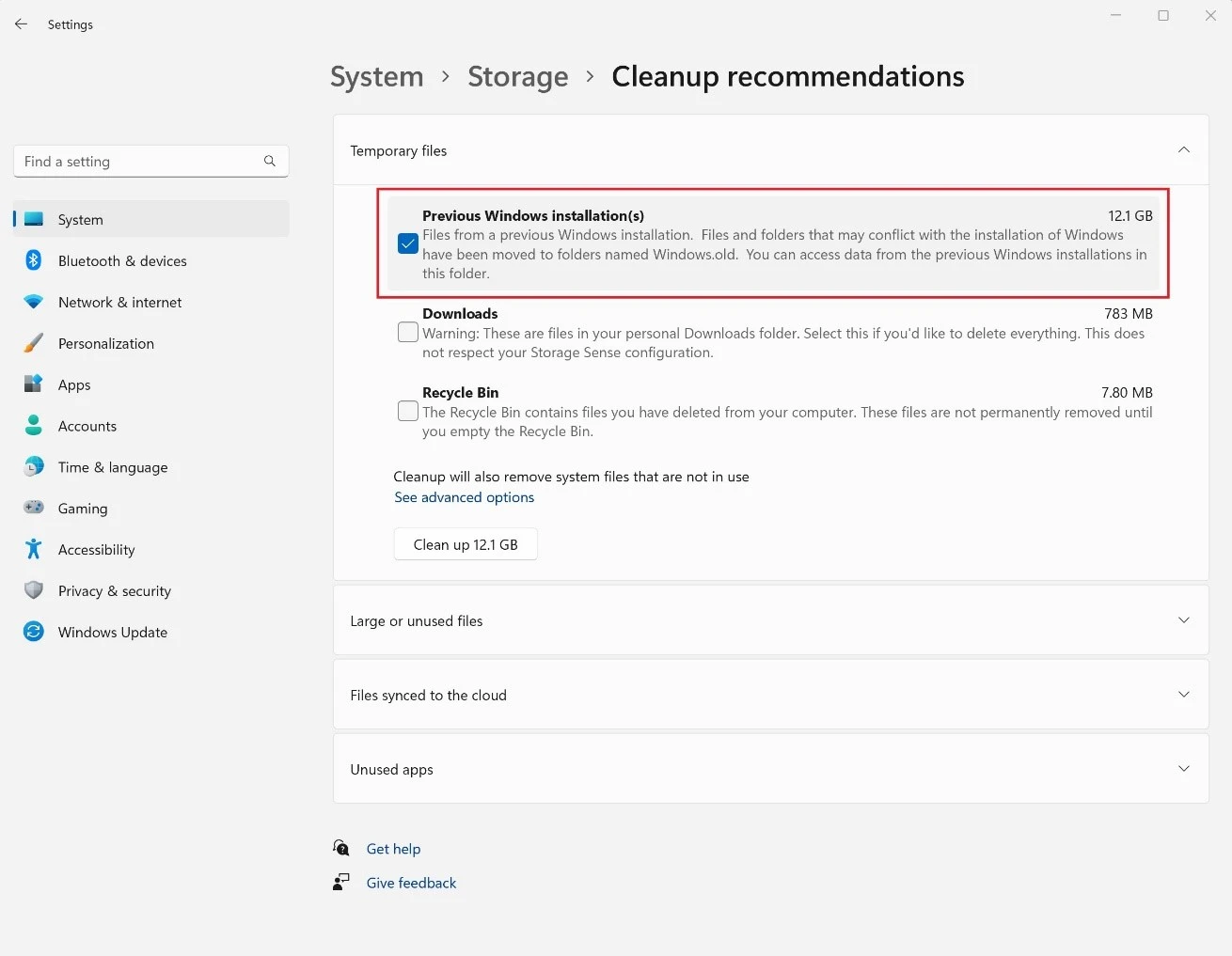
Before treating storage pressure as a permanent capacity problem, review what Windows identifies as potentially reclaimable. Microsoft says Cleanup recommendations can identify temporary files, large or unused files, and applications that are rarely used. That gives you a documented way to inspect whether some current usage can be reduced before deciding that the layout itself must change. Treat Cleanup recommendations as a review tool rather than an instruction to remove every item it presents.
Microsoft's Windows 11 cleanup guidance gives more detail about the categories that may appear. It lists Temporary files, Large or unused files, Files synced to the cloud, and Unused apps within Cleanup recommendations. Reviewing those categories can help you distinguish storage you expect to keep occupied from content Windows presents as a possible cleanup candidate. That makes the later capacity plan more representative of the space you actually intend to keep using.
Microsoft also advises checking whether enough space has been freed after each cleanup step before moving on to the next one. That principle fits a storage-planning workflow because it encourages you to remeasure instead of stacking changes without checking their effect. After a cleanup action, return to the storage measurements and update the worksheet. This keeps the plan tied to the current state of the drives instead of to an assumption about how much space should have been reclaimed.
Understand What Storage Sense Does and Does Not Cover
Storage Sense can automatically remove certain unnecessary items such as temporary files and Recycle Bin contents. That can reduce pressure on the Windows system drive without requiring every temporary item to be reviewed manually. Its scope matters in a multi-drive gaming PC, however. Microsoft explicitly states that Storage Sense works only on the system drive, which is usually C:.
Secondary drives still require their own review through Storage used on other drives. Enabling Storage Sense should therefore not be interpreted as automatic maintenance for every game-storage SSD or HDD connected to the PC. A secondary game drive can still move toward capacity while Storage Sense is active on the system drive. Keep system-drive cleanup and secondary-drive capacity review as separate parts of the worksheet.
Use Windows Default Locations Only Where They Apply
Windows lets you choose different default drives for supported categories of new content. Microsoft specifically lists new apps, documents, music, pictures, and videos. That control can be part of the storage plan when you want supported Windows content to use a different drive by default. It should not be described as a universal game-launcher control because the evidence does not establish that every third-party launcher follows these Windows settings.
For Windows 11, Microsoft documents the path as Start > Settings > System > Storage > Advanced storage settings > Where new content is saved. That gives you a supported location for changing the categories Windows exposes there. If you use those controls, record the intended destination in the layout so the plan reflects where supported new content is expected to go. Keep launcher-specific game-installation paths outside this hub unless they are established by separate first-party documentation.
Keep Local Capacity and Backup Protection Separate
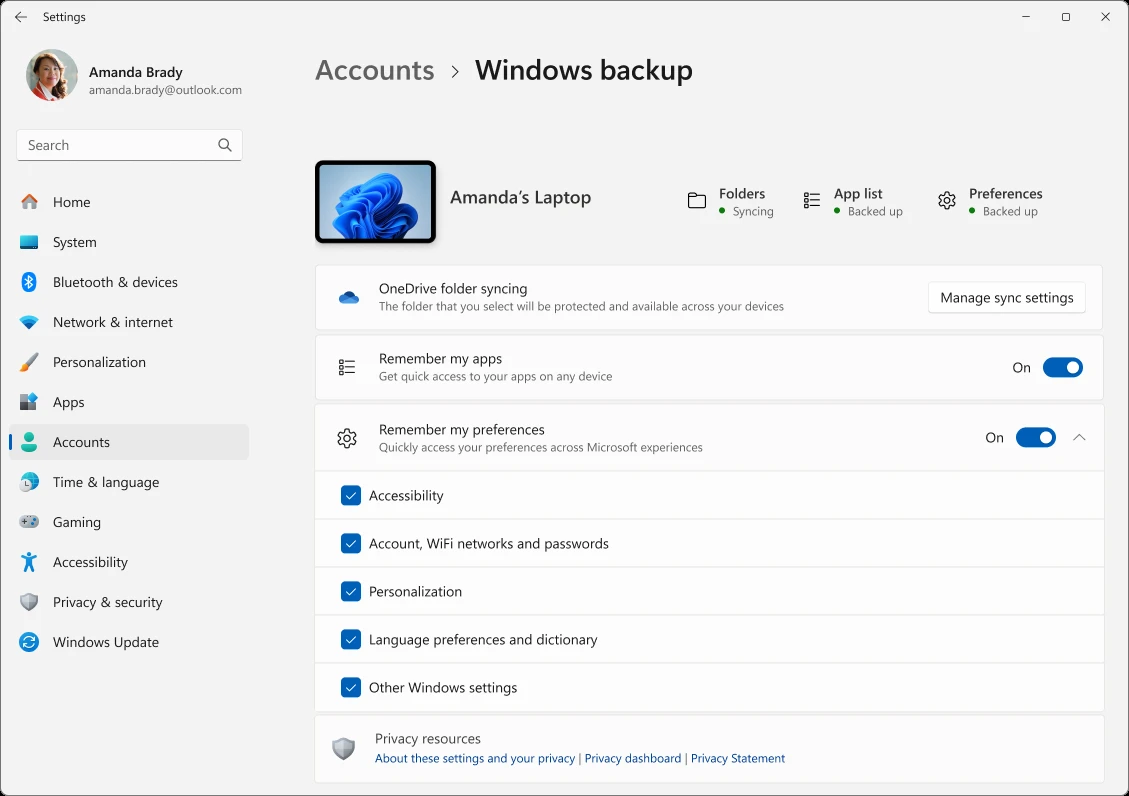
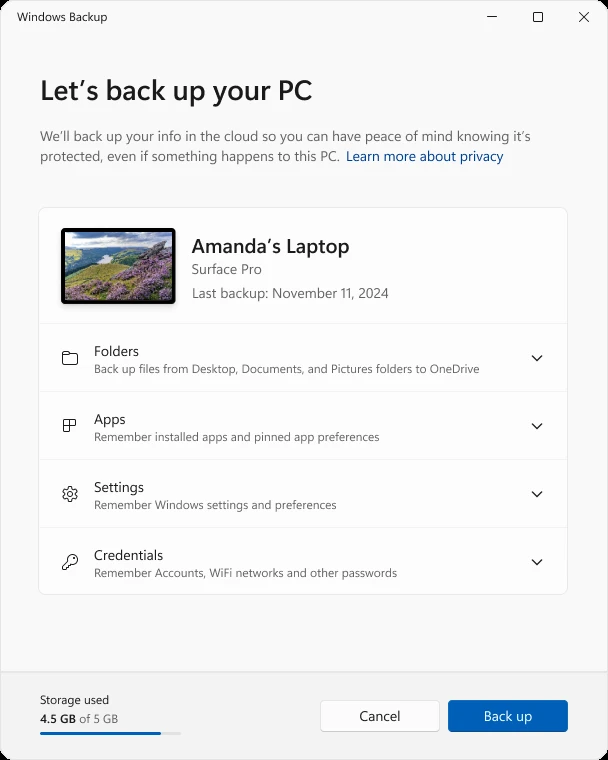
Free local storage tells you how much installation capacity remains, but it does not tell you whether important files are protected. Windows Backup can synchronize selected user folders including Desktop, Documents, Pictures, Videos, and Music to OneDrive. It can also remember installed apps and several categories of Windows settings and preferences. Those functions belong on the protection side of the storage plan rather than being counted as extra local game-storage capacity.
Windows Backup should not be treated as a raw copy of every installed game. Microsoft says applications that are not available in the Microsoft Store may direct the user to the web to download the installer again during restoration. That establishes a meaningful distinction between remembering that an application was installed and preserving all of its local installation files. If retaining particular game data matters, make that a separate protection requirement instead of assuming Windows Backup preserves the complete installation.
Steam Cloud has a similarly specific scope. Valve says Steam Cloud stores files from games on Steam's servers so supported saved data can be accessed from another computer. Replication applies to files configured for Auto-Cloud or written through the Cloud API. Those statements do not support describing Steam Cloud as a complete copy of every installed game or every file associated with a Steam installation.
Valve also says Steam Auto-Cloud synchronizes file groups that have been specified for persistence. Its protection therefore depends on what the individual game's cloud configuration includes. Steam Cloud can also be disabled globally or on a per-game basis. For planning purposes, treat cloud-save protection as something to verify separately rather than something guaranteed simply because the game is installed through Steam.
Update the Plan When Measurements Change
A storage plan is useful only while its measurements still match the PC. After a major installation, removal, or cleanup, return to Windows Storage and review per-drive usage and available capacity again. Microsoft provides both individual-drive information and a multi-drive view, so the worksheet can be refreshed from current values rather than old estimates. Replacing stale measurements is more useful than keeping a plan that no longer represents the actual drive layout.
Rechecking is especially important when the system drive and secondary game-storage drives are changing at different rates. Windows exposes connected drives separately and can report a low-space condition through its Storage interface. Your plan can therefore track the condition of each relevant drive independently instead of reducing the PC to one total capacity figure. That makes it easier to see which part of the layout actually needs attention.
Know When Planning Ends and a Dedicated Procedure Begins
This hub should stop once the measurements identify a specific storage action that needs its own instructions. Moving an existing Steam library, installing another NVMe SSD, preparing an external SSD, checking SSD health, investigating update-space behavior, checking USB performance, or troubleshooting a disconnecting drive each requires evidence specific to that workflow. The planning process here identifies where capacity pressure exists and which drive is affected. Implementation belongs in the relevant dedicated procedure rather than being improvised inside a general planning article.
That boundary also keeps this article from overlapping with the rest of the storage cluster. Capacity planning should tell you what the current storage picture looks like, where the constrained areas are, and what role each drive is expected to play. It should not become a partial tutorial for migrating Windows, moving Steam games, installing hardware, checking SSD health, or diagnosing USB behavior. Those are separate tasks that need their own first-party evidence and verification steps.
Build the Plan in a Simple Order
- Open Windows Settings > System > Storage.
- Review the storage categories shown for the existing Windows system drive.
- Open Advanced storage settings > Storage used on other drives.
- Record available storage for every relevant connected drive.
- Optionally confirm remaining space in File Explorer > This PC.
- Record disk type, total capacity, and current usage where those values help identify the device.
- Inspect system-reserved storage through Show more categories.
- Mark the existing Windows drive separately from secondary storage.
- Add an intended role for each drive as a planning field.
- Use the Windows low-disk state as a warning condition instead of applying one universal free-space percentage.
- Review Cleanup recommendations before assuming additional capacity is required.
- Remeasure after cleanup instead of assuming how much space was recovered.
- Remember that Storage Sense applies only to the system drive.
- Keep Windows Backup and Steam Cloud coverage separate from local installation capacity.
- Repeat the audit after major changes to storage usage.
What a Finished Storage Plan Should Show
A finished plan should give you a current record of each relevant drive's identity, disk type, total capacity, current usage, available storage, low-space state, and intended role. It should distinguish the existing Windows system drive from secondary storage and make clear which values come from Windows versus which fields are your own planning decisions. Those measurements let you see where capacity is constrained without inventing unsupported thresholds. They also provide a repeatable baseline for later reviews.
The same plan should make clear that local capacity, backup coverage, and cloud synchronization are different planning concerns. Windows Backup can synchronize selected folders and remember applications or settings, while Steam Cloud synchronizes configured game-related files and may be disabled. Those capabilities should not be counted as additional local game-storage capacity or assumed to preserve every local installation file. Keeping them separate in the plan gives you a clearer view of how much local room remains for games and which files or settings have documented backup or cloud coverage.
