


G-Sync and FreeSync do not automatically fix stutter. They only help when the game frame rate stays inside the monitor’s VRR range and when the display, GPU driver, and game all agree on who controls sync. Most “VRR stutter” cases come from three sources: the game’s V-Sync setting overriding VRR near the refresh cap, a frame cap that sits at or above the ceiling, or the monitor’s adaptive sync not actually being active while the driver says it is.
Before changing game settings, treat VRR stutter as a configuration problem, not a performance problem. A high FPS counter does not prove VRR is working. You need to test the actual sync path.
If the game still stutters with G-Sync or FreeSync completely disabled, use our PC game stuttering troubleshooter to identify whether the real cause is frame pacing, GPU load, background software, drivers or another symptom.
Symptom Patterns That Point to VRR Misconfiguration
- Stutter appears only at high frame rates, especially within a few FPS of the monitor’s maximum refresh rate.
- Game is smooth in the 80–120 FPS range but falls apart at 140–165 FPS on a 165Hz monitor.
- Tearing or stutter appears despite G-Sync/FreeSync showing “On” in the driver.
- The monitor OSD refresh rate stays fixed instead of changing with frame rate.
- The problem disappears when you enable V-Sync in-game, but input lag becomes noticeable.
- Stutter is inconsistent in the same scene, which suggests mode switching at the ceiling.
If your stutter also appears after Alt-Tabbing, when using a second monitor or when switching between fullscreen and borderless modes, see our broader Alt-Tab, second-monitor and display-mode stuttering guide.
Diagnostic Section: Confirm VRR Before Changing Game Settings
Use this order to avoid guessing. Do not change multiple settings at once.
1. Check the Monitor OSD Refresh Rate
Most VRR-capable monitors display the current refresh rate in their on-screen menu under an information or gaming section. With VRR active, that number should move up and down as the frame rate changes. If it stays locked at the maximum refresh rate while the game is running, the monitor is not receiving a variable refresh signal.
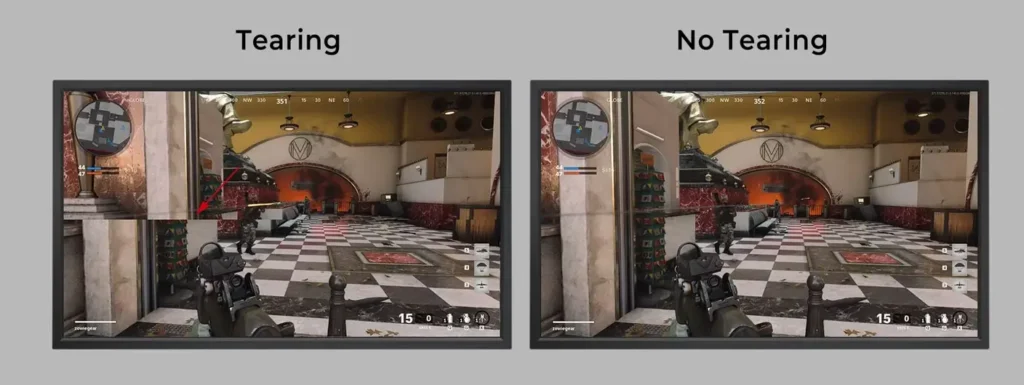
This is the closest thing to a direct VRR test. It confirms the display is changing its scanout rate in real time. If you cannot find the current refresh rate in the OSD, do not assume VRR is active from the driver alone.
2. Use TestUFO’s VRR Simulation as a Visual Reference
Blur Busters’ TestUFO VRR demo is a browser simulation, not a hardware test. It shows what smooth frame rate transitions should look like on any screen. Run the slow ramp or fast random test. If the animation looks choppy on a monitor that should be VRR-capable, the problem is usually browser compositing, not your game.
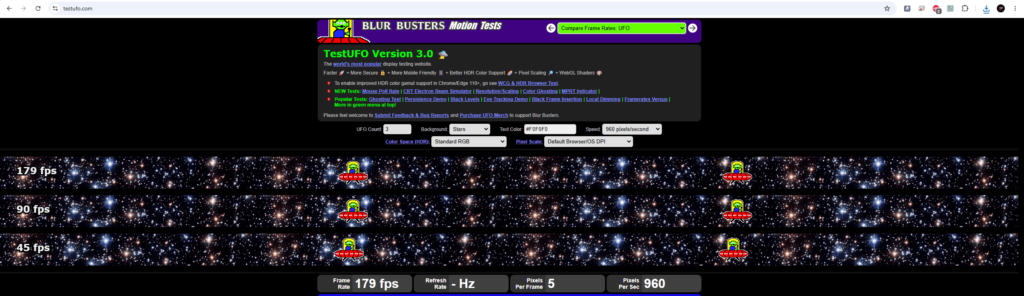
This tool will not confirm that G-Sync or FreeSync is active. It helps train your eye to recognize the difference between fixed-refresh stutter and smooth variable-rate motion. After you have seen the simulation, compare that visual to the game. If the game looks worse than the simulation, the game is likely not running in VRR mode.
3. Disable In-Game V-Sync and Cap Below the Ceiling
In most games, V-Sync and VRR should not both be active. When the frame rate reaches the monitor’s maximum, V-Sync can take over, creates a frame queue, and introduces stutter or input lag. Set a frame rate cap slightly below the monitor’s maximum refresh rate: for example, 237 FPS on 240Hz, 141 FPS on 144Hz, or 116 FPS on 120Hz.
If the problem began immediately after changing your monitor’s resolution or refresh rate, follow our guide to resetting and testing a resolution or refresh-rate change that caused stutter.
This keeps the GPU from hitting the ceiling and prevents V-Sync from engaging. If the stutter disappears with only these two changes, the cause was a V-Sync/VRR conflict, not the GPU or monitor.
4. Reintroduce Driver V-Sync Only After the Baseline Test
NVIDIA often recommends enabling V-Sync in the NVIDIA Control Panel for G-Sync, but this is not the same as in-game V-Sync. If your baseline test is smooth with no V-Sync and a cap below the refresh rate, leave it alone. If you need a ceiling fallback for older games that ignore frame caps, you can test driver V-Sync after you have confirmed the cap alone works. Do not enable both in-game and driver V-Sync at the same time for the initial test.
Numbered Safe Troubleshooting Order
Follow these steps in order. Change one thing at a time and retest after each step.
- Turn on adaptive sync in the monitor OSD first. The option may be called Adaptive Sync, FreeSync, VRR, or G-Sync Compatible depending on the display.
- Enable G-Sync or FreeSync in the GPU driver. In NVIDIA Control Panel, confirm the monitor is listed as G-Sync Compatible and the checkbox is selected. In AMD Software, confirm FreeSync is on for the display.
- Set the game to run in fullscreen or the fullscreen equivalent for your driver. Windowed and borderless modes can prevent VRR from engaging on some setups.
- Disable in-game V-Sync completely.
- Set an in-game or driver frame rate cap below the monitor’s maximum refresh rate. Use a value at least 3 FPS below the ceiling.
- Run a single-player, predictable scene to test. Avoid online matches or heavy streaming while diagnosing because server tick rates and background video can create stutter that has nothing to do with VRR.
- Open the monitor OSD while the test scene runs. Watch whether the refresh rate changes with the frame rate. If it does, VRR is working. If it remains fixed, stop and fix the monitor/driver connection before changing more game settings.
- Use TestUFO’s VRR simulation to compare your eye’s expectation of smoothness. This is a visual reference only; it will not turn on hardware VRR.
- If stutter remains with VRR confirmed active, remove the frame cap and re-enable in-game V-Sync to compare. If that is smoother, your VRR range or monitor may not be handling low frame rates correctly.
- Test a second game. Some game engines conflict with VRR more than others. Do not assume the display is broken based on one title.
Common Mistakes That Make VRR Stutter Worse
- Enabling in-game V-Sync and VRR together. This is the most common mistake. It defeats the purpose of VRR and causes stutter at the refresh rate ceiling.
- Capping at exactly the maximum refresh rate. A 165 FPS cap on a 165Hz monitor still allows the frame rate to touch the ceiling and trigger V-Sync or mode switching.
- Trusting the FPS counter. A high frame rate does not mean the monitor is varying its refresh rate. Check the OSD refresh rate instead.
- Assuming TestUFO VRR proves your hardware is working. The VRR demo is a software simulation and runs through a browser. It cannot access G-Sync or FreeSync in most cases.
- Leaving VRR off in the monitor OSD while the driver says enabled. The driver can show VRR as on, but the display still runs fixed refresh.
- Changing GPU, game, and monitor settings at the same time. You may fix the issue but will not know which change worked, which means it can return later.
Edge Cases That Break the Standard Fix
- Low frame rates below the VRR minimum: Some monitors have a minimum VRR range, often around 40–48Hz. If the game drops below that, the display may switch to fixed refresh or use low framerate compensation. If the monitor does not support LFC, stutter returns. A frame cap cannot fix this; you need to improve frame timing or lower graphics settings.
- Multi-monitor setups: A second monitor with a different refresh rate or one not using VRR can interfere in some driver configurations. Test with only one display connected before assuming G-Sync/FreeSync is broken. If VRR works properly in fullscreen but the game becomes sluggish or uneven specifically in borderless windowed mode, see our guide to why games can run worse in borderless than exclusive fullscreen.
- Browser-based VRR simulation looks janky: Hardware acceleration, browser refresh rate mismatch, or an external display running through a dock can make TestUFO’s simulation stutter. This is not a game VRR fault. Use a local game or monitor OSD for final confirmation.
- In-game frame caps are worse than driver caps: Some games have uneven frame pacing when capped internally. If a game still stutters with an in-game cap, try the same cap in NVIDIA Control Panel or AMD Software and disable the in-game cap.
- Notebook hybrid graphics: Some laptops route the display through the integrated GPU. If the dedicated GPU is rendering the game but the display is connected to the iGPU, G-Sync/FreeSync may not engage. This is a common cause of “VRR on but not working” on gaming laptops.
FAQ
Why does my game stutter only near the refresh rate cap?
Because VRR stops being a variable refresh path at the ceiling. When the frame rate reaches the maximum refresh rate, V-Sync or a fixed refresh fallback can take over. The sudden switch between variable and fixed sync creates stutter. Capping below the ceiling prevents this transition.
Can I test real G-Sync or FreeSync without a game?
You can check the monitor OSD while a game or VRR-capable application is running to see whether the refresh rate changes. Browser-based tools like TestUFO VRR are useful for seeing what smooth VRR should look like, but they do not confirm hardware VRR on your monitor.
Should I enable V-Sync in the NVIDIA Control Panel with G-Sync?
Not for the initial test. Start with in-game V-Sync off and a frame cap below the refresh rate. If the game is smooth, leave it that way. Driver V-Sync can help as a fallback for games that ignore frame caps, but enabling it before you isolate the issue can hide the real cause.
