


A resolution or refresh rate change should not make a game stutter by itself. When it does, the new mode usually changes GPU load, frame pacing, or the shader pipeline in a way your current setup was not handling. Before fixing anything, prove which of those is involved.
Revert to the old mode once
Run the same game scene, map, or benchmark loop with the exact previous resolution and refresh rate. If the stutter disappears, the problem is tied to the new display mode. If the stutter remains even after reverting to the previous resolution and refresh rate, use our PC game stuttering troubleshooter to identify the symptom path that better matches the problem. If it remains, you are not dealing with a resolution or refresh issue at all. This one test saves time because it separates a display-triggered stutter from a background app, driver, or game update issue.
Watch frame time, not just FPS
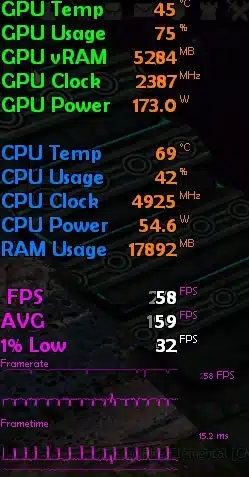
A frame counter can report 100 FPS while the frame time graph spikes from 8 ms to 30 ms. That spike is the stutter you feel. Use an in-game frame time graph or an overlay that reports frame times. If the graph is jagged while average FPS looks fine, treat this as a pacing problem, not a raw performance problem.
Check the actual render resolution
A new 1440p or 4K monitor often makes the game render at a much higher native resolution than an old 1080p screen. This can push a GPU from comfortable to maxed out. Check the game’s resolution scale, render resolution, DLSS, FSR, or XeSS setting. Some games also keep the old resolution while the desktop resolution changes, so confirm the display mode inside the game matches what Windows reports.
Watch GPU utilisation and power during the spike
If GPU utilisation or power drops sharply at the moment of a stutter, the issue is often a sync, driver, or power management interruption rather than a simple lack of GPU power. If GPU usage is pinned at 99–100% and frame times are inconsistent, the new resolution is probably too heavy for the GPU.
If the problem also involves Alt-Tab behaviour, a second monitor, borderless mode or display focus changes, see our broader guide to game stuttering caused by display mode, VRR and focus conflicts.
Why the new display mode can stutter
There are three common mechanisms.
First, higher refresh rates can expose adaptive sync problems. If FPS runs above the monitor’s maximum refresh rate, G-Sync or FreeSync may behave erratically. A 144 Hz monitor does not need 200 FPS to feel smooth; it needs a frame cap slightly below 144.
Second, a higher resolution changes shader load and shader variants. Some games recompile shaders when you change resolution, and an old shader cache from the previous mode may cause hitching. Clearing the shader cache forces a clean rebuild, but the first session will stutter while that rebuild happens.
Third, the new mode may be unstable. This is common with custom resolutions, overclocked refresh rates, or mixed multi-monitor setups. Windows can also struggle with high-refresh secondary displays, especially when the refresh rates do not divide evenly.
Safe troubleshooting order
Do these in order. Change one variable at a time and test the same scene between changes.
1. Revert to the previous mode and confirm stability
Before touching drivers or caches, go back to the old resolution and refresh rate for one full test. If it is stable, move to the next step. If it is not stable, stop this list and investigate background apps, drivers, or recent game updates.
2. Cap FPS below the monitor’s maximum refresh rate
Set an in-game FPS limiter before using external tools. Test these caps:
- 144 Hz monitor: 141 FPS
- 165 Hz monitor: 162 FPS
- 240 Hz monitor: 237 FPS
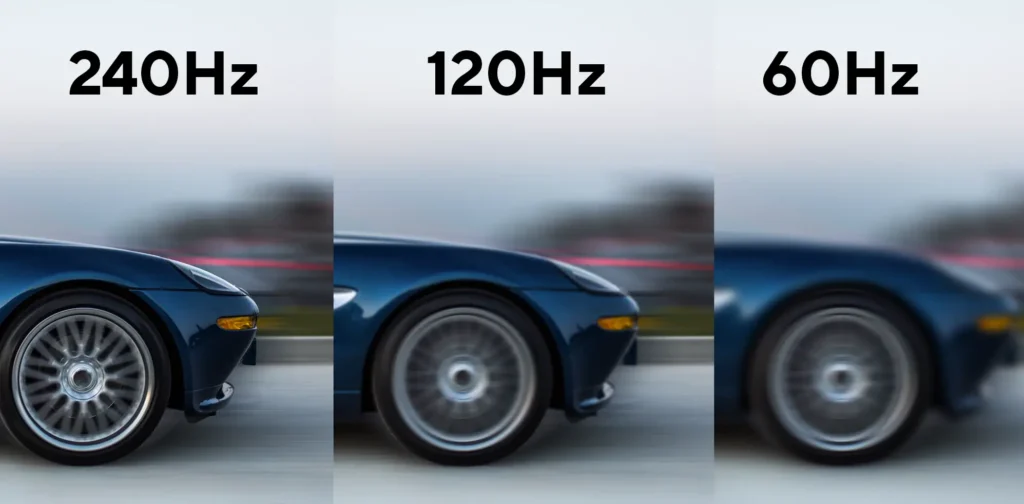
If the new refresh rate is working correctly but gameplay still feels choppy despite high FPS, see why games can feel uneven at 144Hz, 165Hz or 240Hz even with a high frame rate.
If the game already runs below the cap, this step is not for you. Adding a cap below your current minimum FPS only adds input lag without fixing stutter. When FPS exceeds the refresh rate, a cap two to four frames below is the safest first test.
3. Toggle V-Sync or adaptive sync alone
Do not change the cap at the same time. With the cap in place, test V-Sync on versus off. If you use G-Sync or FreeSync, test with V-Sync turned off first, then with the driver’s recommended sync setting enabled. On some setups, V-Sync smooths pacing but adds latency; on others, it removes tearing without fixing frame time spikes. One variable only.
If the stutter appears specifically when G-Sync or FreeSync is enabled, follow our VRR troubleshooting guide to test adaptive sync without guessing.
4. Reset the shader cache
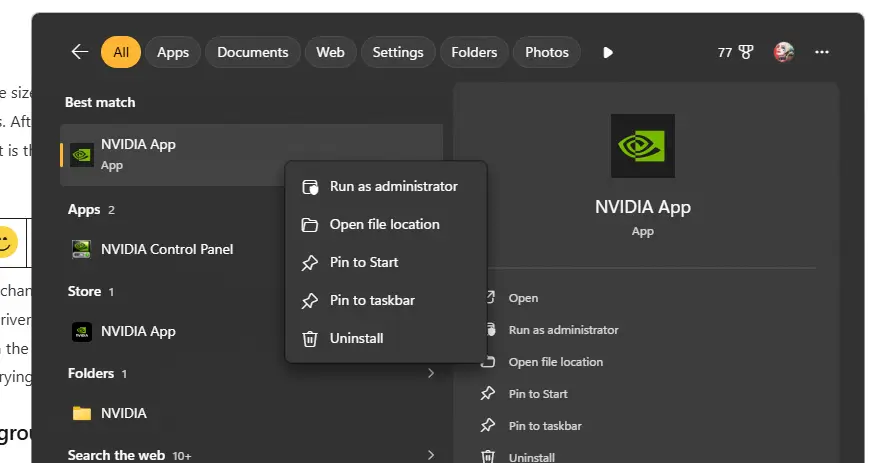
For NVIDIA users, set the shader cache size to Unlimited or at least 10 GB. For AMD users, reset the shader cache through AMD Software settings. After clearing or resetting, launch the game and expect stutter during the first map or first few minutes. That is the shader cache rebuilding. Test again after the rebuild before judging the result.
5. Update or clean-install the GPU driver
If the stutter appeared after a display change and has not improved, update to your GPU vendor’s current driver. If the problem started after a driver update, roll back to the previous driver or perform a clean install to remove retained display settings from the old monitor. Driver updates can reset or alter refresh rate and sync behaviour, so a clean install is worth trying before deeper fixes.
6. Disable overlays and background acceleration
In-game overlays from Steam, Discord, NVIDIA, AMD, or Xbox Game Bar can inject frame pacing interruptions at new refresh rates. Disable them one at a time. Also close browsers, Discord, or other GPU-accelerated apps that may be competing for GPU time at the higher resolution or refresh rate.
7. Check resolution scaling and render resolution again
If you moved from 1080p to 1440p or 4K, lower the game’s render scale or use a quality upscaler. For example, set the desktop resolution to 1440p but let the game internally render at 70–80% and upscale. If the frame time spikes smooth out, the original problem was a GPU load bottleneck in the new resolution.
8. Test a single monitor and stable refresh rates
If you have a second monitor, disconnect it for one test. Mixed refresh rates can cause stutter in the primary game, especially if the secondary display is running video or hardware-accelerated content. If the game becomes smooth, you have a multi-monitor issue, not a game issue.
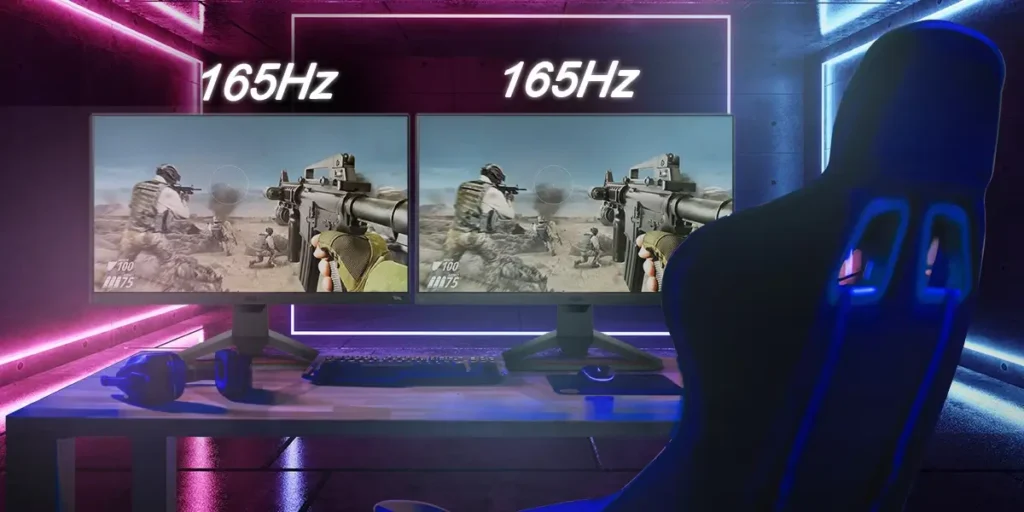
For secondary monitor instability, try setting a custom resolution with the refresh rate 1 Hz lower than maximum, such as 119 Hz instead of 120 Hz. This can help Windows stabilise desktop composition across mixed refresh rates. Do not apply monitor overclocks while testing.
9. Check for Windows display issues on newer builds
If you recently changed refresh rate and now have a secondary monitor that freezes or stutters, and you are on a recent Windows 11 feature update, consider rolling back to the previous build if safe. Some display bugs only appear on specific Windows feature updates. This is a later-step fix because it is disruptive and should not be attempted before simple sync, capping, and cache changes.
Common mistakes that keep stutter around
Chasing FPS instead of frame time. High average FPS can hide repeated 30 ms spikes. If the graph is not flat, the game will feel stutter no matter what the FPS number says.
Changing the cap, V-Sync, and driver at once. You cannot tell which fix worked. Change one setting per test run.
Judging shader cache resets too early. The first launch after clearing the cache will stutter. Test after the game has recompiled shaders, not during the first load.
Capping FPS too low. A 60 FPS cap on a 144 Hz monitor may hide the previous stutter but introduces input lag and uneven frame pacing. Start with two to four frames below the display maximum and test.
Assuming the new monitor is not the bottleneck. Going from 1080p 60 Hz to 1440p 144 Hz can more than double the pixel and frame load on the GPU. A stutter may simply mean the GPU is now at its limit.
Leaving desktop refresh rate wrong. Some games obey the Windows desktop refresh rate unless overridden. If you bought a 144 Hz monitor but Windows is still at 60 Hz, the game may be capped or pacing incorrectly.
Edge cases worth testing
FPS exceeds the new refresh rate
The stutter appears only when FPS is above the monitor maximum. This is common after moving from 60 Hz to 144 Hz while keeping the same game settings. The fix is not to lower graphics; it is to cap FPS below the refresh rate. Lowering graphics would make FPS higher and often make the sync problem worse.
The game renders higher than the desktop resolution
Some games have separate desktop and render resolution values. A new monitor can set desktop resolution correctly but leave the game’s render scale above 100% from an old supersampling setting. Check this before blaming the GPU.
Secondary monitor freezes during gameplay
The game on the primary monitor is smooth but the secondary monitor stutters or freezes. This can be a Windows desktop composition problem with mixed refresh rates. Test by disconnecting the second monitor. If that helps, set the secondary monitor 1 Hz below its maximum or avoid playing video on it while gaming.
Stutter only during the first minute after a resolution change
If the stutter clears after a minute and does not return until you switch modes again, it is likely shader compilation. Clearing the cache or letting the game rebuild it once should settle the issue.
FAQ
Why should I cap FPS below my refresh rate instead of using V-Sync?
V-Sync forces the GPU to wait for the display, which can add latency but can also smooth frame delivery. A frame cap below the refresh rate keeps FPS inside the adaptive sync range without the same hard wait. On many systems, a cap just below maximum is the lower-latency way to prevent erratic sync behaviour when FPS would otherwise exceed the monitor.
Will clearing the shader cache make stutter worse at first?
Yes. The first run after clearing the cache will stutter as the game recompiles shaders. This is normal and not a sign that the fix failed. Run through the same area or test scene again after the cache rebuilds before judging smoothness.
How do I know if the new resolution is simply too heavy for my GPU?
If GPU utilisation is consistently near 99–100% and frame times become uneven, the new resolution is likely too demanding. Lowering render resolution, using an upscaler, or reducing GPU-heavy settings should smooth the frame time graph. If the frame time spikes happen while GPU utilisation is low, look at sync, driver, or shader cache issues instead.
