


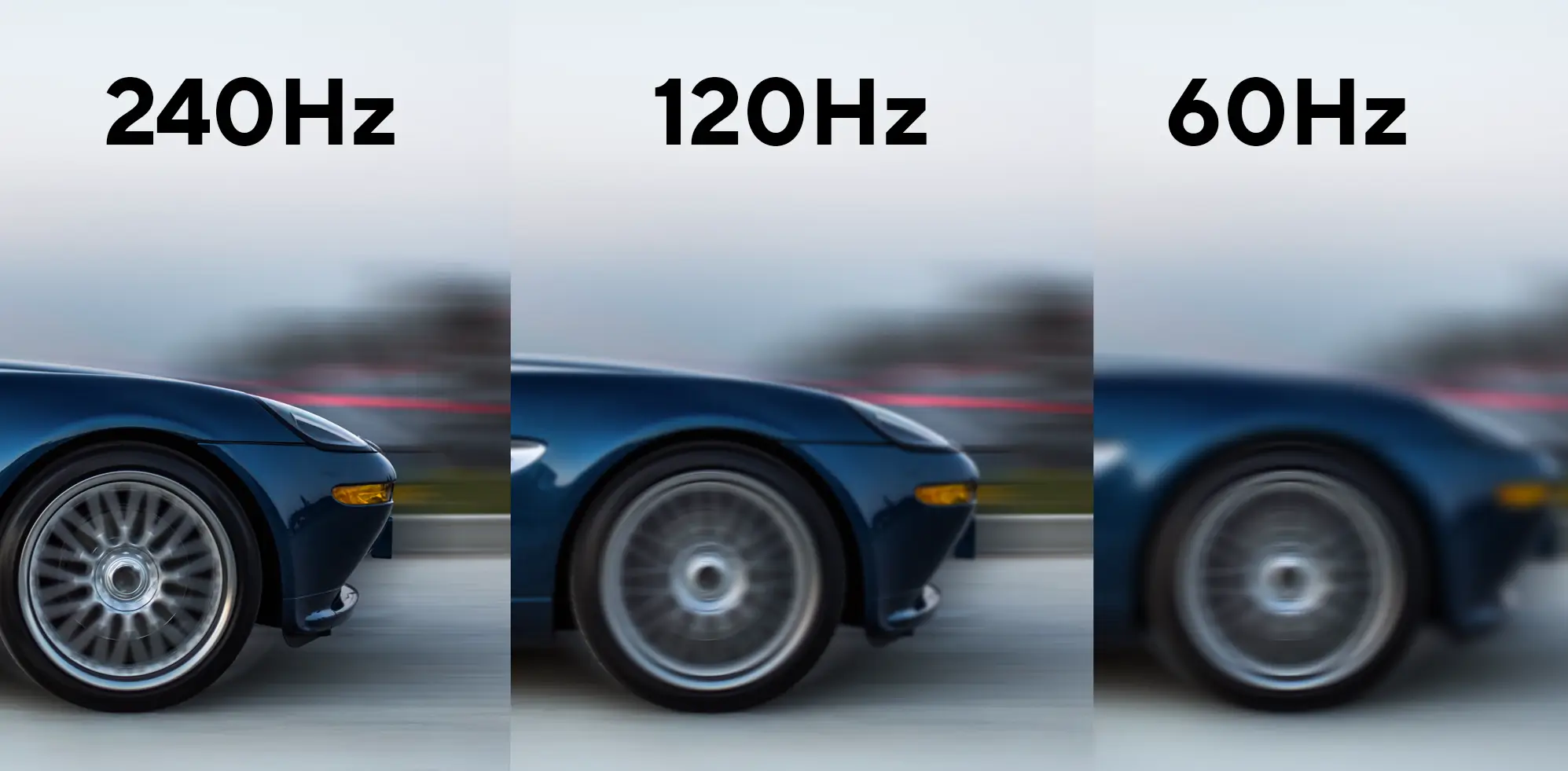
If you have high FPS but your game feels choppy, the FPS counter may not be telling you the whole story.
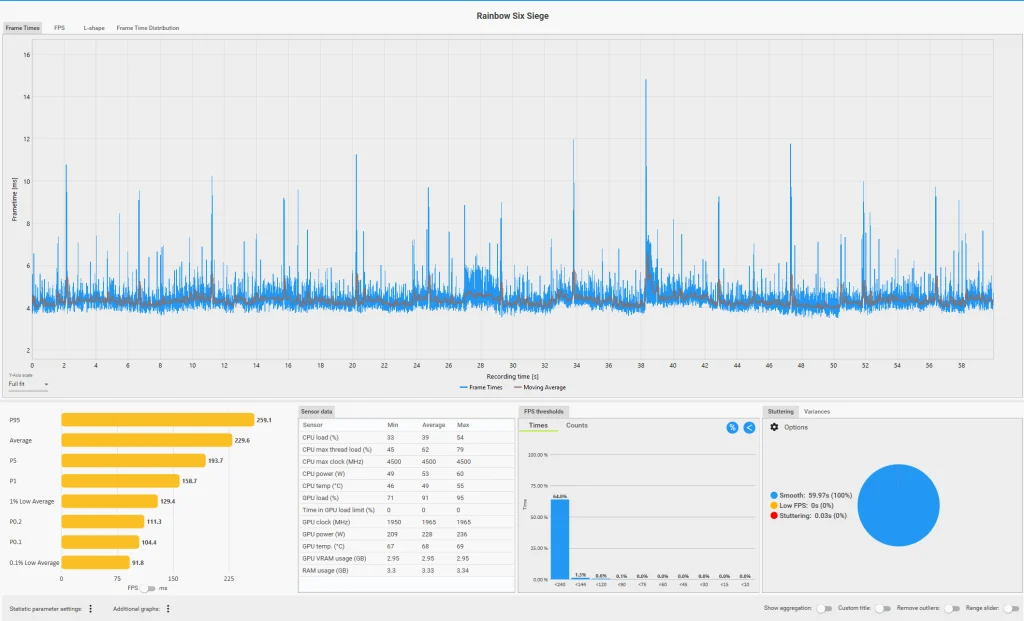
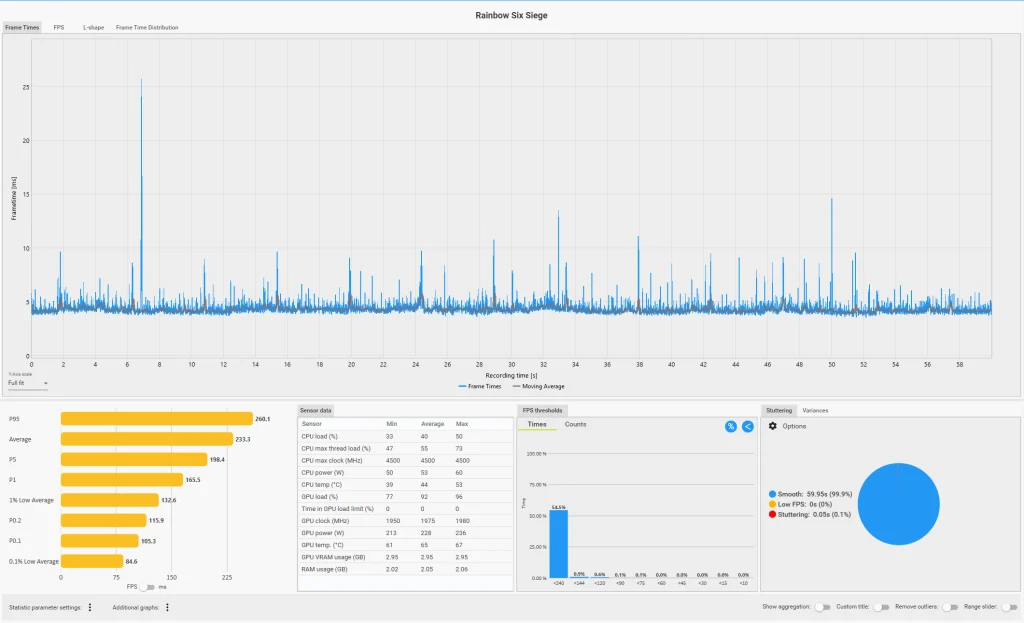
We tested this ourselves using Rainbow Six Siege on a 180Hz Alienware G-Sync monitor. At 180Hz, the game averaged roughly 230 FPS and felt fast and responsive. We then changed only the monitor refresh rate to 60Hz while leaving the game uncapped.
CapFrameX still recorded more than 230 FPS.
Yet the difference was immediate. Movement felt dramatically slower, rapid aiming felt much harder, and the game no longer felt remotely like the same high-FPS experience.
The PC was still generating hundreds of frames every second. The display simply wasn’t updating quickly enough to show that responsiveness.
That is why an FPS counter can be misleading when troubleshooting a game that feels choppy at 144Hz, 165Hz, 180Hz or 240Hz.
At 60Hz, your monitor refreshes every 16.67 milliseconds. At 144Hz that falls to roughly 6.94 ms, at 165Hz to 6.06 ms, at 180Hz to 5.56 ms and at 240Hz to only 4.17 ms.
Higher refresh rates provide more frequent visual updates, but smoothness still depends on how consistently frames arrive, how the display presents them and whether the PC can sustain the workload.
For a broader explanation of average FPS, frame time and low-percentile performance, read our guide to why high FPS can still feel stuttery.
We Tested High FPS vs High Refresh Rate Ourselves
Rather than relying entirely on common PC-gaming advice, we ran several controlled tests.
Test system
- Intel Core i5-10600K
- NVIDIA GeForce RTX 3070
- 16GB RAM
- Alienware 2560×1440 180Hz G-Sync monitor
- CapFrameX for performance captures
- RivaTuner Statistics Server for frame-rate limiting
- MSI Afterburner for hardware monitoring
For our main high-refresh testing, Rainbow Six Siege was run at 1920×1080 using the High preset in the shooting range.
We repeated the same general movement and aiming pattern during 60-second captures and changed one variable at a time.
The results apply to our particular test system and should not be treated as proof that every PC, monitor or game will behave identically.
Our Rainbow Six Siege Results
| Configuration | Average FPS | 1% Low | 0.1% Low | What we noticed |
|---|---|---|---|---|
| 180Hz, uncapped | ~230 | ~132 | ~97 | Very smooth and responsive |
| 180Hz, 177 FPS cap | 176.5 | ~124.7 | ~100 | Could not reliably distinguish it from uncapped |
| 180Hz, 144 FPS cap | 143.9 | ~107 | ~89 | Still smooth; rapid movement felt slightly harder to track |
| 180Hz, 120 FPS cap | 120 | ~92.6 | ~77 | Generally smooth, with occasional brief slowdown sensations |
| 60Hz, uncapped | 233.3 | 132.6 | 84.6 | Dramatically worse despite still running above 230 FPS |
The most revealing result wasn’t an FPS cap.
It was the refresh-rate change.
233 FPS at 60Hz Felt Far Worse Than ~230 FPS at 180Hz
This was by far the clearest difference during our testing.
At 180Hz, roughly 230 FPS felt extremely responsive.
We then set the monitor to 60Hz while leaving Rainbow Six Siege uncapped. Performance barely changed: CapFrameX recorded an average of approximately 233 FPS.
Yet subjectively the game felt painfully slow compared with 180Hz.
Fast camera movement became much harder to follow and sudden aiming corrections felt significantly less natural. In a competitive match, the difference would have been immediately undesirable.
This demonstrates something an FPS counter cannot tell you:
how quickly the PC renders frames and how frequently the display updates are two different things.
At approximately 233 FPS, the GPU can produce a new frame roughly every 4.3 ms.
But at 60Hz, the monitor only begins a new refresh every 16.67 ms.
Producing more frames can still reduce latency in some circumstances, but it does not turn a 60Hz monitor into a high-refresh display.
So before changing drivers, power plans, overlays and ten Windows settings, verify that your monitor is actually running at the refresh rate you expect.
144Hz vs 180Hz Was Much More Subtle
We also switched between 144Hz and 180Hz while taking rapid shots in the Rainbow Six Siege shooting range.
The difference was nowhere near as dramatic as 60Hz versus 180Hz.
144Hz still looked very smooth.
However, at 180Hz it subjectively felt easier to make a sudden aiming movement and stop the crosshair precisely where intended.
That doesn’t prove that switching from 144Hz to 180Hz automatically makes somebody more accurate. We did not perform a controlled aim-training study.
But it illustrates how differences between two already-high refresh rates can appear more in responsiveness and rapid tracking than in an obvious “smooth versus choppy” visual comparison.
Capping FPS Below Refresh Rate Didn’t Transform the Experience
One of the most repeated high-refresh gaming recommendations is to cap FPS slightly below the monitor’s maximum refresh rate.
There are legitimate reasons to try this, particularly when using G-Sync or FreeSync.
On our 180Hz display, we applied a 177 FPS cap using RTSS.
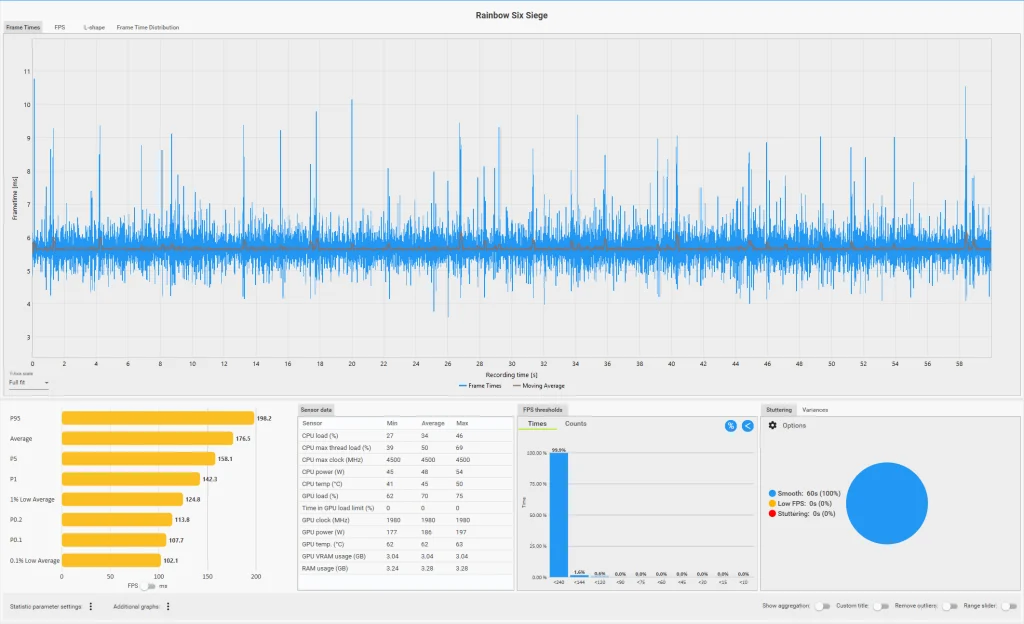
The capped run produced a more tightly grouped frame-time pattern than the roughly 230 FPS uncapped result.
But here’s the important part:
we could not reliably feel the difference during normal play.
The uncapped configuration did not suddenly feel broken, and 177 FPS did not suddenly feel dramatically smoother.
This doesn’t mean FPS caps are useless.
It means they should be tested rather than treated as a universal cure.
Your particular game may benefit much more if the GPU is constantly pinned at maximum utilization, frame rates are fluctuating heavily or the engine produces inconsistent frame pacing.
Compare both configurations and use the result that actually performs better on your machine.
What Happened at 144 FPS and 120 FPS?
Dropping from approximately 177 FPS to 144 FPS was noticeable, but still not dramatic.
At 144 FPS, fast movements felt slightly harder to visually track and sudden changes in direction required a little more visual effort.
Dropping again to 120 FPS produced a broadly similar experience, although we occasionally noticed brief moments that felt like a sudden slowdown.
The game was still very playable.
This is another reason not to judge smoothness using only the number displayed in the corner of the screen.
Going from 230 FPS to 120 FPS sounds enormous numerically.
In practice, on our 180Hz display, the difference was much smaller than the enormous subjective change caused by switching the display itself from 180Hz to 60Hz.
What About G-Sync?
We also tested G-Sync enabled and disabled at both 144 FPS and 120 FPS while keeping the monitor at 180Hz and V-Sync disabled.
We could not reliably identify an obvious difference during our shooting-range testing.
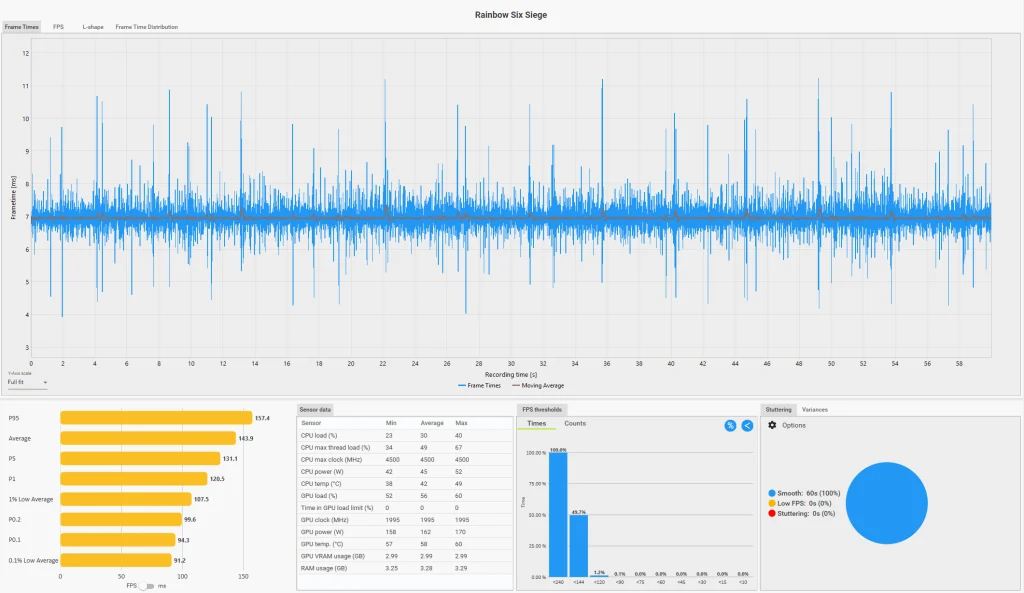
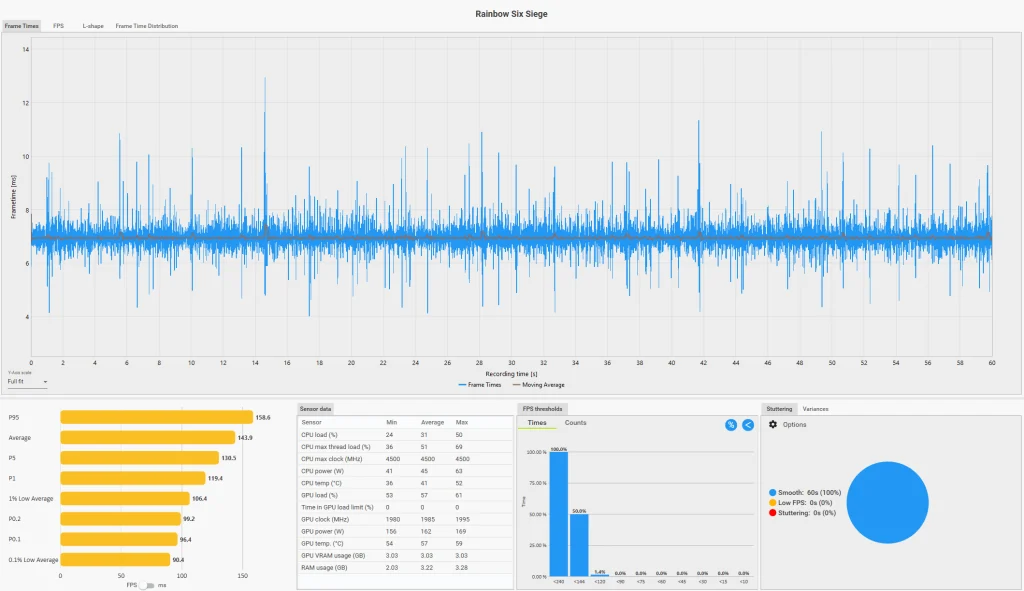
Performance numbers in CapFrameX were also extremely similar.
That does not mean G-Sync does nothing.
Variable refresh rate changes how the display schedules refreshes around incoming frames. CapFrameX primarily measures what is happening in the rendering and presentation pipeline, so many display-side effects will not necessarily appear as dramatic changes to average FPS or 1% lows.
Our result simply reinforces the same rule:
test your own system rather than assuming a particular setting must produce a night-and-day improvement.
The Diagnostic Toolkit: Check This Before Changing Everything
If a game reports high FPS but feels choppy, don’t start randomly applying every “gaming optimization” you can find.
Measure the problem first.
1. Check Your Actual Monitor Refresh Rate
This should be the first step.
Our own test produced more than 230 FPS at both 180Hz and 60Hz, yet the subjective experience was completely different.
In Windows, verify that your monitor is actually set to 144Hz, 165Hz, 180Hz, 240Hz or whatever maximum refresh rate it supports.
Also check the monitor’s own on-screen display if available.
If the problem appeared immediately after changing resolution or refresh rate, follow our guide to resetting a display change that introduced game stutter.
2. Measure Frame Times, Not Just FPS
Use CapFrameX or MSI Afterburner with RivaTuner Statistics Server.
Useful frame-time references are:
- 60 FPS = 16.67 ms
- 120 FPS = 8.33 ms
- 144 FPS = 6.94 ms
- 165 FPS = 6.06 ms
- 180 FPS = 5.56 ms
- 240 FPS = 4.17 ms
A stable frame-time graph is generally preferable to one constantly jumping between very different values.
Don’t obsess over one isolated spike. Look for repeatable patterns that happen at the same time as the hitch you actually notice.
If the graph confirms frame-time spikes but you don’t know whether the CPU, GPU, RAM, storage or software is responsible, follow our guide to finding the real bottleneck behind frame-time spikes.
3. Look at 1% and 0.1% Lows
Average FPS can hide short performance drops.
In our uncapped R6 testing, average FPS sat around 230 while the 1% low was closer to 132 FPS.
That doesn’t automatically mean the game is stuttering, but it gives you much more information about frame consistency than the average number alone.
If average FPS remains high while your low-percentile performance collapses during the exact moment you feel a hitch, investigate what happened during that workload.
4. Check GPU Utilization
We also tested a much heavier workload using Forza Horizon 6 at our normal 2560×1440 Ultra configuration with DLSS Quality.
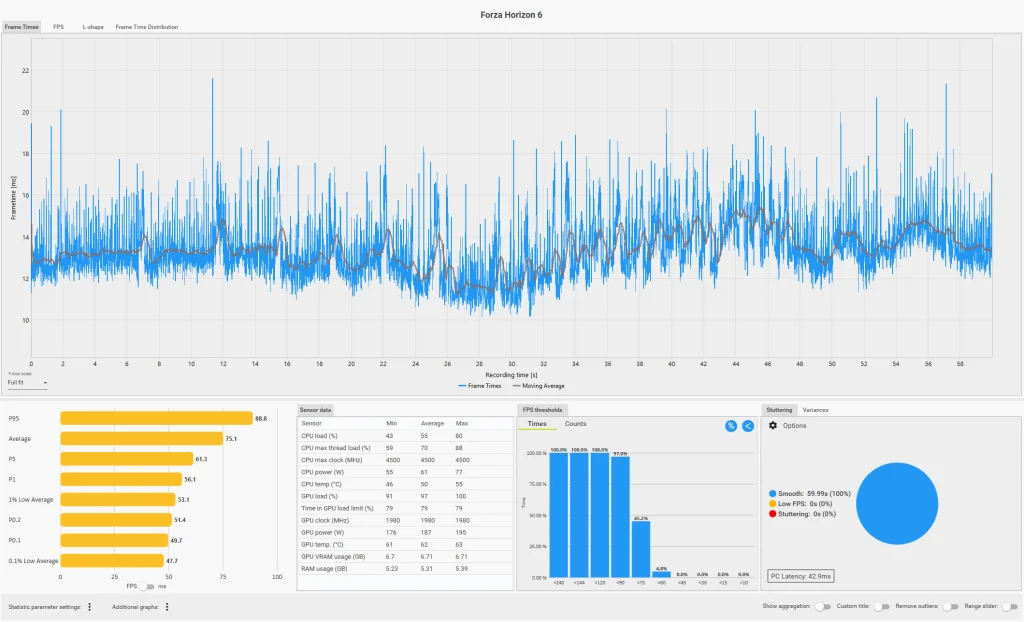
Across our baseline captures, we recorded approximately:
- 74.7 FPS average
- 52.4 FPS 1% low
- 46.6 FPS 0.1% low
- roughly 97–98% GPU utilization
That is a completely different scenario from Rainbow Six Siege producing more than 200 FPS.
If your GPU is constantly near maximum utilization and frame times worsen whenever the scene gets heavier, reduce one or two expensive graphics settings or test an FPS cap to create additional GPU headroom.
High GPU utilization isn’t automatically bad. The important question is whether it corresponds with the performance problem you’re actually trying to fix.
5. Try an FPS Cap
If you use G-Sync or FreeSync, try limiting the game slightly below the maximum refresh rate.
For our 180Hz display we tested 177 FPS.
You can use RTSS or a good in-game limiter.
Then compare:
uncapped → capped
using the same scene.
Don’t assume the capped configuration is better simply because somebody online said it should be.
Our frame-time pattern looked tighter under the cap, but we couldn’t reliably tell the difference during ordinary play.
6. Test VRR
Make sure G-Sync or FreeSync is enabled if your display supports it.
Then reproduce the same workload with VRR enabled and disabled.
Look specifically for:
- tearing
- uneven-looking motion
- changes during FPS fluctuations
- differences near the top of the monitor’s VRR range
On our system, G-Sync on versus off was not immediately obvious during the relatively stable Rainbow Six Siege shooting-range workload.
Your results may be different, particularly in a game where FPS fluctuates much more aggressively.
7. Compare Fullscreen and Borderless
Older PC-gaming advice often treats exclusive fullscreen as automatically superior.
Modern Windows graphics presentation is more complicated than that.
Test both.
Run the same section in fullscreen and then borderless without changing anything else.
If one mode produces better frame-time consistency on your machine, use it.
If they perform identically, choose whichever mode you prefer.
For problems that appear only after changing display mode, Alt-Tabbing or switching resolution, use the broader PC game stuttering troubleshooter to narrow the issue down.
8. Watch CPU and GPU Clocks
Monitor:
- GPU clock
- CPU clock
- GPU temperature
- CPU temperature
- GPU utilization
- CPU utilization
You’re looking for a relationship between the hitch and a hardware change.
If every stutter coincides with a major clock-speed drop, thermal or power behavior becomes a stronger suspect.
If clocks remain stable, don’t blame temperature just because the component happens to be warm.
9. Remove Background Variables Temporarily
For our controlled captures, we closed Chrome, Discord and unnecessary background software.
That doesn’t mean those programs always cause stutter.
It means they introduce additional variables.
If you’re troubleshooting:
- close unnecessary applications;
- reproduce the problem;
- add them back individually.
If the problem returns only after one program is reopened, you’ve actually learned something.
Common Mistakes When Diagnosing High-Refresh Stutter
Assuming High FPS Automatically Means Smooth Motion
Our 60Hz test demonstrated why this isn’t true.
The game remained above 230 FPS but felt dramatically worse.
FPS measures the rate at which the PC generates frames.
Refresh rate measures how often the monitor can update.
Frame-time consistency describes how evenly those frames arrive.
All three matter.
Assuming an FPS Cap Will Always Fix Stutter
Our 177 FPS cap didn’t produce a dramatic subjective improvement over approximately 230 FPS uncapped.
It may help another workload significantly.
Measure it.
Changing Ten Settings at Once
This is one of the worst troubleshooting habits.
If you simultaneously:
- disable G-Sync
- enable V-Sync
- change power plans
- close overlays
- change fullscreen mode
- lower graphics
- cap FPS
and the problem disappears, you still have no idea what fixed it.
Change one variable at a time.
Treating 100% GPU Usage as Proof Something Is Wrong
A GPU can run at or near full utilization while delivering perfectly consistent frames.
Use the frame-time graph and actual symptoms.
Blindly Copying Settings From Another PC
A 141 FPS cap that works perfectly on one setup might make no noticeable difference on another.
Different games, CPUs, GPUs, monitors and drivers can behave differently.
Use someone else’s settings as something to test, not as universal truth.
Mixed-Refresh Dual-Monitor Setups
If you’re running a high-refresh gaming display alongside a slower second monitor, test the second display rather than automatically assuming it is responsible.
Possible trouble can appear when the secondary screen is doing additional work such as:
- playing browser video
- running animated content
- hardware-accelerated applications
- overlays
- GPU-heavy monitoring software
Try three controlled states:
- both monitors connected and idle;
- video or animation running on the secondary display;
- the secondary display disabled or disconnected.
If the stutter appears only in one of those configurations, you’ve narrowed the problem down considerably.
Don’t assume that merely connecting a 60Hz monitor automatically forces your 144Hz or 240Hz gaming display to operate like a 60Hz screen.
When the Usual Fixes Don’t Work
Game-Engine Frame Pacing
If every other game runs smoothly but one title repeatedly produces the same frame-time spikes, the game itself becomes a stronger suspect.
A lower but stable frame-rate cap can sometimes feel better than a higher frame rate that constantly fluctuates.
Shader Compilation and Asset Streaming
A hitch when entering a new area or seeing an effect for the first time may have nothing to do with your monitor.
Pay attention to whether it:
- happens repeatedly in the exact same location;
- occurs only the first time;
- appears while traversing quickly through an open world.
That information helps distinguish persistent frame-pacing problems from game-engine loading behavior.
Monitor Overdrive and Pixel Response
If CapFrameX shows clean frame delivery but movement still looks strange, investigate the monitor.
Overdrive that is too aggressive can create inverse ghosting.
An overly slow response mode can produce visible smearing.
Try the display’s available response-time settings and look for the cleanest motion without excessive overshoot.
Frequently Asked Questions
Why Does My Game Feel Choppy Even Though FPS Is High?
Because average FPS does not describe everything happening between the game and your eyes.
Check:
- frame times
- 1% lows
- refresh rate
- VRR status
- GPU utilization
- background workload
- monitor behavior
Should I Cap FPS Below My Monitor Refresh Rate?
It is worth testing, especially with a VRR monitor.
On our 180Hz display, a 177 FPS cap tightened the frame-time pattern compared with approximately 230 FPS uncapped, but we could not reliably feel a major difference during ordinary play.
Use the cap if your own measurements or experience justify it.
Does G-Sync Always Make Games Noticeably Smoother?
Not necessarily in every scenario.
During our relatively stable Rainbow Six Siege test, switching G-Sync on and off at 144 and 120 FPS did not produce an obvious subjective difference.
That does not mean VRR is useless. It means the effect depends on the workload and what problem you’re trying to solve.
Is 180Hz Really Better Than 144Hz?
Both felt very smooth during our testing.
The visual difference wasn’t dramatic, but 180Hz subjectively made sudden aim corrections feel a little easier to place precisely.
We would not claim that this proves 180Hz automatically improves player accuracy.
Why Did 233 FPS Feel So Bad at 60Hz?
Because the monitor was still refreshing only 60 times every second.
The GPU could render far more frames than that, but the display could not produce 233 complete screen refreshes per second.
That was the clearest demonstration in our testing that a high FPS counter and high perceived smoothness are not the same thing.
My Frame-Time Graph Is Flat but the Game Still Feels Wrong. What Now?
Start looking beyond the rendering performance itself.
Check:
- monitor refresh rate
- G-Sync or FreeSync
- monitor overdrive
- tearing
- ghosting
- fullscreen versus borderless
- second-monitor behavior
If none of those explains it, work through our PC game stuttering troubleshooter to narrow the problem down by symptom.
Bottom Line
Our own testing changed how we would approach the problem of a game feeling choppy despite reporting high FPS.
The biggest difference did not come from enabling G-Sync or applying an FPS cap.
It came from the relationship between the game and the display.
Rainbow Six Siege still averaged roughly 233 FPS when we switched our Alienware monitor from 180Hz to 60Hz, yet the game immediately felt dramatically slower and much harder to aim in.
By comparison, reducing the frame rate from approximately 230 FPS to 177 FPS, 144 FPS and even 120 FPS while keeping the monitor at 180Hz produced much smaller subjective changes.
So if your game feels choppy at 144Hz, 165Hz, 180Hz or 240Hz despite showing high FPS, don’t start by chasing an even bigger FPS number.
Verify the monitor’s refresh rate.
Measure frame times.
Look at 1% lows.
Check GPU headroom.
Test an FPS cap.
Test VRR.
And change one variable at a time.
The FPS counter is useful—but it never tells the whole story.
