


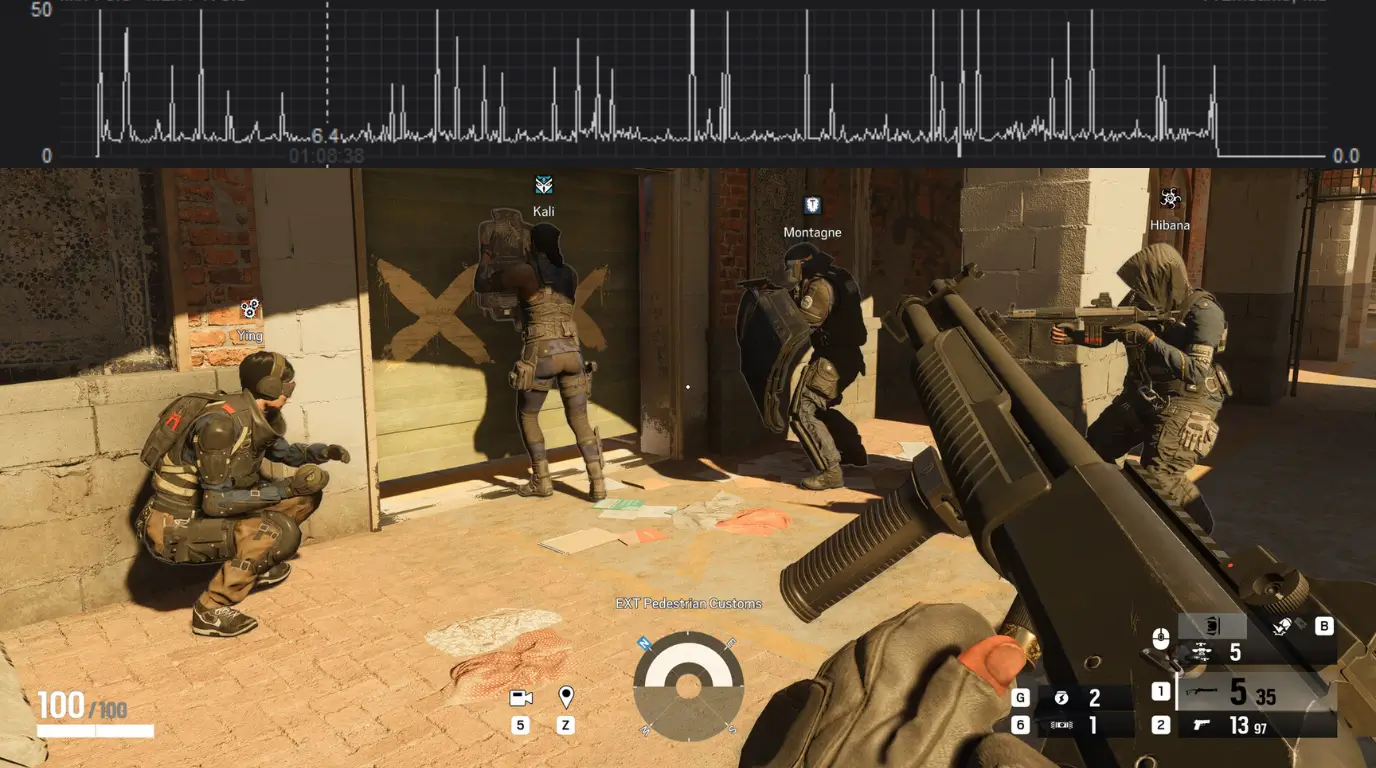
Your FPS counter shows a rock-solid 60, 80, or even 140. The number never drops. Yet every few seconds the image hitches, micro-freezes, or feels like you’re dragging the camera through treacle. You ask yourself: Is it the monitor? The mouse? Am I imagining things?
You aren’t. What you’re experiencing is a frame time spike — a momentary delay in a single frame’s delivery that an average FPS number completely hides. Two gameplay sessions can both average 60 FPS, but one delivers a buttery 16.67 milliseconds per frame while the other stutters with a wild pattern: 8 ms, 8 ms, 50 ms, 8 ms. That 50 ms frame is a visible hitch that breaks immersion and ruins aim.
Finding the real bottleneck when FPS looks normal isn’t about upgrading your GPU blindly. It requires isolating whether the spikes come from CPU overload, memory starvation, slow storage, or background software. This guide walks you through that diagnosis in a safe, testable order.
If your problem does not specifically involve measurable frame-time spikes—or it happens only after Alt-Tabbing, on a second monitor, or under heavy GPU load—use our PC game stuttering troubleshooter to find the diagnostic path that matches your symptoms.
First, Prove It’s a Frame Time Problem
Stop staring at the FPS counter. You need a frame time graph. The easiest tool is MSI Afterburner with Rivatuner Statistics Server (RTSS). In RTSS, enable the “Framerate” graph and set it to display frame time in milliseconds. The graph will plot the time each frame took. A flat line means consistent smoothness. Spikes — thin vertical lines shooting upward — are your enemy. If the frame-time graph stays flat and the image looks smooth, but aiming still feels heavy or behind your hand movements, investigate why FPS is high but the mouse feels delayed or sluggish.
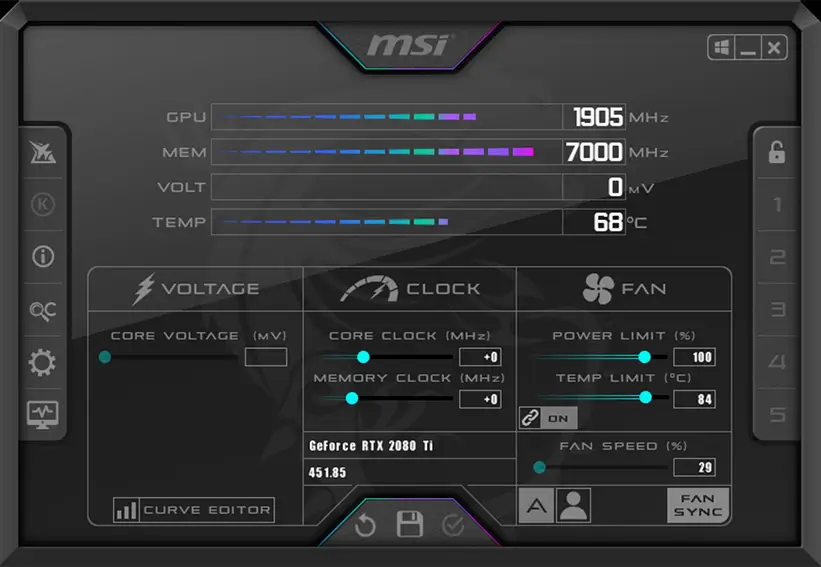
For deeper analysis, CapFrameX records every frame time during a play session. It calculates 1% and 0.1% low frame rates, which reveal your worst moments. If your 1% low drops to 45 FPS while the average shows 90 FPS, you have a frame pacing problem. When the main symptom is a large gap between average FPS and the 1% low result, follow our guide to fixing bad 1% lows despite high average FPS. This data is the foundation of any fix attempt. Without it you’re just guessing.
For a broader explanation of why high average FPS can still feel choppy, see our guide to frame time, poor 1% lows and uneven frame pacing.
Locate the Bottleneck Category
Once you’ve confirmed frame time spikes, the next step is to link them to a subsystem. Run the monitoring overlay while you reproduce the stutter. Look at CPU per-core usage, GPU usage, RAM usage, and disk activity simultaneously.
CPU bottleneck
Frame time spikes that coincide with a single CPU core hitting 95–100% point to a render-thread limit. Many games still lean heavily on one main thread. When that thread chokes on draw calls, physics, or AI calculations, the next frame sits waiting. The GPU can be at 70% usage, idle, and you still stutter. Common in open-world titles, sims, and MMOs with large player counts.
RAM bottleneck
Spikes that appear random and don’t correlate with GPU or CPU usage often trace back to memory. Single-channel RAM, JEDEC 2133 MHz when your kit can do 3200, or Windows dipping into the page file all cause sudden millisecond-scale hangs. The system pauses while fetching data from slow storage or while the memory controller re-orders requests.
Storage bottleneck
If frame time spikes happen consistently when you rapidly turn the camera, enter a new zone, or during texture streaming, the storage drive is the suspect. Mechanical hard drives still plague modern games with asset-loading hitches. An SSD, especially NVMe, removes almost all of that latency, but a heavily fragmented or nearly full SSD can still stumble.
Software and background tasks
Stutters that appear on a clockwork pattern — say every 5 or 10 minutes — often come from background processes. Windows Update, RGB lighting services, Discord overlay, or the Geforce Experience in-game overlay can inject inter-frame delays. Shader compilation stutter is another software-level culprit, most obvious in DirectX 12 titles that compile pipelines on the fly. If the hitch happens on a much shorter, repeating cycle, follow these fast tests for a game that stutters every few seconds to narrow down the most likely cause.
Safe Troubleshooting Order
Follow this sequence. Each step attempts to remove a known cause without introducing instability. If a fix doesn’t help, revert it and move on.
Record a baseline — Play for 10 minutes with CapFrameX or the RTSS frame time graph visible. Note when spikes occur and what hardware usage looks like. Save the session for comparison.
Power and park settings — Set Windows power plan to “High Performance.” In your GPU control panel, force “Prefer maximum performance” for the problematic game. Disable any CPU core parking utilities. This removes micro-latency from frequency transitions.
External frame rate cap — Cap your frame rate 2–3 fps below your monitor’s refresh rate using RTSS (not the in-game limiter). RTSS’s CPU-level limiter reduces the render queue and gives the engine more predictable timing. If you have a 144 Hz screen, cap at 141. On a bottlenecked system that can’t sustain high rates, cap at a number your rig holds 99% of the time — even 60 FPS if needed. This forces the render thread to stop sprinting and wait for the next frame boundary evenly.
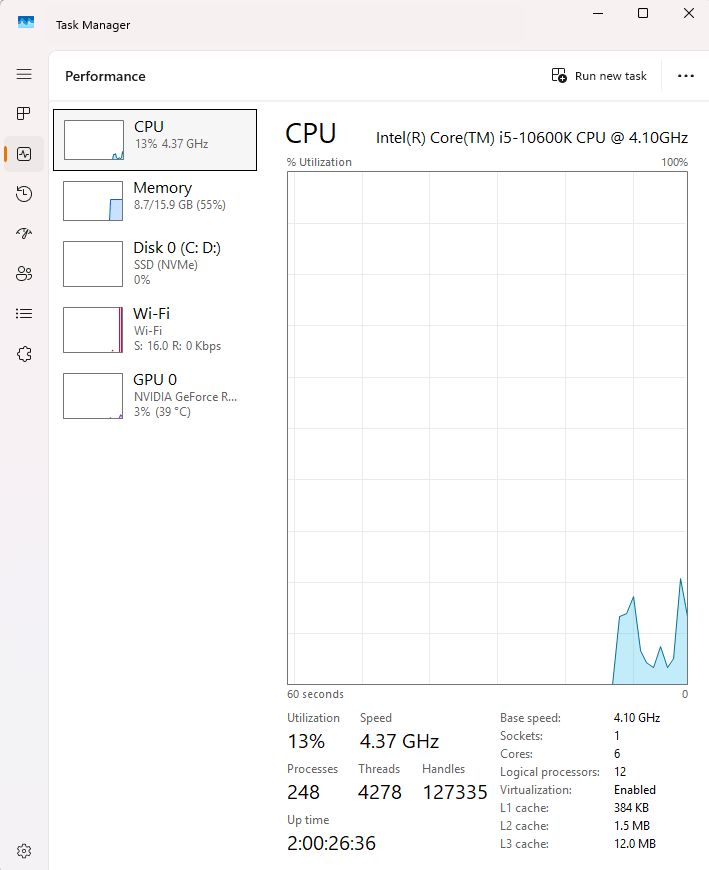
Check RAM configuration — Open Task Manager, performance tab, Memory. Verify the speed matches your kit’s rated XMP/DOCP profile. If it says 2133 MHz when you bought 3200 MHz, enter BIOS and enable XMP/DOCP. Also confirm you’re running dual-channel (two sticks in the correct slots). Single-channel starves the CPU of bandwidth and produces frame time spikes, especially in CPU-intensive scenes. No amount of overclocking can compensate for single-channel memory.
Move the game to an SSD — If the title sits on a mechanical hard drive and you experience asset-streaming stutter, move it to an internal SSD. This one change fixes traversal stutter in most modern open-world games. NVMe is better but a SATA SSD already eliminates seek-time lag.
Tune CPU-bound settings down — Reduce draw distance, shadow quality, physics, NPC density, and reflection quality. These settings hammer the main thread. Lowering them lowers CPU frame time. If your GPU has headroom (usage below 90%), you can instead raise GPU-bound settings like resolution scale or anti-aliasing to 1440p or higher, which ironically eases the CPU bottleneck by making the GPU the limiting factor. This technique shifts the pacing burden onto the GPU, often yielding flatter frame times. Use it with caution: only when you’ve already capped FPS and the GPU isn’t maxed.
Clean boot and overlays — Perform a clean boot (msconfig, hide Microsoft services, disable all non-Microsoft services). Also disable Discord overlay, NVIDIA ShadowPlay, Xbox Game Bar, and any RGB control software. Test the game. If the spikes vanish, re-enable services in groups to find the culprit.
Shader cache size — In your GPU control panel, set the shader cache to “Unlimited” (or the largest available). If stutters happen during first encounters with new effects, this allows the driver to retain compiled shaders across sessions, reducing compilation hitches in subsequent runs.
Disable fullscreen optimizations — Locate the game’s executable, right-click, Properties, Compatibility, check “Disable fullscreen optimizations.” In some titles this fixes erratic compositing delays introduced by Windows’ hybrid fullscreen handling.
Thermal check — A CPU or SSD hitting a thermal throttle point can insert massive frame time spikes. Monitor temperatures with HWInfo. If the CPU touches 95°C+ during spikes, address cooling before any other fix.
Hardware upgrade consideration — Only after exhausting software and configuration changes should you consider hardware. A CPU with stronger single-thread performance and 6+ cores, a dual-channel memory kit at 3200 MHz or higher with tight timings, and an NVMe SSD are the trio that most reliably flatten frame time spikes when the current parts are genuinely overwhelmed.
Common Mistakes That Make Frame Time Spikes Worse
- Using in-game V-Sync alone — it often forces double-buffering that drops to 30 FPS the moment a frame is late, causing a violent hitch. Always pair V-Sync with a frame cap just below refresh rate, or use G-Sync/FreeSync instead.
- Capping FPS with an in-game limiter — many engine-level limiters have poor pacing. Use RTSS for consistent frame delivery unless the in-game option is known to be good (e.g., id Tech games).
- Overclocking without stability testing — an unstable CPU or RAM overclock produces exactly the kind of sporadic frame time spikes you’re trying to solve.
- Blaming the GPU — when the GPU sits at 60% usage and spikes happen, the bottleneck is upstream. Throwing a faster GPU at the problem does nothing.
- Ignoring background RGB and peripheral software — iCUE, Synapse, and similar utilities have been caught polling hardware at intervals that line up with stutter. Kill them during testing.
Edge Cases When the Usual Fixes Don’t Work
Traversal and shader compilation stutter in specific engines
Unreal Engine 4 games famously suffer from shader compilation stutter that no amount of hardware can fix. The only partial remedies are letting the game pre-compile shaders (if the option exists) or relying on driver-side asynchronous compilation patches. In such titles, you may never eliminate all spikes — only reduce them.
Hybrid laptop with Optimus
On gaming laptops that route the discrete GPU through the integrated GPU, driver hand-off can insert tiny but regular frame time spikes. Forcing the dGPU to output directly (via a MUX switch or external monitor connected to the dGPU port) often solves it.
Multi-monitor refresh rate mismatch
Running a 144 Hz gaming monitor alongside a 60 Hz secondary display can cause stutter on the main screen when any accelerated content appears on the second screen. The fix is to set the 144 Hz display to 120 Hz, disable hardware acceleration in browsers, or unplug the second monitor for testing. If the stutter becomes most noticeable at 144Hz, 165Hz or 240Hz—even when the average FPS remains high—see our guide to why high-refresh-rate games can still feel choppy.
VRAM starvation
When the game slowly fills VRAM and then spills into system RAM, frame time spikes explode. Use the GPU-Z sensor to watch “Memory Used.” If it approaches the card’s limit and spikes begin, reduce texture quality or resolution.
FAQ
Why does my game stutter even at 100 FPS?
An average of 100 FPS means many frames are delivered in under 10 ms, but a few bad frames can take 40 ms or more. Those slow frames create visible hitches that the average number masks entirely. The 0.1% low FPS metric is what you feel.
Is frame time stutter always a hardware problem?
No. Often it’s software: a misconfigured frame limiter, background service, or a game engine’s real-time shader compilation. Always rule out software and configuration issues first before spending money.
Should I always cap my frame rate to fix stutter?
Only when your system can’t sustain a consistent frame time at an uncapped rate. A properly configured external cap (via RTSS) smooths out the render queue and often reduces CPU-induced spikes. If your rig already delivers flat 10 ms frames at 100 FPS, capping won’t improve anything and may increase latency unnecessarily.
