


If you’re staring at a stable 144, 240, or even 360 frames per second and your mouse still feels like it’s dragging through mud, you’re not imagining things. High frame rate does not automatically translate to responsive inputs. The problem is input lag—a delay between your physical movement and what appears on screen—and it can exist independently of your FPS counter. Gamers often assume that if the frame rate is high, the system is fast. But input lag can lurk in software settings, USB paths, background tasks, or even your Windows user profile. This guide walks you through a structured diagnosis so you can pinpoint what’s actually wrong, rather than blindly tweaking settings. If moving the mouse causes visible frame-time spikes, FPS drops or screen hitching—not merely delayed input—use our guide to fixing games that stutter when the mouse moves.
If the entire game feels choppy rather than only the mouse feeling delayed, start with our PC game stuttering troubleshooter to identify the correct symptom path.
Step 1: Pinpoint Where the Lag Lives
Before touching any settings, isolate the behavior. Many gamers report a strange pattern: in an FPS game, the centred reticle feels crisp and responsive, but the moment they open a menu or aim-down-sights cursor, everything turns floaty and imprecise. This often happens because the game’s raw input bypasses Windows pointer processing, while the desktop or inventory cursor still runs through acceleration and smoothing layers.
Open any game that lets you toggle a cursor screen (escape menu, inventory). Move the mouse in circles quickly. Does the crosshair feel 1:1 but the pointer lags? If yes, the core input path is fine, and your issue is isolated to Windows pointer settings or application-specific smoothing. If both feel delayed, the problem is deeper—USB, system performance, or driver conflicts. Use this split to guide the next steps. Knowing whether the lag is global or context-specific prevents you from wasting hours on the wrong fix.
Step 2: Kill Mouse Smoothing and Acceleration
Mouse smoothing and acceleration are the most common silent killers of responsiveness. Smoothing averages your movement data to eliminate jitter, but it introduces a perceptible delay, especially during fast flick shots. Acceleration alters the cursor travel distance based on movement speed, destroying muscle memory and making aim feel disconnected.
In-game settings: Turn off any option labelled “Mouse Smoothing,” “Mouse Acceleration,” or “Enhance Pointer Precision” (some games mirror the Windows naming). Enable raw input if available. Games that offer raw mouse input bypass all software interpolation, giving you direct translation from sensor to camera movement.
Windows settings: Open the classic Mouse Properties (type main.cpl in Run). Go to the Pointer Options tab and untick “Enhance pointer precision.” This Windows feature is a form of acceleration that applies to the desktop and any game without raw input. Disabling it makes your cursor linear and predictable.
If you rely on a gaming mouse’s dedicated software (Razer Synapse, Logitech G HUB), check its own acceleration and angle-snapping settings. These often override Windows and game settings, so set them to raw or off within the software.
Step 3: Clean Out Background Interference
Even with perfect settings, background processes can inject micro-stutters that feel like mouse lag. The GPU, CPU, or storage getting hammered by unrelated tasks can cause frame time spikes that break the fluidity of mouse motion without tanking your average FPS.
First, close every non-essential application. Browsers, chat apps, overlay injectors (Discord overlay, GeForce Experience overlay), and even RGB controllers can poll the system enough to introduce latency. Temporarily uninstall your mouse’s companion app if possible—a corrupted profile or background service conflict is a known cause. Once I’ve seen a user’s ThunderCloud-style software (the vendor’s cloud sync utility) constantly writing to disk, causing drive-light flickering and input stutter while the FPS remained high.
Lowering in-game graphics settings can also help. Even if your GPU pushes high frames, a near-maxed-out GPU can exhibit increased latency because the render queue becomes deeper. Dropping settings from Ultra to High may tighten input response noticeably.
Open Task Manager before launching a game and keep an eye on disk activity and CPU usage spikes. If your drive light is solid or flashing in sync with the stutter, a background indexing service, Windows Update, or aggressive antivirus scan is likely the culprit.
Step 4: Verify Your Monitor’s Refresh Rate and Sync Settings
A 144Hz monitor running at 60Hz will make even perfect input feel laggy. Windows often defaults to 60Hz after driver updates or monitor swaps. Go to Settings > System > Display > Advanced display settings and confirm you’re using the highest available refresh rate. If you have a multi-monitor setup, ensure the gaming display is set as primary and runs at its native high refresh.
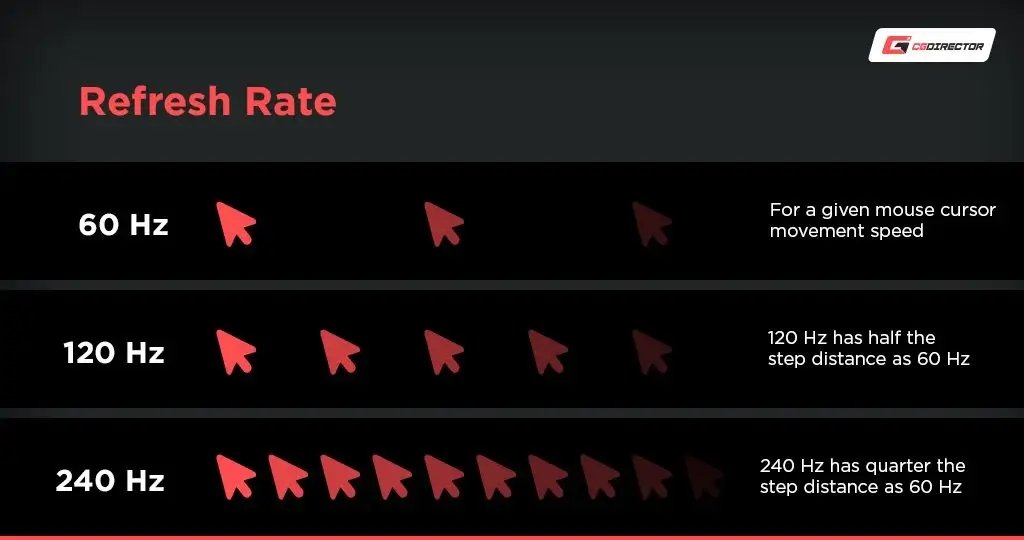
Next, examine V-Sync and G-Sync/FreeSync. Standard V-Sync can add significant input latency because it holds frames in a buffer. If you must avoid tearing, use adaptive sync (G-Sync/FreeSync) combined with an in-game frame rate cap set 3–4 frames below your refresh rate, and enable NVIDIA Reflex or AMD Anti-Lag if the game supports it. For pure competitive play, many disable all sync technologies and accept tearing for the lowest possible latency.
Also, check your monitor’s on-screen display for any “game mode” or processing features (motion blur reduction, image sharpening) that might introduce post-processing lag. Set to the fastest response mode available.
Step 5: USB and Driver Troubleshooting
The path your mouse takes through USB can matter. A gaming mouse streaming at 1000 Hz (or higher) on a shared USB hub with external drives, webcams, or even your keyboard can cause intermittent contention and micro-delay. Use the free tool USB Device Tree Viewer (search for “USB device tree viewer Uwe Sieber”) to see which USB controller your mouse is attached to and whether it shares a hub. If it’s on a busy root hub with high-bandwidth devices, move it to a port on a different controller—preferably a USB 2.0 port on the back of the motherboard directly, as some high-polling-rate mice are more stable there.
Update your mouse driver even if Windows claims it’s up to date. Open Device Manager, find your mouse under “Mice and other pointing devices,” right-click, and choose “Update driver” > “Browse my computer” > “Let me pick from a list.” Select the standard “HID-compliant mouse” driver to rule out any vendor-specific filter driver issues. Test with a different brand of mouse if available—if the lag vanishes, your original mouse or its driver stack is at fault.
Step 6: Check for System Performance Spikes Under Load
High average FPS can mask rapid frame-time spikes. A single CPU core hitting 100% or a storage request stalling the pipeline can create a 50-ms hitch that feels like the mouse disconnected for a split second. Run a game with an overlay that shows frame time graph (MSI Afterburner/RTSS). If you see regular spikes despite high FPS, suspect background process CPU hogging or storage bottlenecks.
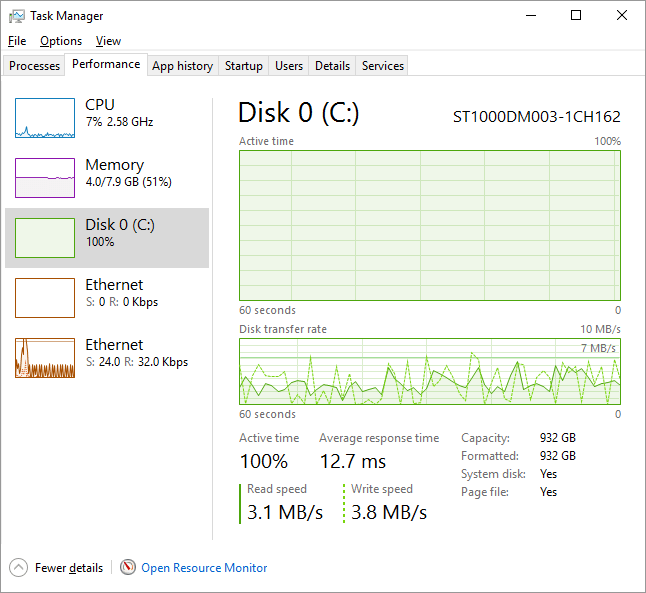
Open Resource Monitor and look at disk queue length. If it’s consistently above 1 while gaming, something is thrashing the drive. Move the game to an SSD, disable game DVR/background recording, and ensure virtual memory isn’t paging to a slow HDD. A clean boot with minimal startup items can quickly reveal if a third-party service is the source.
Step 7: Test with a Clean Windows User Profile
Corrupted user profile settings and invisible overlay hooks can survive all the above fixes. As a definitive test, create a fresh local administrator account. Open Command Prompt as Administrator and run:
net user testuser /add
net localgroup administrators testuser /add
Replace testuser with your chosen name. Log out, sign in to the new account, and test the mouse without installing any software. If the lag disappears, your main profile contains a problematic setting, driver persistence, or a startup application causing interference. You can then either migrate to the new profile or systematically disable startup items on the old one.
Common Pitfalls and Misdiagnoses
Gamers often assume the monitor is broken or the mouse sensor is failing when the real problem is simpler. The most frequent mistake is disabling acceleration in-game but leaving “Enhance pointer precision” on in Windows, causing the cursor to lag only in menus. Another is plugging a high-polling-rate mouse into an unpowered USB hub or a front-panel port that introduces electrical noise and packet loss.
Cranking up DPI while lowering in-game sensitivity might seem smart, but if your mouse’s sensor behaves poorly at extremely high DPI (introducing smoothing at the firmware level), you can actually increase latency. And finally, chasing “maximum performance” power plans in Windows often forces the CPU into aggressive states that paradoxically increase DPC latency, making mouse movement stutter. The Balanced plan is frequently smoother.
Frequently Asked Questions
Why does my mouse feel perfect in-game but floaty on the desktop? This split almost always points to Windows pointer acceleration. The game uses raw input, bypassing Windows processing, while the desktop cursor is still under the influence of “Enhance pointer precision” and any smoothing in your mouse software. Disable the Windows option and check your mouse vendor’s software for desktop-specific profiles.
I’ve turned off acceleration and smoothing, but the delay is still there. What else? Verify your USB topology with USB Device Tree Viewer. A mouse sharing a hub with a webcam or an RGB controller can suffer micro-stutters. Move it to a dedicated controller. Additionally, create a new local user account to exclude profile corruption or overlay injection. High GPU usage can also add latency, so try lowering graphics quality substantially to see if the delay shrinks.
Can a monitor cause input lag even if the FPS is over 200? Yes. If your monitor is stuck at 60Hz, each frame takes 16.67ms to refresh, creating a baseline lag floor that feels sluggish. V-Sync adds extra buffering, and some gaming monitors have slow pixel response or post-processing modes that increase perceived delay. Ensure the display is running at its native maximum refresh rate and disable any unnecessary image enhancement features.
