


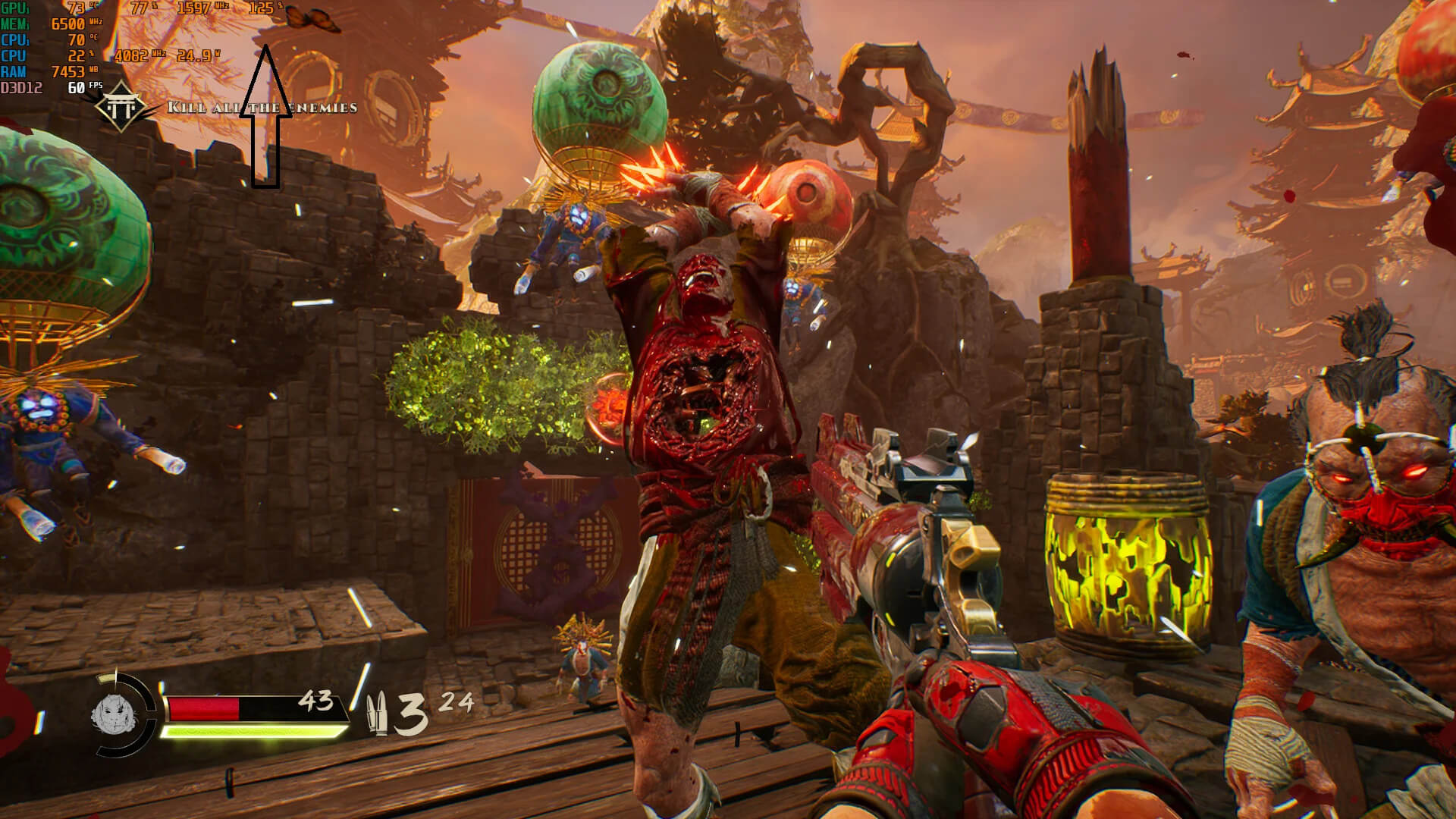
Experiencing high frames per second (FPS) while gaming can feel exhilarating, providing smooth visuals and improved responsiveness. However, many gamers encounter a perplexing issue: despite achieving high FPS, the gameplay feels stuttery or laggy.
This phenomenon can be frustrating and hinder the overall gaming experience. To tackle this issue effectively, it’s essential to understand key concepts like frame time, 1% and 0.1% lows, and the various underlying causes that may lead to this problem.
Understanding the Problem
At first glance, it might seem contradictory that high FPS can coexist with a stuttery experience. FPS measures the average number of frames rendered in a second, while frame time—measured in milliseconds—refers to the time it takes to render each frame. Thus, even if you show a high average FPS score, fluctuations in frame time can create a jarring experience that detracts from the fluidity of gameplay.
If your symptoms do not specifically match high FPS with uneven frame delivery, use our PC game stuttering troubleshooter to identify the issue by its exact behaviour.
The Importance of Frame Time
Frame time is a critical metric in assessing gaming performance, as it provides insight into how consistently frames are delivered. A consistent frame time leads to smooth gameplay, while spikes or variances can result in noticeable stuttering. For example, an average FPS of 100 may suggest a smooth experience, but if there are significant fluctuations in frame times (e.g., one frame takes 16.67ms while another takes 50ms), players will notice the inconsistency.
If your FPS counter remains stable but the frame-time graph shows sharp vertical spikes, follow our guide to finding the real bottleneck behind frame-time spikes. It shows how to separate CPU, RAM, storage, shader and background-process causes.
What Are 1% and 0.1% Lows?
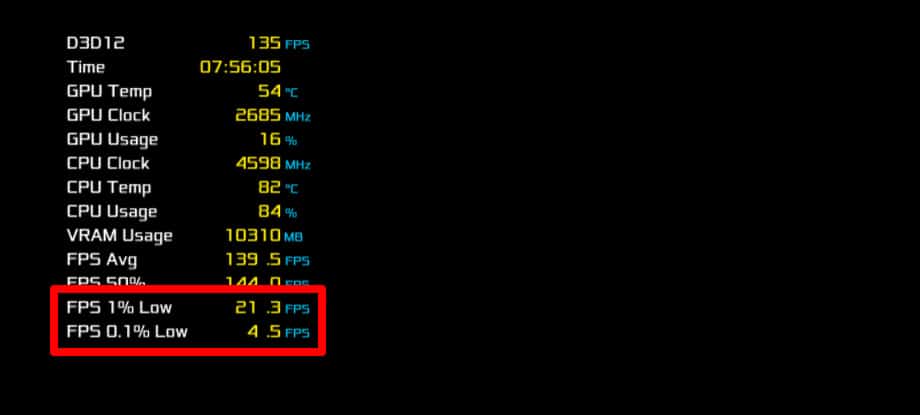
The 1% and 0.1% low metrics represent the average frame rate of the slowest 1% and 0.1% of frames rendered during a gameplay session. Unlike average FPS, these numbers tell you exactly how bad the worst drops are. For smooth gameplay, you want these low values to be as close to your average FPS as possible. If your average FPS is 144 but your 0.1% lows plummet to 30 FPS, you will experience severe, jarring stutters despite the high average counter. If your average frame rate looks strong but your 1% lows are far lower, follow our guide to improving bad 1% lows without chasing higher average FPS. It shows how to isolate CPU, VRAM, storage, thermal and background-process causes.
Causes of Stuttery Gameplay Despite High FPS
Understanding the causes of stuttery gameplay is crucial for troubleshooting. Here are the primary culprits:
Frame Time Variance
As previously mentioned, fluctuations in frame time can lead to stuttering. Factors including CPU thread bottlenecks and GPU saturation can contribute to this variance:
- CPU Thread Bottlenecks: When one or two CPU threads become heavily saturated, they can delay the submission of frames to the GPU, generating stutter.
- GPU Saturation and VRAM Spills: While you generally want high GPU utilization (99%) to maximize performance, running a graphics card completely maxed out without a framerate ceiling can back up the engine’s internal render queue. Furthermore, if a game’s graphical demands exceed your available video memory (VRAM), the system is forced to spill data into the much slower system RAM, causing massive, sudden frame time spikes.
If the game remains smooth while you are stationary but begins hitching the moment you move the mouse, follow our guide to fixing mouse-movement stutter caused by polling rate, USB paths and overlays.
Stuttering on a Regular Cycle
A hitch that returns every few seconds usually points to a repeating background event rather than consistently insufficient hardware. Overlays, RGB utilities, memory activity, thermal cycling and polling services can all create this pattern. Use our guide to diagnosing a game that stutters every few seconds for the fastest isolation tests.
Shader Compilation
Modern game engines utilizing DirectX 12 or Vulkan may experience stutter during shader compilation, particularly when new effects are introduced. This process can temporarily lower FPS and make gameplay feel less fluid, as the game is busy compiling new shaders rather than rendering frames consistently.
Thermal Throttling
When components like the GPU and CPU overheat (typically around 85°C for GPUs and 90°C for CPUs), they can automatically throttle their performance to reduce heat generation. This leads to delayed frame rendering, increasing frame times and introducing stuttering.
How to Diagnose Stuttering Issues
Before implementing fixes, it’s critical to diagnose the underlying cause of the stuttering. Here’s a step-by-step process to help identify the issue:
- Monitor Frame Times: Use tools like CapFrameX or MSI Afterburner for real-time frame time analysis. Pay attention to spike patterns or inconsistencies.
- Check 1% and 0.1% Lows: Record these metrics to gain insight into moments of poor performance that might correlate with stuttering.
- Analyze CPU and GPU Usage: Monitor resource usage via Task Manager or third-party tools to detect potential bottlenecks or saturation.
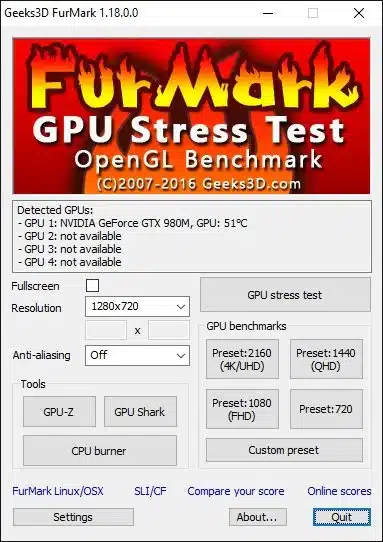
- Evaluate Thermal Performance: Check the temperatures of your CPU and GPU during gameplay to identify overheating issues.
- Identify Background Processes: Ensure no unnecessary applications are consuming CPU resources, leading to performance degradation.
Step-by-Step Fixes and Recommendations
Once diagnostics are complete, you can move on to address the found issues. Here are effective strategies to resolve stuttering while maintaining high FPS:
1. Monitor and Ensure Consistent Frame Delivery
Utilize software tools like CapFrameX or similar utilities to track and analyze frame time variances. This will give you insights into the frequency and severity of frame time spikes, allowing you to target specific problems.
2. Enable VRR and Cap FPS Slightly Below the Refresh Rate
If you use a Variable Refresh Rate (VRR) monitor with G-Sync or FreeSync, capping your maximum framerate slightly below your monitor’s peak refresh rate (e.g., 141 FPS on a 144Hz panel) is crucial. This keeps the display within its active VRR range and prevents the system from triggering standard V-Sync behavior or processing queues at maximum capacity, significantly smoothing out frame pacing. Note that if you do not use G-Sync or FreeSync, capping your framerate arbitrarily can introduce screen tearing.
High-Refresh Monitor Still Feels Choppy
At 144Hz, 165Hz or 240Hz, even small frame-time inconsistencies become easier to see because every frame has a much shorter delivery window. If the FPS counter is high but motion still looks uneven, follow our guide to fixing choppy gameplay on high-refresh-rate monitors.
3. Optimize CPU and GPU Performance
- For CPU: Close aggressive background applications (like web browsers with multiple tabs open or heavy Discord overlays) that compete for primary execution threads. This ensures the game engine can utilize the necessary CPU cycles without interruption.
- For GPU: Ensure your card is running within normal thermal bounds and that its drivers are up to date. Use an in-game overlay like MSI Afterburner to actively track clock stability and hardware resource allocation under load.
4. Adjust Game Settings
Lower settings that rely heavily on CPU power, such as NPC count, draw distance, and physics calculations. Limiting these variables can alleviate pressure on the CPU and improve frame time consistency.
5. Update Drivers and BIOS
Regularly updating graphics drivers and your motherboard’s BIOS can contribute to resolving performance fluctuations caused by compatibility issues or bugs. Check the manufacturer’s website for the latest versions.
Advanced Considerations and Limitations
While many solutions can help eliminate stuttering, there are caveats to keep in mind:
Background Processes Can Compete for Resources: Applications like Discord, game overlays, or web browsers can draw on system resources unexpectedly, causing spikes in frame time. Always ensure that unnecessary software is closed while gaming.
Instability Due to Overclocking: Running overclocked components can introduce instability, leading to performance inconsistencies. If you experience issues, consider reverting to factory settings and test performance.
Driver or Game Updates Can Introduce New Issues: After updates, issues with shader recompilation may temporarily impact performance. Give your gaming environment time to stabilize and avoid immediate judgment following a major update.
Common Mistakes to Avoid
- Neglecting Background Programs: Many gamers overlook running background applications that consume CPU resources. Always monitor and manage running processes before gaming sessions.
- Ignoring Thermal Issues: Many players may not prioritize cooling systems, leading to thermal throttling, which significantly affects performance.
- Failure to Analyze Frame Times: Some players might not utilize frame time analysis tools, relying solely on average FPS metrics. Frame time analysis is essential for a deeper understanding of performance.
FAQ
How can I check my game’s frame times?
You can check frame times using tools like CapFrameX or MSI Afterburner, which allows for real-time monitoring and analysis.
Why is my GPU running at 100% but my FPS is low?
When your GPU utilization hits 99-100% while your framerate remains low, it means your graphics card is completely maxed out handling heavy visual settings (like ray tracing or high resolutions). A high utilization rate is normal and means your hardware is fully engaged, but low FPS simply indicates the game’s current engine settings are too demanding for your specific graphics hardware.
Does capping FPS affect my overall gameplay experience?
Yes, capping FPS just below your monitor’s refresh rate can lead to improved consistency, reducing stuttering and delivering a smoother gaming experience.
Is overheating always a sign of failure?
Not necessarily; overheating can often result from inefficient thermal management. Ensuring sufficient cooling can prevent thermal throttling, maintaining optimal performance.
Experiencing stuttery gameplay despite high FPS can frustrate gamers, especially when it interrupts the flow of gameplay. By understanding the fundamental causes—such as frame time variance, 1% lows, and thermal issues—players can effectively diagnose and rectify performance problems. Implementing the detailed fixes discussed in this guide will lead to a smoother, more enjoyable gaming experience. Stay proactive in monitoring your system and adjusting settings to ensure optimal performance for all your gaming needs.
