


Game stuttering can be one of the most frustrating experiences for PC players. You’re hitting high average frame rates, yet everything feels choppy. This hitching is especially notorious when you are running a multi-monitor setup or frequently switching between your game and background applications using Alt-Tab.
These transitions disrupt how your graphics card coordinates with Windows to display frames. This article breaks down the technical reasons behind multi-monitor and Alt-Tab stuttering and provides concrete, actionable steps to restore fluid gameplay.
If the game runs smoothly while unfocused but begins stuttering the moment you click back into it, start with our dedicated guide to fixing games that stutter only when they regain focus. That guide focuses specifically on foreground behaviour, overlays, HAGS and focus restoration.
Understanding the Problem: Frame Pacing vs. FPS
When gameplay feels unsmooth despite a high FPS counter, you are likely dealing with poor frame pacing. While average FPS tells you how many frames your GPU renders in a single second, it doesn’t reveal when those frames arrive.
If three frames arrive instantly and the fourth is delayed by 30 milliseconds, you perceive it as a sharp stutter. Multi-monitor setups and Alt-Tab actions introduce distinct synchronization bugs into the Windows Desktop Window Manager (DWM) that trigger these severe frame-time spikes.
If your game stutters even without Alt-Tabbing or a second monitor connected, use our PC game stuttering troubleshooter to identify whether the cause is frame pacing, GPU load, background software, VRAM, drivers or another system-wide issue.
Key Causes of Alt-Tab and Dual-Monitor Stuttering
1. Mixed Refresh Rate Desynchronization
If your primary gaming monitor runs at a high refresh rate (e.g., 144Hz or 240Hz) and your secondary display runs at 60Hz, Windows can struggle to handle simultaneous rendering paths. When hardware-accelerated content—like a YouTube video, a Discord stream, or an animated web page—plays on the 60Hz monitor, the DWM can accidentally throttle or desync the render loop of your main gaming monitor, locking your high-refresh screen to a choppy 60Hz feel.
If the stutter appears only when a second display is active and disappears when you disable it, follow our dedicated guide to isolating second-monitor display conflicts while gaming.
2. Multi-Plane Overlay (MPO) Conflicts
Multi-Plane Overlay is a modern Windows feature designed to reduce GPU workload by allowing different windows (like a borderless game and a desktop app) to render on separate visual planes. While great for power efficiency, MPO frequently causes severe frame-pacing issues, flickering, and micro-stutters when a game window loses primary focus during an Alt-Tab action.
If FPS drops specifically when you click another monitor and immediately recovers when the game regains focus, follow our guide to foreground focus and background FPS-limit problems.
3. Windowed G-SYNC / FreeSync Malfunctions
Variable Refresh Rate (VRR) technologies are designed to match your monitor’s refresh rate to your GPU’s exact frame output. However, enabling VRR for “Windowed and Fullscreen” modes often forces the monitor to treat background apps, browser windows, or overlay elements as active game engines. When you Alt-Tab, your monitor’s refresh rate violently fluctuates trying to sync with a static desktop app, causing massive stutter or black screens.
If G-Sync or FreeSync itself appears to trigger the stutter, follow our controlled VRR troubleshooting guide to confirm that adaptive sync is actually active and test the refresh-rate ceiling without changing multiple settings at once.
4. Legacy Display Mode Transitions
True Fullscreen mode gives a game total exclusive control over your display hardware. When you Alt-Tab out of it, your GPU has to completely renegotiate the handshake signal with your monitor. On high-refresh-rate or HDR displays, this signal re-initialization results in multi-second black screens and temporary system-wide lag.
How to Diagnose Your Stutter
Before changing settings, use diagnostic tools to confirm the culprit:
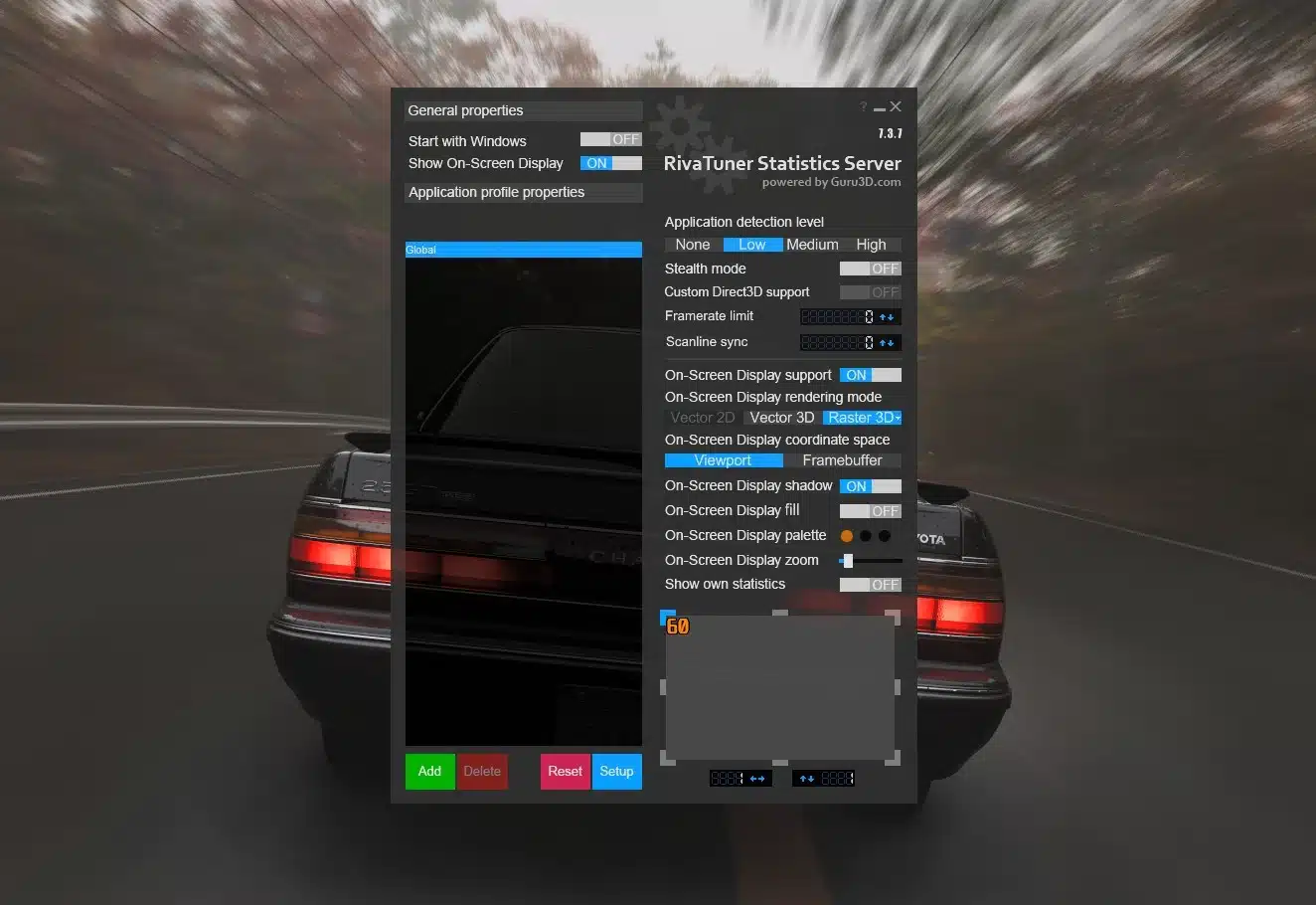
- Monitor Frame Times: Use software like MSI Afterburner (with RivaTuner Statistics Server) or NVIDIA FrameView. Do not just watch the FPS graph; track the Frame Time (ms) line graph. Look for sharp, vertical spikes during an Alt-Tab or when interacting with your second monitor.
- Isolate the Screen: Disconnect your secondary monitor entirely. If the game suddenly plays buttery smooth, your stutter is explicitly tied to a Windows multi-monitor compositor conflict rather than lack of hardware power.
Step-by-Step Fixes to Restore Smooth Gameplay
1. Switch to Borderless Windowed (With Optimizations Enabled)
Modern Windows 11 handles borderless presentation far better than older operating systems thanks to the Flip Model presentation path.
- Open your in-game graphics menu and switch from Exclusive Fullscreen to Borderless Windowed. This eliminates the delayed handshake black screen when Alt-Tabbing.
- Ensure modern presentation is active: Navigate to Windows Settings > System > Display > Graphics > Default graphics settings.
- Toggle On the setting for “Optimizations for windowed games.” This grants borderless games the low-latency benefits of exclusive fullscreen mode without the Alt-Tab performance penalty.
If borderless windowed mode is consistently choppier or more delayed than exclusive fullscreen, follow our dedicated borderless-versus-fullscreen diagnostic guide.
2. Restrict VRR to Fullscreen Only
To stop your monitor from trying to variable-sync with web browsers or Discord windows:
- Open the NVIDIA Control Panel (or AMD Radeon Software).
- Under the Display section, click Set up G-SYNC (or Adaptive-Sync).
- Select Enable for full screen mode instead of the combined windowed/fullscreen option.
If the stutter began immediately after changing the resolution or refresh rate, follow our guide to resetting and testing a new display mode without changing everything at once.
3. Disable Multi-Plane Overlay (MPO)
If you experience persistent flickering or heavy stuttering on your second monitor while gaming, disabling MPO is a highly effective, community-proven fix recommended by hardware enthusiasts and GPU manufacturers alike.
- Press
Win + R, typeregedit, and hit Enter. - Navigate to:
HKEY_LOCAL_MACHINE\SOFTWARE\Microsoft\Windows\Dwm - Right-click an empty space in the right pane, select New > DWORD (32-bit) Value.
- Name it exactly: OverlayTestMode
- Double-click it and set the value data to 5.
- Restart your PC to apply the changes.
4. Disable Hardware Acceleration on Secondary Apps
If a browser or communication app is running on your second monitor, it will actively hijack GPU resources via hardware acceleration, triggering mixed refresh rate stutters.
- In web browsers (Chrome/Edge): Go to Settings, search for “Hardware Acceleration,” and toggle off “Use graphics acceleration when available.”
- In Discord: Go to User Settings > Advanced > Toggle off Hardware Acceleration.
If the game stays smooth but YouTube or Twitch starts dropping frames on your second monitor while you play, follow our dedicated second-screen video stuttering guide.
5. Establish a Clean Frame Rate Cap
Uncapped frame rates cause your GPU to run at 100% saturation. When you Alt-Tab, the sudden shift in asset allocation causes an immediate performance bottleneck.
- Use RivaTuner Statistics Server (RTSS) or your global GPU driver control panel to set a system-wide frame limit exactly 3 FPS below your primary monitor’s max refresh rate (e.g., cap at 141 FPS for a 144Hz monitor). This keeps your gameplay perfectly inside the active VRR range and ensures the GPU always has a small performance overhead to handle desktop transitions smoothly.
Common Pitfalls to Avoid
- Downclocking Your Main Display: Never lower your primary 144Hz+ gaming monitor down to 60Hz just to match a secondary media monitor. It ruins your premium gaming hardware’s potential when software configurations can solve the desync natively.
- Relying Entirely on In-Game V-Sync: In-game V-Sync implementations often introduce heavy input lag and behave unpredictably when moving across multiple active window frames. Rely on hardware-level caps and VRR configurations instead.
Conclusion
Stuttering during multi-display tasks isn’t a sign that your graphics card is weak; it’s a symptom of timing conflicts within the operating system. By forcing Windows to utilize modern presentation models, restricting G-SYNC parameters to active game windows, and mitigating MPO overlay bugs, you can build a stable, seamless environment where Alt-Tabbing is instant and your second monitor ceases to impact your game’s frame pacing.
