


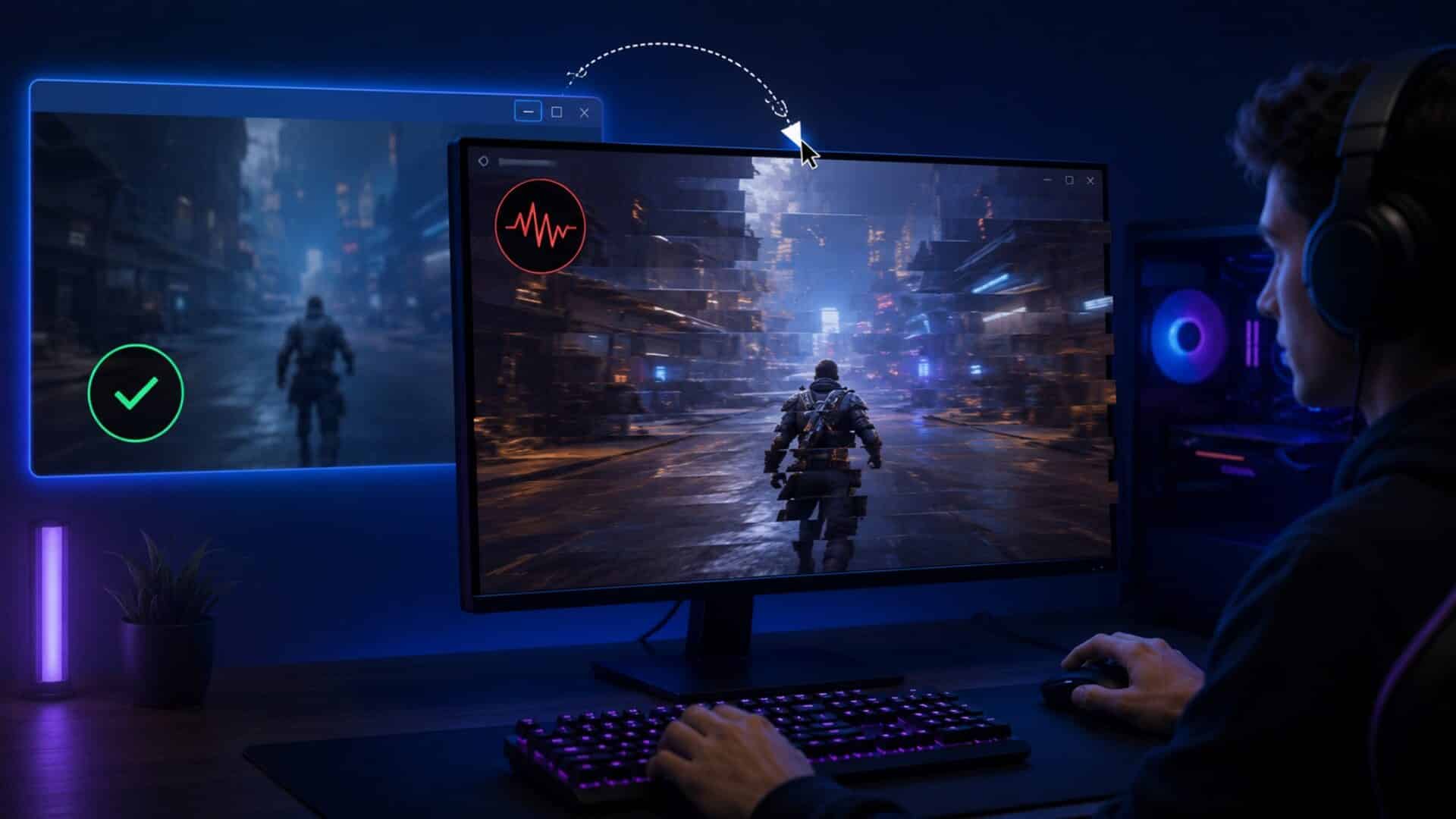
Experiencing a smooth gaming session while tabbed out but facing sudden stutters upon clicking back into the game can be incredibly frustrating. This peculiar behavior often stems from a combination of software settings, hardware configurations, and the inherent complexities of how modern games interact with the operating system.
In this comprehensive guide, we will dive deep into the underlying causes, provide detailed diagnostics, and present actionable solutions to ensure a seamless transition back into your gaming experience.
Understanding the Problem
When a game is running, it requires a significant amount of system resources including CPU, GPU, and RAM. Tabbing out often temporarily frees up these resources, resulting in smooth performance away from the game. However, when you return, factors like focus restoration, resource allocation, and window mode settings come into play, possibly leading to stutter or lag. This section seeks to clarify the elements that contribute to this peculiar behavior.
This is one specific stuttering pattern; if your game also hitches in other situations, start with our PC game stuttering troubleshooter to narrow down the actual cause.
Causes of Stuttering Upon Re-Entry
Exclusive Full-Screen Mode
Exclusive full-screen mode forces the operating system to hand direct control of the display hardware to the game. When you tab out, Windows has to forcefully re-allocate control back to the desktop, and vice versa when you return. This hardware handshake often causes severe frame pacing stutters, momentary black screens, or desktop flickering, particularly on older game engines or when Windows Fullscreen Optimizations fail to trigger.
Hardware-Accelerated GPU Scheduling (HAGS)
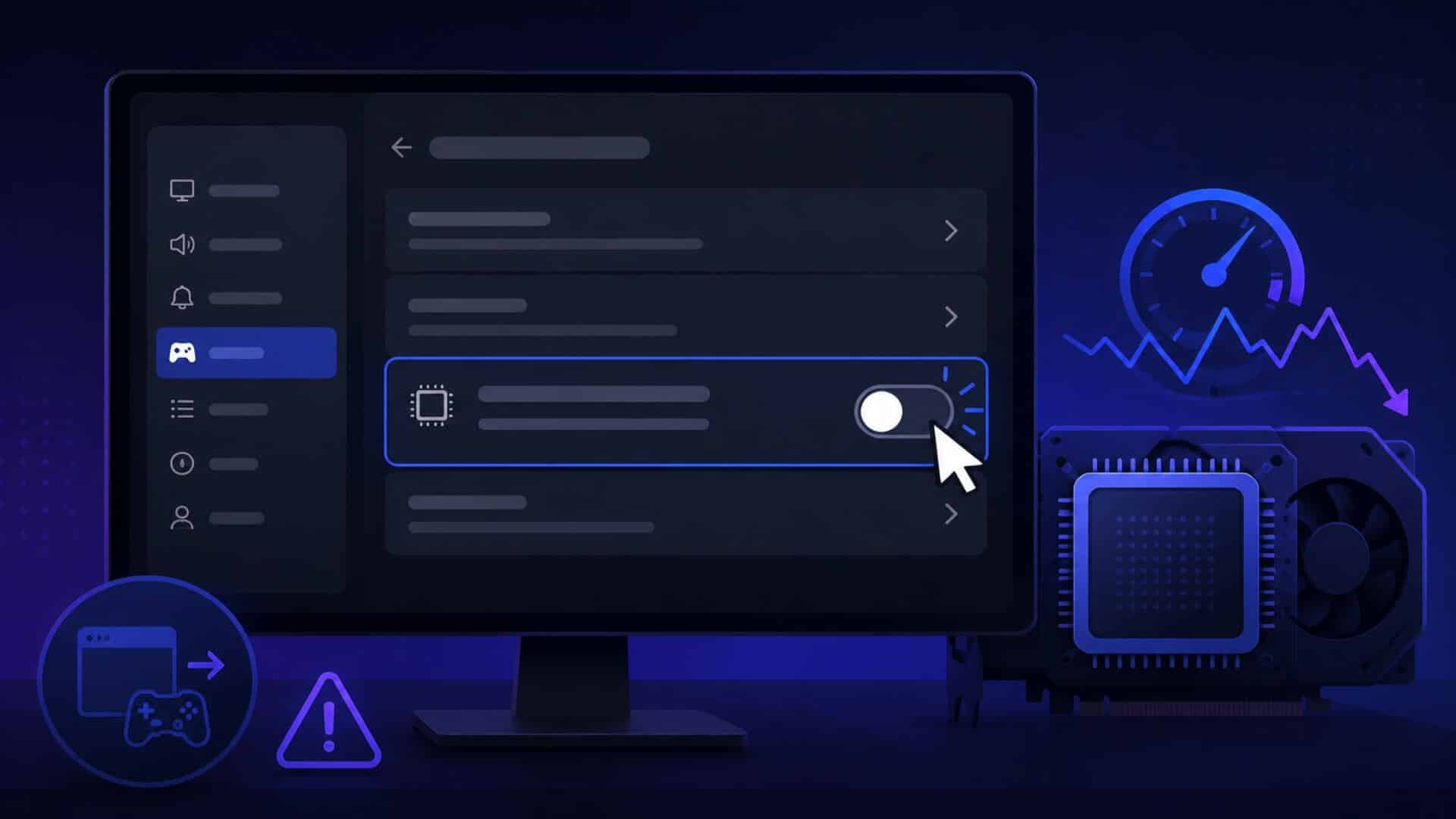
HAGS is a Windows feature designed to shift some GPU scheduling work away from the CPU. Although it can improve performance on certain systems, it may also contribute to stuttering after switching back into a game, particularly with older hardware, specific drivers, or several GPU-accelerated background apps running at once.
If Discord, Chrome, Xbox Game Bar, or other hardware-accelerated apps are open in the background, test them alongside HAGS rather than changing HAGS in isolation. Our guide to stopping Discord, Chrome, and Game Bar from draining GPU resources explains which background settings and overlays to disable first.
Windows Focus Assist
Focus Assist is designed to limit interruptions by muting notifications during gaming sessions. However, this feature may inadvertently delay the restoration of focus on the game window when re-entering, causing stutters as Windows readjusts resources. Disabling or adjusting Focus Assist can often resolve this issue.
Adaptive Sync (Variable Refresh Rate)
Technologies like Adaptive Sync and FreeSync are designed to eliminate screen tearing by syncing the refresh rate with the frame rate of the game. However, issues can arise when you alt-tab as the display settings may adjust, causing fluctuations that lead to stutter or black screen flashes after returning to the game.
Diagnosing the Issue
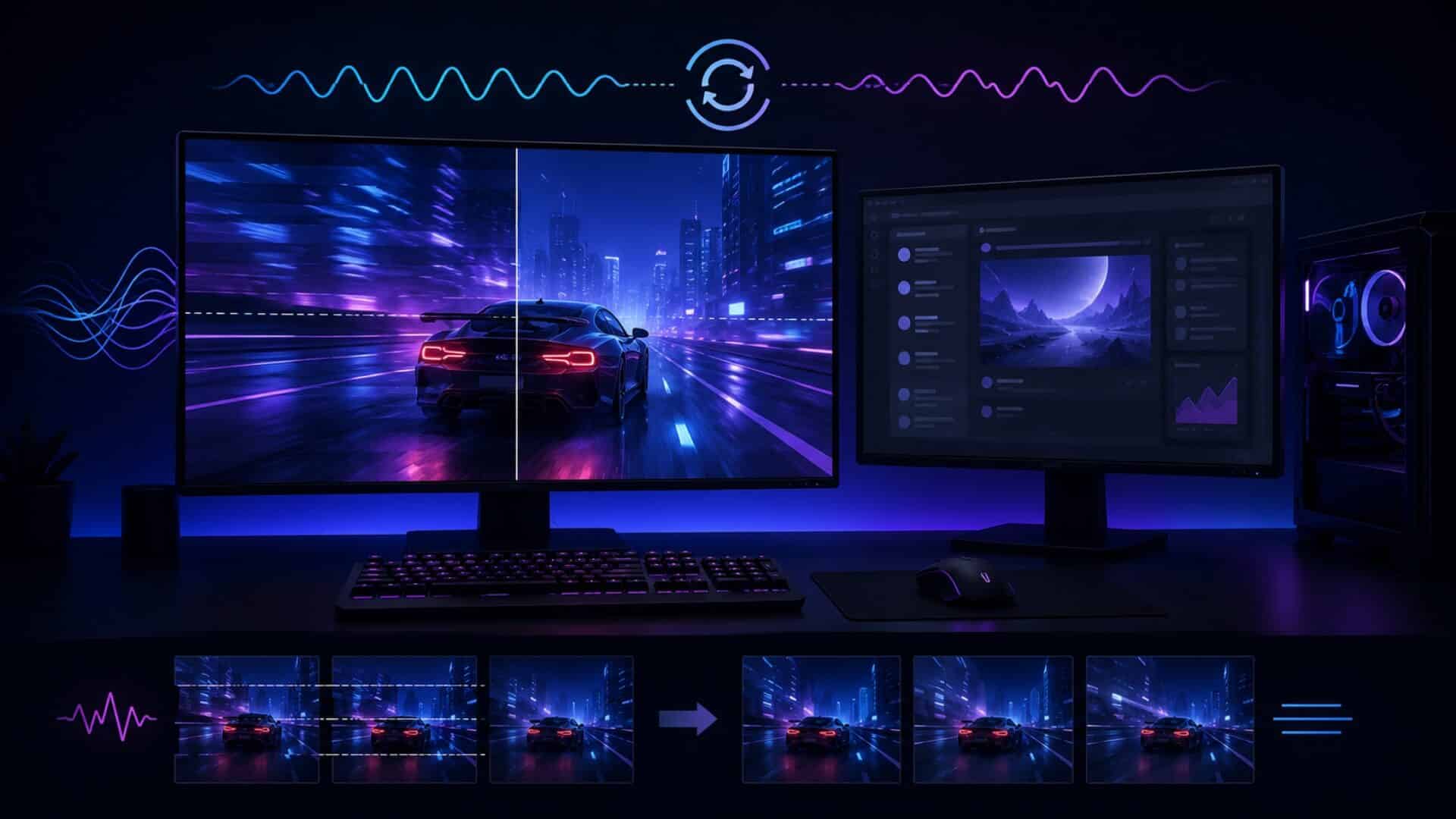
To address the stuttering issues effectively, it’s crucial to run a systematic diagnostic assessment. Follow these steps:
- Check Game Mode: Confirm if the game is running in exclusive full-screen mode or windowed.
- Confirm HAGS Status: Check if Hardware-Accelerated GPU Scheduling is enabled in Windows settings.
- Assess Focus Assist Settings: Make sure Focus Assist is configured properly or turned off.
- Examine Adaptive Sync Settings: Verify if Adaptive Sync is enabled and how it interacts with your display.
- Test Other Programs: Determine if the stuttering occurs with just one game or multiple applications.
Fixing Stuttering Issues
Addressing the stuttering problem involves several potential fixes. Implement these solutions step-by-step:
1. Switch to Borderless Windowed Mode
Running your game in borderless windowed mode integrates the game into the Windows Desktop Window Manager (DWM) frame pipeline. This eliminates the intense hardware handshake required when switching focus, resulting in instant, stutter-free alt-tabbing.
- Go to the game’s settings and look for display options.
- Change the display mode from exclusive full-screen to borderless window.
If the problem occurs throughout borderless gameplay—not only when returning from Alt-Tab—see why borderless windowed mode can run worse than exclusive fullscreen.
2. Disable Hardware-Accelerated GPU Scheduling
If HAGS is contributing to performance issues, consider turning it off:
- Open the Windows settings.
- Navigate to System > Display > Graphics settings.
- Toggle the Hardware-Accelerated GPU Scheduling option off.
3. Disable Windows Focus Assist
To improve focus restoration:
- Go to Windows settings and select System.
- Click on Focus Assist and set it to “Off” or customize it so that game notifications are allowed.
4. Adjust Adaptive Sync Settings
To prevent VRR-related stutters:
- Access your graphics card control panel (NVIDIA Control Panel or AMD Radeon Software).
- Locate the Adaptive Sync setting and disable it or adjust its parameters.
Advanced Considerations and Limitations
While the aforementioned solutions can address most stutter cases, there may be advanced issues at hand:
Multiple Monitors
Using multiple monitors can complicate alt-tabbing behavior. If you’re experiencing stutters, try running the game on a single monitor to see if it improves performance.
If disconnecting the second display fixes the problem, follow our complete guide to Alt-Tab and dual-monitor stuttering. It covers mixed refresh rates, windowed VRR, Multi-Plane Overlay conflicts and Windows presentation modes in greater detail.
Game Engine Specific Issues
Certain game engines handle alt-tabbing differently. For example, some games may require specific patches or updates to enhance compatibility. Regularly check for updates and community patches for optimal performance.
Common Mistakes
While troubleshooting, avoid these common pitfalls:
- Assuming All Games Behave Similarly: Each game engine may have its quirks. Not every solution will be universal across all games.
- Ignoring Driver Updates: Always keep your GPU drivers updated, as outdated drivers can contribute to performance issues.
- Neglecting Background Applications: Ensure that resource-heavy applications aren’t running in the background during gameplay, which could exacerbate performance issues.
Frequently Asked Questions
Why does my game run smoothly when tabbed out but stutters when I return?
This behavior often arises from resource allocation issues when switching back to full-screen applications, particularly in exclusive full-screen mode.
Can my GPU settings affect game performance when tabbing back in?
Yes, settings like Hardware-Accelerated GPU Scheduling and Adaptive Sync can have a significant impact on how smooth the transition is when returning to a game.
Should I always run my games in borderless windowed mode?
While borderless windowed mode ensures smoother transitions when tabbing out, it can come with its trade-offs. On older operating systems or legacy game engines, it can introduce a slight increase in input latency or minor drops in maximum frame rates compared to exclusive full-screen mode.
What if the problem persists after trying all fixes?
If you continue to experience issues, consider checking for updates for the game and your operating system, as well as exploring potential hardware limitations, such as insufficient RAM or an outdated GPU.
In conclusion, while the experience of stuttering upon re-entering a game can be a distressing setback during an otherwise smooth gaming session, understanding the underlying causes provides a pathway to effective solutions. By adjusting settings related to display modes, hardware acceleration, and focus policies, you can significantly enhance your gaming experience.
Remember to regularly check for updates and remain aware of the behaviors specific to the game engines you use. Armed with this knowledge, you’ll be better equipped to resolve performance issues and enjoy a seamless transition into your gaming worlds.
