


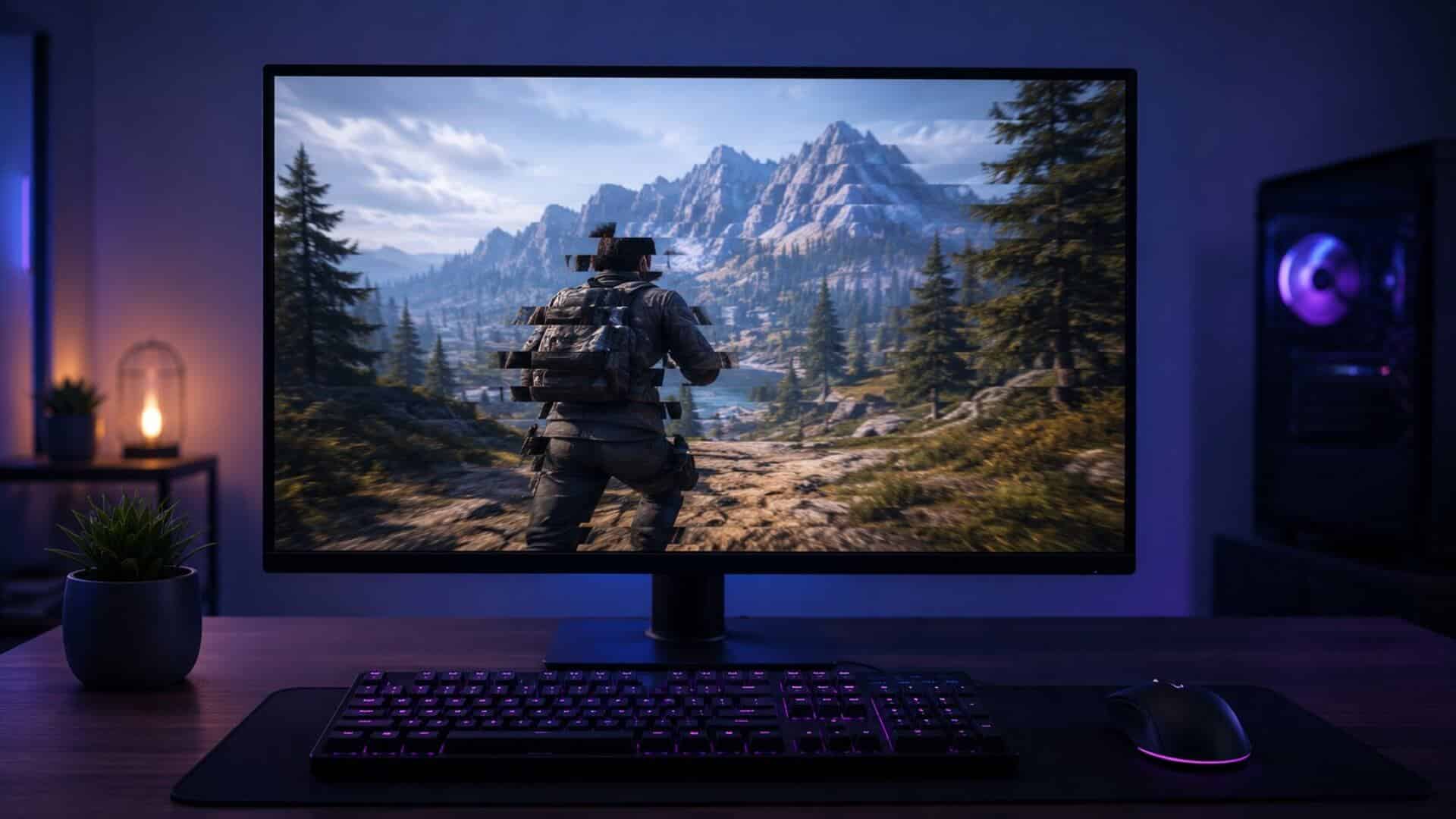
Game stuttering is frustrating because it can happen even when your PC looks powerful on paper.
You may have a high-end GPU, plenty of RAM, a high-refresh-rate monitor, and an FPS counter showing 120, 144, or even 240 FPS—yet the game still feels choppy, jerky, delayed, or inconsistent.
The reason is simple: “stuttering” is not one problem.
It can be caused by poor frame pacing, CPU bottlenecks, VRAM limits, background GPU usage, overlays, shader compilation, display settings, a recent driver update, second-monitor behaviour, unstable hardware, or a game-specific issue.
This guide helps you identify the type of stutter you are actually seeing, so you do not waste hours applying random fixes that do not match the cause.
First: What Does Game Stuttering Actually Look Like?
Not every performance problem is the same.
A low average FPS problem means the game is consistently slow. For example, it may run at 35 FPS instead of 90 FPS.
Stuttering is different. The game may appear smooth for a few seconds, then hitch, freeze briefly, skip frames, or feel uneven even though the FPS counter looks high.
Common descriptions include:
- The game has high FPS but feels choppy.
- The game freezes for a split second when entering a new area.
- FPS drops after Alt-Tab.
- The game runs smoothly in the background but stutters when focused.
- The game stutters when moving the mouse.
- The game stutters only when Discord, Chrome, YouTube, or Game Bar is open.
- The game stutters only with a second monitor connected.
- GPU usage suddenly drops and FPS collapses.
- The game started stuttering after a driver or Windows update.
- Every game stutters, even though benchmarks look normal.
The correct fix depends on which version of the problem you have.
Do Not Apply Twenty Random Fixes at Once
Before changing anything, avoid the usual “gaming optimisation” trap.
Do not disable random Windows services, edit registry values from old YouTube videos, delete system files, turn off the page file, or reinstall Windows as your first move.
That makes troubleshooting harder because you no longer know which change helped, which change caused a new problem, or whether the issue was ever related to that setting.
Instead, test one change at a time.
Use the same game, same area, same graphics settings, and ideally the same repeatable scenario. A busy multiplayer match is often a poor test because the result can change due to server conditions, other players, and background loading.
Start by finding the symptom below that best matches your issue.
High FPS but the Game Still Feels Stuttery or Choppy
If the FPS counter is high but gameplay does not feel smooth, the issue is often frame pacing rather than average FPS.
A game can report 144 FPS while still delivering frames unevenly. For example, it may render several frames quickly, then pause briefly before rendering the next one. The average FPS can look good, but the uneven delivery is visible as small hitches or a choppy feel.
This is often described as:
- Bad 1% lows
- Poor frame times
- Microstutter
- Uneven frame pacing
- High FPS but not smooth
Common causes include an unstable frame rate, uncapped FPS, a CPU bottleneck, background processes, shader compilation, VRR settings, or a mismatch between the game’s frame output and your monitor refresh rate.
When FPS is high but the game still feels uneven, follow our guide to diagnosing frame-time spikes and bad 1% lows to determine whether the problem is frame pacing, a CPU limitation or an unstable frame cap.
GPU Usage Is at 100% but FPS Is Still Low
Seeing 95% to 100% GPU usage is not automatically a problem. In many games, it simply means your GPU is doing the work it was designed to do.
The concern is when GPU usage is high but FPS is much lower than expected for your hardware, resolution, and settings.
Possible causes include:
- Resolution or graphics settings that are too demanding
- Ray tracing or heavy GPU effects
- VRAM pressure
- Thermal throttling
- An FPS cap, V-Sync setting, or refresh-rate limit
- Driver problems
- Background GPU acceleration
- A game engine limitation
Check whether lowering GPU-heavy settings—such as resolution scale, ray tracing, shadows, reflections, and anti-aliasing—improves the issue. If it does, the GPU workload is likely the limiting factor.
If GPU usage remains near 100% while performance is lower than expected, use our 100% GPU usage but low FPS troubleshooting guide to check whether you are GPU-bound, VRAM-limited, frame-capped or experiencing thermal throttling.
GPU Usage Drops During Gameplay and FPS Suddenly Tanks
If GPU usage drops sharply at the same time FPS drops, your GPU may be waiting for something else.
That “something else” is often the CPU, RAM, storage, background software, driver behaviour, shader compilation, temperature limits, or a game-engine issue.
For example, if your GPU normally runs at 98% usage and suddenly drops to 45% while the game hitches, the GPU may not be receiving work fast enough. Turning graphics settings down may not help much because the GPU is not the limiting component at that moment.
This is especially common in CPU-heavy games, large open-world games, multiplayer games, simulation titles, and games with heavy asset streaming.
The Game Is Smooth When Tabbed Out but Stutters When You Tab Back In
This is a very specific problem, and it often points to a focus, display-mode, overlay, refresh-rate, or background acceleration conflict.
If the game is smooth when unfocused but stutters the moment you click back into it, check these first:
- Borderless windowed versus exclusive fullscreen mode
- Fullscreen optimisations in Windows
- Discord overlay
- Steam overlay
- NVIDIA App or GeForce overlay
- Xbox Game Bar and background recording
- Chrome, YouTube, Twitch, or hardware-accelerated apps on another screen
- VRR settings such as G-Sync, FreeSync, or Adaptive Sync
- Mismatched refresh rates between two monitors
Do not assume the game itself is broken. The change in behaviour when focus changes is an important clue.
If the game runs smoothly while unfocused but begins stuttering as soon as you click back into it, follow our guide to fixing games that stutter only when they are focused. It covers fullscreen mode, overlays, hardware acceleration, refresh-rate conflicts and Windows focus behaviour.
The Game Runs Worse in Borderless Windowed Mode Than Fullscreen
Borderless windowed mode is convenient because Alt-Tab is faster and multi-monitor use is easier. However, it can behave differently from fullscreen depending on the game, Windows display handling, overlays, VRR settings, and your monitor setup.
If borderless mode feels worse, test the game in:
- Exclusive fullscreen
- Borderless windowed mode
- Windowed mode
Use the same resolution, graphics settings, and FPS cap for each test.
If the same game is consistently smoother in exclusive fullscreen, follow our guide to fixing games that run worse in borderless windowed mode. It covers DWM compositing, scaling, windowed VRR, overlays and fullscreen optimizations.
The Game Stutters Only When a Second Monitor Is Connected
A second monitor can trigger stuttering even when your primary gaming monitor is working perfectly.
The issue is often not the second screen itself. It is more likely caused by a combination of:
- Different monitor refresh rates
- Video playback on the second monitor
- Browser hardware acceleration
- Discord streaming or screen sharing
- Overlay rendering
- VRR or G-Sync/FreeSync behaviour
- A game switching display modes
- Background recording software
A useful test is to temporarily disable the second monitor, then test the same game again. If the problem disappears, reconnect the monitor and test one variable at a time: refresh rate, browser playback, Discord, overlay settings, and display mode.
If the game becomes smooth as soon as the second display is disabled or disconnected, follow our guide to fixing game stutter caused by a second monitor. It covers refresh-rate mismatches, display routing, VRR, hardware acceleration and Windows multi-monitor conflicts.
The Game Stutters When You Move the Mouse
Mouse-related stuttering is easy to miss because the game may run smoothly until you move the mouse quickly.
This can happen with very high mouse polling rates, USB controller conflicts, overlays, outdated mouse software, or games that do not handle high input rates well.
If the issue appears only during fast camera movement or mouse movement, test these steps:
- Lower the mouse polling rate temporarily.
- Test the mouse in a different USB port.
- Close mouse software and RGB software temporarily.
- Disable overlays one by one.
- Test with another mouse if available.
- Check whether the issue occurs only in one game or every game.
Do not permanently lower your polling rate unless it actually fixes the issue. The goal is to identify whether mouse input is the trigger.
If the frame-time spikes occur specifically while moving the mouse, follow our guide to fixing mouse-movement stutter caused by high polling rates, USB conflicts and overlays.
The Game Stutters During the First Match or When Entering New Areas
Stutters during the first match, first few minutes, new map, new cutscene, or new area are often linked to shader compilation or asset loading.
Modern games may need to compile shaders as they encounter new effects, environments, enemies, textures, or lighting conditions. This can create short hitches even if average FPS is high.
The pattern matters:
- Stutters only the first time you enter an area: likely shader or asset loading.
- Stutters every time you enter the same area: may be a different issue.
- Stutters became worse after a driver update: shader cache rebuilding may be involved.
- Stutters happen across every game: check system-wide causes instead.
Avoid constantly clearing shader caches unless you have a reason. Clearing them can temporarily make first-run stuttering worse because the game may need to rebuild them.
Games Started Stuttering After a GPU Driver Update
A driver update can improve one game while causing new problems in another. It can also reset settings, rebuild caches, change overlay behaviour, or expose an existing instability.
If stutters began immediately after a GPU driver update, check:
- Whether the issue happens in more than one game
- Whether shader compilation is occurring again
- Whether your graphics settings or frame cap changed
- Whether an overlay was enabled after the update
- Whether temperatures or clock behaviour changed
- Whether a clean driver reinstall is justified
- Whether rolling back to the previous stable driver is worth testing
Do not automatically assume the newest driver is always best for every game. Test the driver that is stable for your system and games.
If the stuttering began immediately after a graphics driver or Windows update, follow our safe post-update game stuttering diagnostic order. It will help you distinguish temporary shader rebuilding from a driver conflict, reset Windows setting, overlay issue, or corrupted cache before you attempt a rollback.
Discord, Chrome, Game Bar, YouTube or Other Background Apps Cause Stutters
Background programs can cause gaming stutters even when they do not appear to use much CPU.
Discord, Chrome, Edge, Game Bar, streaming apps, recording tools, hardware monitoring tools, RGB utilities, and overlays can use GPU acceleration, hardware video decoding, capture hooks, or background recording features.
The fastest way to test this is simple:
- Close Discord.
- Close browsers, YouTube, Twitch, and streaming tabs.
- Disable overlays.
- Disable Game Bar recording features if they are active.
- Test the game again.
If performance improves, re-enable items one at a time until you identify the culprit.
If performance improves after closing Discord, Chrome, YouTube or Game Bar, use our background GPU usage troubleshooting guide to isolate hardware acceleration, overlays, video decoding and background recording.
VRAM Is Full and the Game Starts Stuttering
VRAM is your graphics card’s dedicated memory. If a game uses more VRAM than your GPU can comfortably provide, it may begin streaming textures aggressively, lowering texture quality, hitching, or producing severe frame-time spikes.
VRAM pressure is more likely when using:
- High-resolution texture packs
- Ray tracing
- Very high texture settings
- High resolutions
- Multiple monitors
- Background GPU-accelerated programs
- Older GPUs with limited VRAM
Lowering texture quality is often more useful than lowering settings such as shadows or anti-aliasing when VRAM is the actual problem.
Every Game Stutters, Even Though the PC Is Powerful
If one game stutters, the issue may be game-specific.
If nearly every game stutters, focus on system-wide causes.
Check for:
- GPU or CPU overheating
- Unstable RAM settings or memory overclocks
- Storage problems or a nearly full drive
- Background software
- Driver issues
- Windows updates or power settings
- Incorrect monitor refresh rate
- Bad display cable behaviour
- CPU throttling
- GPU power limits
- Malware or unwanted startup software
- BIOS settings, RAM profile settings, or hardware instability
Start with the simplest tests before changing BIOS settings or reinstalling Windows.
Use one game that is normally stable, one benchmark or repeatable test, and one monitoring method. You are trying to identify a pattern, not chase a single random FPS number.
If the problem is happening on a gaming laptop, use our gaming laptop stuttering troubleshooter to check power limits, Optimus or MUX switching, thermal throttling, charging behaviour and external-display routing.
A Simple Order for Troubleshooting Game Stutters
If you are not sure which category fits, use this order:
- Restart the game and PC.
- Close browsers, Discord, overlays, recording tools, and background apps.
- Check whether the issue happens in one game or every game.
- Test fullscreen versus borderless windowed mode.
- Test with the second monitor disabled.
- Check whether FPS is low, or whether FPS is high but frame pacing feels bad.
- Check GPU usage, CPU usage, temperatures, RAM usage, and VRAM use.
- Check whether the problem started after a driver or Windows update.
- Test whether the stutter happens only in new areas, during first-run gameplay, or during mouse movement.
- Change one variable at a time and retest.
This process is slower than clicking a “gaming optimisation” button, but it is much faster than randomly changing ten settings and hoping one works.
What Not to Do First
Avoid these as a first response to game stuttering:
- Reinstalling Windows
- Updating BIOS without a clear reason
- Disabling the page file
- Installing random “FPS booster” software
- Running registry-cleaning tools
- Disabling every Windows service
- Deleting shader caches repeatedly
- Changing multiple NVIDIA or AMD settings at once
- Overclocking hardware to solve an existing stutter problem
These actions can create new problems or hide the original cause.
Frequently Asked Questions
Is 100% GPU usage bad while gaming?
Usually, no. High GPU usage often means your GPU is being fully used. It becomes worth investigating when performance is unexpectedly low, temperatures are excessive, clocks are throttling, or VRAM is full.
Why does my game stutter even though FPS is high?
Average FPS does not show how evenly frames are delivered. Poor frame pacing, low 1% lows, shader compilation, background apps, overlays, VRR conflicts, and CPU bottlenecks can make high FPS feel choppy.
Should I cap my FPS to reduce stuttering?
Sometimes. An FPS cap can reduce unnecessary GPU load and make frame delivery more consistent. Test it properly rather than assuming one cap is right for every game, monitor, or system.
Can Discord or Chrome really cause gaming stutters?
Yes. Hardware acceleration, video playback, screen sharing, overlays, and background GPU use can interfere with some games and display setups.
Why does a game stutter only after Alt-Tab?
Alt-Tab can change focus behaviour, overlays, display handling, refresh-rate behaviour, VRR behaviour, and background-app activity. It is a useful clue that points toward a display or software conflict.
Are shader compilation stutters normal?
Short stutters during a first run, first match, or first visit to a new area can be shader-related. Persistent stutters in the same areas after repeated play may indicate another issue.
Find the Exact Cause Instead of Applying Generic Fixes
There is no single “fix game stuttering” setting that works for every PC.
The right solution depends on what changes when the stutter occurs:
- Does it happen when the game is focused?
- Does it happen only with a second monitor?
- Does GPU usage remain high or suddenly fall?
- Does it happen during new areas?
- Does it happen when you move the mouse?
- Does it happen after opening Discord, Chrome, YouTube, or an overlay?
- Does it happen in one game or every game?
Use the symptom that best matches your experience, then follow the dedicated guide for that specific issue. That approach is far more likely to solve the problem than generic optimisation advice.
