


A low frame rate feels sluggish all the time. A stutter that hits every few seconds is something entirely different. It feels like a brief freeze, a teleport, a moment where the screen catches up with itself. That rhythm is a clue. It almost always points to frame-time inconsistency—not a lack of raw GPU power, but a sudden spike in how long one frame takes to render relative to the rest.
Perfect 60 FPS means each frame arrives every 16.7 ms. A single frame that takes 80 ms while the others hit 16 ms gives you that hitch, even though your FPS counter still reads 60. This is one form of uneven frame pacing. For the broader relationship between average FPS, frame time and 1% lows, read our guide to why high FPS can still feel stuttery.
This guide doesn’t list every possible Windows tweak. It follows a diagnostic path: identify the pattern, isolate the source, apply the least invasive fix first, and verify. You’ll find a numbered safe troubleshooting order, common dead ends, and edge cases that trip up experienced builders.
If the hitch does not follow a regular repeating pattern, use our PC game stuttering troubleshooter to check for GPU load, Alt-Tab, driver, display and other symptom-specific causes.
First, Rule Out the Two-Minute Culprits
Before you touch drivers or BIOS, eliminate the most trivial causes. They’re responsible for a surprising share of “every few seconds” stutters.
Game Overlays and Capture Software
Steam, Discord, NVIDIA GeForce Experience, Xbox Game Bar—each adds an overlay. When overlays inject themselves between the game and the driver, frame delivery can hiccup on a regular tick. Disable them all, not just one. If you use MSI Afterburner for monitoring, close it during the test; its polling can sometimes cause micro-stutter on some GPU families.
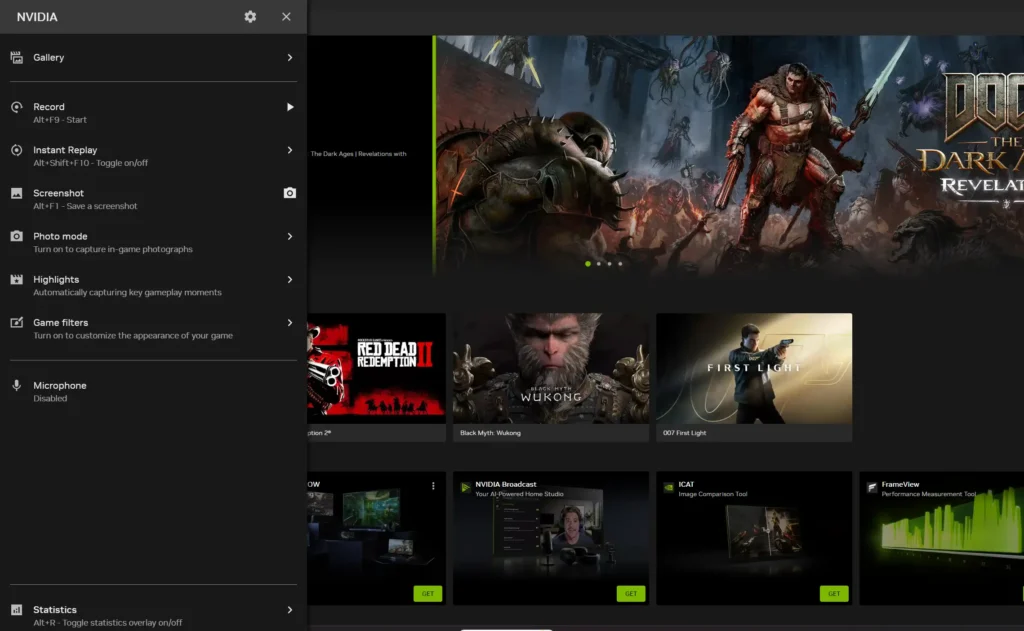
Test: Start the game. Press Win+G to disable Game Bar. In Discord, toggle the overlay off. In Steam, uncheck “Enable the Steam Overlay” for the specific game. Run a four-minute session. Stutter still there? Move on.
Background Polling and RGB Software
Motherboard utilities, RGB controllers, fan software, even older Wi-Fi drivers can spam the CPU with interrupts. The snippet symptom: stutter that matches a polling interval—often every second or two. Use Task Manager to sort processes by CPU time (not just usage %). Look for anything from your motherboard vendor (Armoury Crate, MSI Center) or aging audio utilities. Temporarily kill them, not disable on startup, and test again.
Power Plan and Full-Screen Optimizations
Windows’ default “Balanced” plan can park CPU cores too aggressively. Set it to High Performance or, for desktops, the “Ultimate Performance” plan. Also, right-click your game executable, open Properties > Compatibility, and check “Disable full-screen optimizations.” This stops Windows from treating your exclusive full-screen game as a hybrid window, which can cause compositing jitter.
If stutters vanish, re-enable background apps one by one to find the offender. If they persist, you’ve eliminated the surface layer. The real causes lie deeper.
The Data Pipeline: Memory, Paging, and Standby
The most common mechanism behind rhythmic, every-few-seconds stuttering is the memory subsystem flailing to keep up. Two distinct problems live here.
Standby Memory Pile-Up
Windows caches recently used data in a “standby list”—RAM that’s marked free but still holds old pages. When a game needs that memory, Windows must evict the standby content before handing it over. That eviction isn’t instant; it creates a CPU spike and a frame-time outlier. The stutter repeats when the standby list refills and the game requests another block.
Diagnose: Open Resource Monitor (resmon.exe). Switch to the Memory tab and look at the “Standby” figure (blue bar). If it’s growing into several gigabytes while you play, you’ve found the mechanism. The fix isn’t to reboot constantly. The most reliable method is to configure the page file correctly, because Windows becomes less aggressive about purging standby memory when virtual memory is abundant and fixed.
Dynamic Page File Resizing
If Windows is allowed to automatically manage the page file, it may expand or shrink it during gameplay, causing I/O contention and stutter. Even with 32 GB of RAM, modern games stream assets constantly, and the OS can choose to page non-game data. A fixed page file on your fastest NVMe drive removes the variable.
Test and Fix: Right-click This PC > Properties > Advanced system settings > Performance Settings > Advanced > Virtual memory Change. Uncheck “Automatically manage.” Select your fastest SSD, choose Custom size, and set both Initial and Maximum to the same value. As a safe baseline, use 1.5 × your total RAM, but never less than 16384 MB. If you have 16 GB of RAM, set 16384 MB (initial) and 16384 MB (maximum). Reboot.
Too Little RAM or Wrong Speed
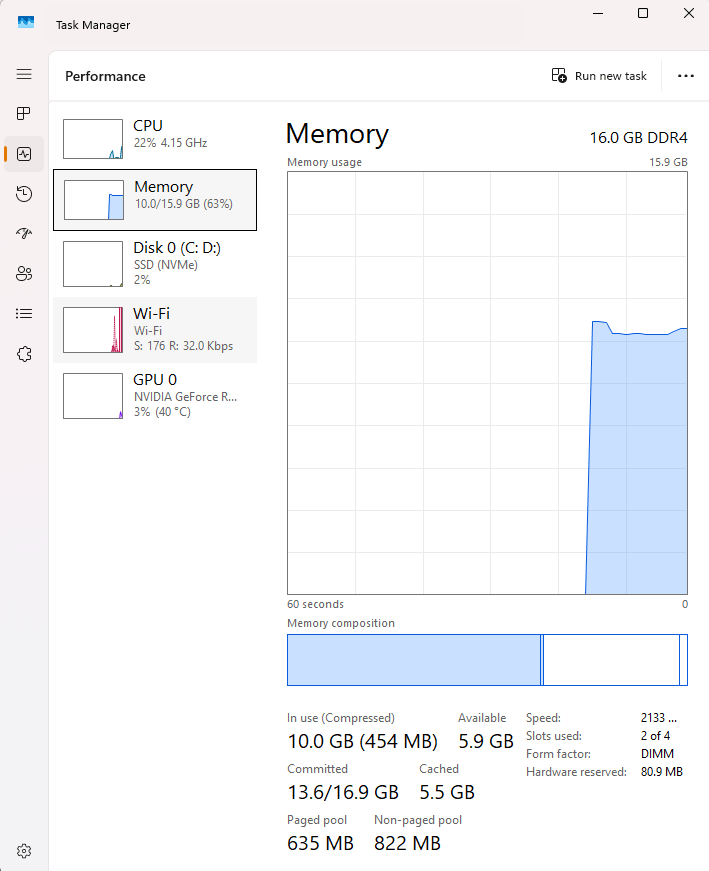
8 GB is no longer enough. If your system is forced to page actively because physical RAM is exhausted, you’ll see the stuttering worsen the longer you play—maps load more assets, the page file becomes the primary backing store. Upgrading to 16 GB or 32 GB resolves this completely. But before you spend money, check your current RAM speed. Most DDR4 kits default to 2133 MHz or 2400 MHz regardless of their XMP rating. Enter BIOS (Del or F2) and enable XMP (Intel) or DOCP/EXPO (AMD). This alone can shave 5–10% off frame-time spikes, because the CPU’s memory controller saturates the Infinity Fabric or ring bus faster.
Thermal Throttling on a Timer
Heat doesn’t cause a constant performance drop immediately; it causes clock speed oscillations as the component crosses a temperature threshold, throttles, cools, and recovers. That cadence can match your “every few seconds” experience perfectly.
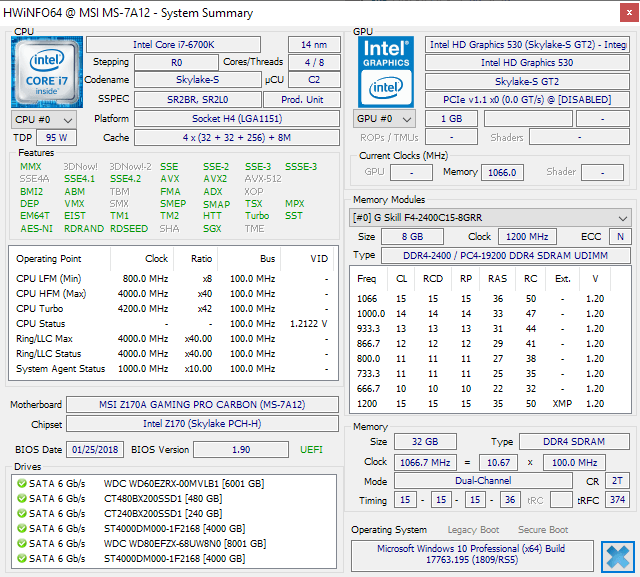
Test: Install HWiNFO64. Log sensors while you play: GPU Hotspot, GPU memory junction (especially on GDDR6X cards), and CPU package temperature. Look for “Performance Limit – Thermal” flags in the GPU section. On the CPU, watch for PROCHOT or clock drops below base frequency. If you see a sawtooth pattern—temperature jumps to 95°C, clock drops 500 MHz, temperature falls to 85°C, clock restores—you’ve found it.
Fix: Clean fans and heatsinks. Repaste the GPU if it’s older. For laptops, lifting the rear for airflow often drops temperatures 5–8°C. Undervolting the GPU via MSI Afterburner’s voltage/frequency curve can keep clocks stable without overheating, but only pursue that if you’re comfortable with stability testing.
The Safe Troubleshooting Order (Stop Guessing, Start Testing)
Apply these steps in order. After each step, test the game for five minutes. Do not change multiple items at once.
- Disable all overlays and non-essential background utilities including RGB controllers, fan software, and motherboard bloatware. Exit everything from the system tray you don’t need. Play test.
- Set Power Plan to High Performance. Disable full-screen optimizations on the game’s .exe. Play test.
- Check RAM usage and standby memory. If standby memory climbs while the game stutters, set a fixed page file size on your fastest SSD (see above) and reboot. Play test.
- Enable XMP/DOCP in BIOS. Verify in Task Manager > Performance > Memory that the speed matches your kit’s rating. Play test.
- Monitor GPU and CPU temperatures with HWiNFO. Identify thermal throttling oscillations. If present, address cooling: clean dust, adjust fan curves, ensure case airflow, consider undervolting. Play test.
- Perform a clean GPU driver installation. Use DDU in Safe Mode to remove the current driver, then install the latest stable package. Do not install GeForce Experience/AMD Software optional components during the test. Play test.
- Isolate storage interference. If the stutter happens specifically when moving between areas, your storage might be struggling. Check the drive’s health with CrystalDiskInfo and ensure the game is on an SSD, not a hard drive. Play test.
- Last resort: clean Windows install. Use a bootable USB, back up your files, and install only the chipset driver, GPU driver, and the game. Test before adding any other software. If the stutter is gone, you had OS-level corruption or a conflict from old drivers.
Common Mistakes That Waste Hours
- Confusing low FPS with stutter. If your frame rate is consistently low, you need lower settings or better hardware. Stutter is inconsistency. Don’t turn down texture quality to fix a hitching issue—that’s a memory streaming problem, not GPU fill rate. However, if the frame rate and frame-time graph both look stable but aiming still feels heavy, floaty, or delayed, you may be dealing with input latency rather than stutter. See why high FPS can still make the mouse feel delayed or sluggish.
- Setting a page file size that’s too small. Some guides suggest 512 MB or no page file at all. Some games and applications request huge contiguous virtual address spaces, even if they don’t use physical RAM. Capping the page file too low causes crashes or stuttering, especially in memory-hungry titles like Warzone or Tarkov. A 16 GB fixed page file is harmless on a modern SSD.
- Testing with a browser open. A single Chrome tab playing a 60 fps video decode in the background can saturate the GPU’s video engine just enough to cause micro-stutter in the foreground game. Always close browsers when troubleshooting.
- Ignoring plugged-in peripherals. A faulty USB device can flood the interrupt controller. If you’ve tried everything, unplug all non-essential USB devices except mouse and keyboard, and test.
Edge Cases That Feel Like a Stutter Every Few Seconds
- Laptop on battery or “silent” profile. Many gaming laptops apply aggressive power limits when unplugged or in a quiet fan mode, leading to a periodic clock sawtooth. Plug in, set the OEM control software to Performance, and retest.
- Single-channel RAM configuration. Running one stick of DDR4 or DDR5 in a single-channel mode halves memory bandwidth. In CPU-limited scenarios, this can manifest as a regular stutter when the engine waits for asset fetches. The fix is adding a second matched stick to enable dual-channel.
- Corrupted Windows power profiles. Sometimes the High Performance plan itself gets corrupted via registry edits or third-party “optimizers.” You can reset all power plans by running
powercfg -restoredefaultschemesin an admin Command Prompt. Then select High Performance again. - GSync/FreeSync mismatches. A GSync display paired with an AMD card, or vice-versa, can cause regular flickering or stutter if V-Sync and variable refresh rate settings conflict. Force V-Sync on in the GPU control panel and off in-game, or disable variable refresh entirely during testing to isolate.
Frequently Asked Questions
Why does my game stutter every few seconds even though my FPS counter shows 120 FPS?
FPS counters report an average over a second. A single frame that takes 50 ms followed by 119 frames that take 8 ms still averages 120 FPS. The stutter is a frame-time spike. Use a tool that shows a frame-time graph (like RTSS with a frametime overlay) and you’ll see a spike every time you feel the hitch. If you have confirmed those spikes but cannot tell which component is producing them, use our guide to finding the real bottleneck when frame times spike despite normal FPS. The causes above—standby memory, background polling, throttling—all create these intermittent long frames.
I have 16 GB of RAM. Do I still need a fixed page file?
Yes. A fixed page file has nothing to do with shortage alone. It prevents Windows from dynamically resizing the file during gameplay, which causes stutter regardless of available physical RAM. Even large-memory systems benefit from a static page file of 16 GB or more on the boot SSD. It also reduces the aggressiveness of standby memory purging.
Will clearing the standby list with a third-party tool fix my stutters permanently?
No. Manually clearing the standby list with a tool like Intelligent Standby List Cleaner (ISLC) or by scripting EmptyStandbyList.exe is a bandage, not a cure. It works by purging the list on a timer, but you’re still creating the condition—the list fills up, the tool flushes it, and the cycle repeats. That very flush can also cause a momentary stutter. Properly setting the page file and, if needed, upgrading RAM eliminates the root cause so the standby list never becomes a bottleneck in the first place.
A stutter that repeats every few seconds is a solvable pattern. Follow the isolation steps, verify through frame-time logs, and resist the urge to change ten things at once. In most cases, you’ll fix it without a single hardware purchase—just by untangling Windows’ memory habits and silencing the background noise.
