


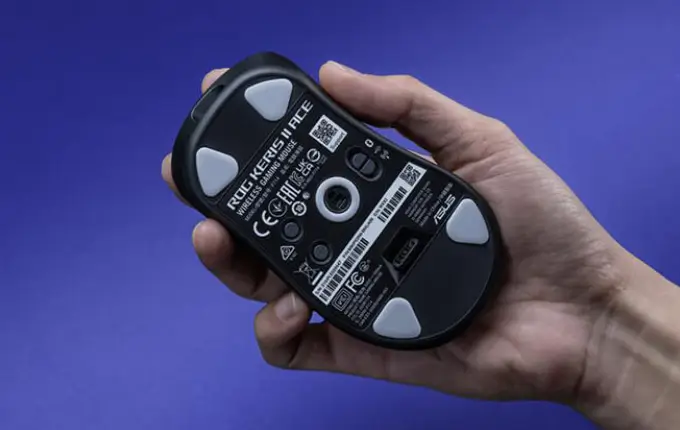
You boot up a game, frame rates look solid, but the moment you move the mouse the screen hitches, jerks, or drops frames in a rhythmic spasm. Stop moving the mouse and performance smooths out instantly. This isn’t a raw horsepower problem — your GPU and CPU are waiting, not choking. It’s an interrupt overload, a USB path misunderstanding, or a background overlay wasting your frame pipeline. The good news: this behaviour is well understood and fixable if you follow the right diagnostic order instead of blindly flipping settings.
If the hitch occurs even when the mouse is stationary—or is triggered instead by Alt-Tabbing, GPU load, updates or a second monitor—use our PC game stuttering troubleshooter to find the symptom path that better matches your problem.
How to Confirm It’s a Mouse Movement Stutter
Before you change anything, isolate the symptom or you’ll chase phantoms:
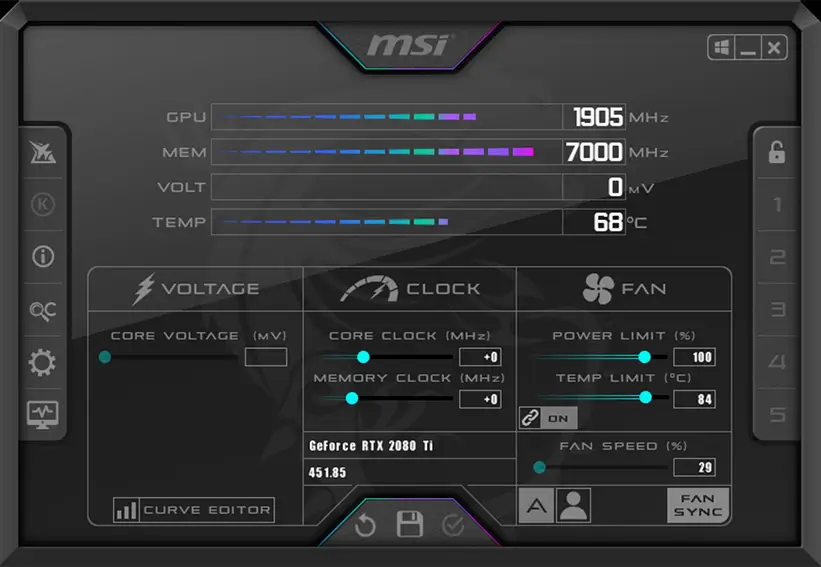
- Test with a static scene. Stand still in a game, look at an unchanging wall, and rock the mouse left and right in a steady rhythm. Watch an FPS counter and, more importantly, a frame‑time graph (RTSS/MSI Afterburner, CapFrameX). If you see clean flat lines when idle and sharp spikes only when the mouse moves, you’re dealing with an input‑time disturbance. If the frame-time graph remains flat and the game stays visually smooth, but the mouse still feels delayed or disconnected, follow our guide to fixing sluggish mouse input despite high FPS instead.
- Compare to keyboard‑only motion. Use WASD to rotate or look around without touching the mouse. If the stutter vanishes, the trigger is the mouse report stream, not the rendering load.
- Run LatencyMon (permanent window). Start the tool, run the game, and provoke the stutter. Look for DPC and ISR routine execution times blowing past 500 µs. Drivers like
nvlddmkm.sys,ndis.sys, orWdf01000.syswill show as top offenders when USB interrupt storms or overlay GPU calls are the root cause.
Once you’ve confirmed the pattern, you can trace it through three layers: the polling rate that fires the interrupts, the USB port that carries them, and the software overlays that amplify every tiny stutter into a visible frame drop.
Mouse-triggered hitching is one specific type of uneven frame delivery. For the broader relationship between frame time, 1% lows and apparently high FPS, read our guide to why high FPS can still feel stuttery.
Safe Troubleshooting Order (Least to Most Disruptive)
1. Lower the Mouse Polling Rate Temporarily — Then Diagnose Further
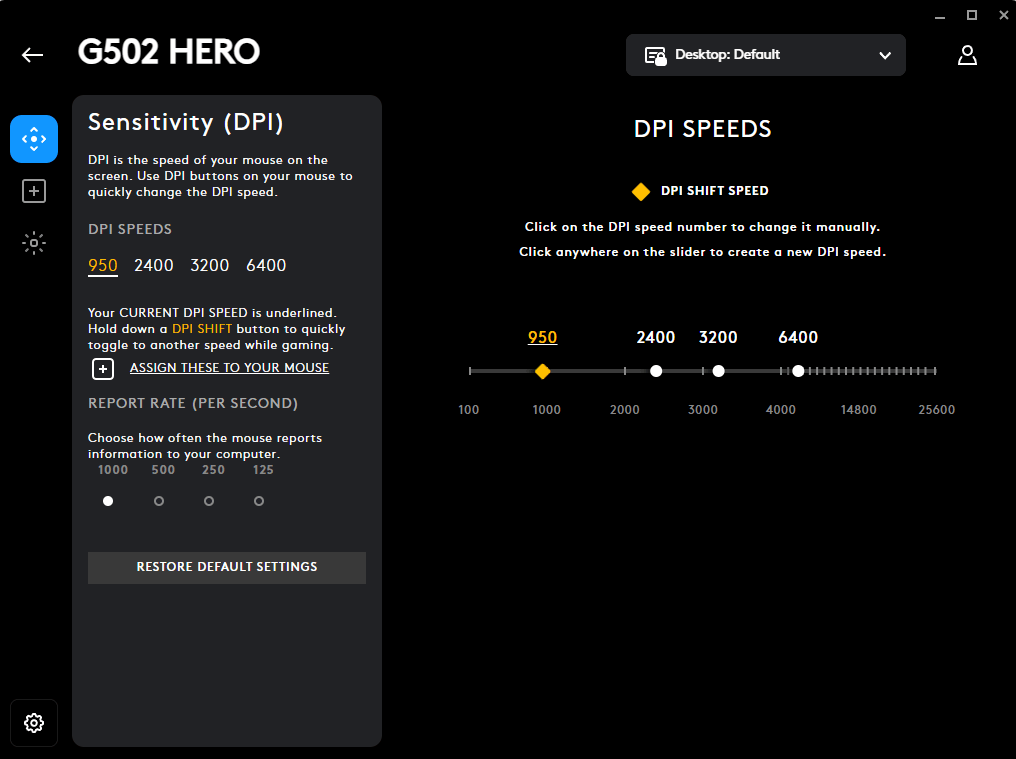
Polling rate (Hz) is how many times per second the mouse shouts its position to the CPU. A 1000 Hz mouse sends 1000 reports per second. Modern 4000 Hz or 8000 Hz models can multiply that into a constant stream of high‑priority hardware interrupts that saturate a single CPU core’s capacity, especially when the game is already tight on core headroom.
How to test: Open your mouse software (Logitech G Hub, Razer Synapse, Cooler Master MasterPlus, or the onboard button combo) and select 500 Hz or 250 Hz. Restart the game and move the mouse. If the stutter disappears or shrinks dramatically, you’ve identified CPU interrupt pressure as the bottleneck. Don’t stop here — the goal is to run the mouse at its native high rate comfortably, not to permanently hobble your sensor.
False friend warning: Some games appear smoother at low polling rates because the CPU interrupt spikes simply become less frequent, but the underlying DPC storm still exists. If lowering the rate only reduces stutter severity but does not eliminate it completely, jump to step 2 and step 3.
2. Move the Mouse Receiver to a Direct Rear I/O USB Port
USB paths matter more than most people think. Front‑panel headers, USB hubs, and even some chipset‑rooted rear ports share interrupt lines and bandwidth with other high‑traffic devices (NVMe drives, network controllers, audio codecs). When the mouse’s high‑frequency reports collide with those devices on the same controller, you get bus contention and CPU interrupt queuing — the exact fingerprint of mouse‑movement stutter.
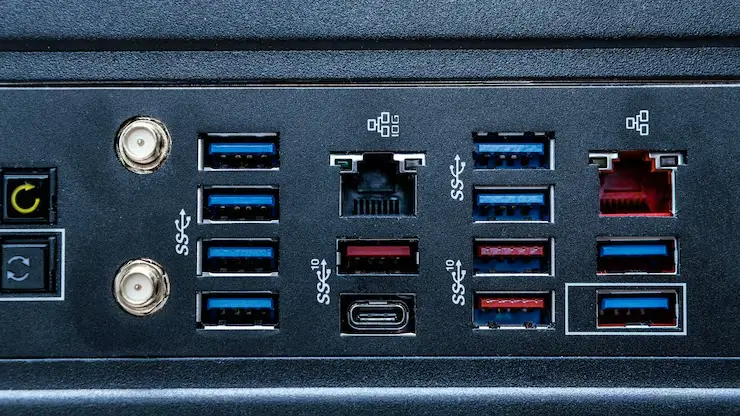
Correct port placement:
- Plug the mouse’s wireless dongle or cable directly into a motherboard rear USB port (back of the case).
- Prefer a USB 2.0 port (black) over USB 3.x (blue/red). USB 3.0’s 5 GHz signalling can interfere with 2.4 GHz wireless dongles and adds overhead. If you have a dedicated USB 2.0 port next to the PS/2 connector, use that.
- Avoid USB hubs, keyboard pass‑throughs, and monitor USB ports completely.
Check with a tool: Open HWiNFO64, sensors‑only mode, and watch per‑core CPU usage while moving the mouse rapidly in an empty desktop. If you see a single core spike to 95 %+ purely from mouse motion, the interrupt path is far too heavy. A clean port often cuts that usage by more than half.
3. Disable Every Background Overlay, One by One
Overlays are notorious for injecting frame‑time spikes because they intercept the game’s present call, read the frame buffer, and queue their own GPU work — exactly when the mouse reports flood in. Even overlays you think are off often have background processes still active.
Checklist — disable each completely, not just minimised:
- Discord: Settings → Overlay → Enable in‑game overlay OFF. Also disable hardware acceleration in Discord’s advanced settings while testing.
- Steam: Settings → In‑Game → Enable the Steam Overlay while in‑game OFF.
- Xbox Game Bar: Windows Settings → Gaming → Game Bar → Off. Then go to Apps → Xbox Game Bar → Advanced options → Terminate.
- GeForce Experience overlay: Open GeForce Experience → Settings → General → In‑Game Overlay OFF.
- RivaTuner Statistics Server (RTSS): Often used for framerate overlays — disable it or set detection level to “none” while testing.
- EA App, Ubisoft Connect, Epic Games: Each has its own overlay setting; kill it in the launcher’s preferences.
Test the game after each major toggle. Frequently a single overlay (Discord on a busy server, or the Xbox Game Bar’s capture engine) is the full offender. Once the stutter is gone, you can turn overlays back one at a time to find the acceptable limit.
4. Audit DPC Latency and Update Offending Drivers
If steps 1‑3 haven’t killed the stutter, the interrupt processing delay is likely coming from a kernel‑mode driver that hogs the CPU for too long. LatencyMon already named suspects. The most common culprits in mouse‑movement stutter cases are:
- GPU driver (
nvlddmkm.sys/atikmdag.sys): High execution times during hardware‑accelerated overlays or when GPU scheduling conflicts with mouse interrupts. A clean driver reinstall with “prefer maximum performance” and the latest studio (not game‑ready) branch can sometimes change the DPC profile. - Network driver (
ndis.sys, Wi‑Fi or Ethernet chipset): A driver that holds the CPU too long will combine with mouse interrupts and create a visible hitch whenever the mouse moves. Update from the motherboard vendor’s website, not just Windows Update. - Intel/Realtek audio drivers: Rare but measurable. Disable the audio device in Device Manager as a quick isolation test — if stutter vanishes, update to the latest driver directly from the chipset vendor.
Run LatencyMon again after each driver change. A successful fix will show ISR and DPC execution times consistently under 250 µs even during fast mouse swipes.
5. Advanced CPU Adjustments — Use Only When Consistent Stutter Remains
On machines where the mouse interrupt is pinned to the same core as the game’s main rendering thread, even moderate polling rates can cause frame drops because the core oscillates between game logic and interrupt service. Two proven adjustments help, but they carry caveats.
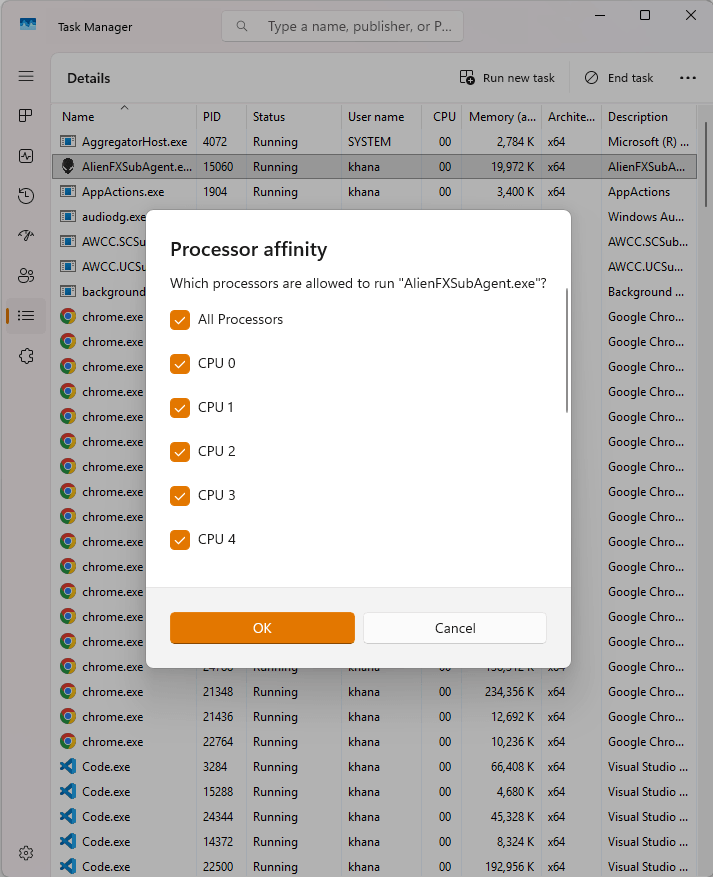
CPU affinity for older games: Games built on older engines (DirectX 9/11, some VR titles) can be pushed to a different physical core set to decouple from the interrupt core. Launch the game, open Task Manager → Details → right‑click game exe → Set affinity, and uncheck CPU 0. This forces the game thread away from the core that typically handles most USB interrupts. Retest mouse movement. This works well on Intel 12th‑gen and later with P‑cores, but can hurt performance on balanced thread distribution titles; don’t leave it on permanently unless the difference is night and day.
Disabling Hyper‑Threading / SMT: Some game engines see SMT threads as real cores and schedule important work on a logical thread that shares resources with the interrupt core. Disabling Hyper‑Threading in BIOS (Intel) or SMT (AMD) can linearise scheduling and remove the jitter. This is a blunt tool — only try it if stutter is severe and polling rate reduction, USB isolation, and overlay removal all failed. Benchmark before and after, because many modern games lose average FPS without SMT. Use this sparingly, and re‑enable it for daily driver work.
HPET (High Precision Event Timer):
If LatencyMon points to “System” interrupts with long latencies and you consistently see stalls across USB input, disabling HPET via bcdedit /deletevalue useplatformclock in an admin Command Prompt may smooth out the event timer handling, removing a source of periodic jitter. Re‑enabling is bcdedit /set useplatformclock true. Only touch this if you understand that HPET modes vary by motherboard and some systems boot slower or exhibit worse frame pacing with HPET off. Always have a way to revert.
6. Disable Windows Game Mode
Game Mode’s intent is to prioritise game processes, but in reality it often forces a different CPU scheduling pattern that can amplify interrupt contention on dual‑core‑heavy configurations. Go to Windows Settings → Gaming → Game Mode → Off, restart your game, and see if the mouse‑related frame‑time spikes reduce. The effect is usually modest, but in combination with the other steps it can stabilise the last few tenths of a percent.
Common Mistakes That Waste Your Time
- Assuming a high‑end PC is immune: A 12‑core, 5.5 GHz CPU can still stutter if a single core is pegged with 8000 Hz interrupt requests and the game’s main thread sits on the same core.
- Lowering polling rate and calling it fixed: You’re masking a host‑level problem. Always return to the native high rate after curing the root cause.
- Ignoring USB 2.0 ports: “I’ll just use the fastest port” is a myth for mice — faster ports do not improve mouse responsiveness beyond the sensor and wireless encoder, but they can introduce electrical interference and extra bus chatter.
- Turning off overlays without terminating their background tasks: Some overlays leave an OSD process sleeping; check Task Manager for dwm.exe spikes when moving the mouse.
Edge Cases and Situation‑Specific Tips
- VR stuttering with mouse‑look: The same interrupt pressure that causes monitor stutter is magnified in VR because headset tracking competes with mouse updates. Prioritise USB port isolation and ensure the mouse is on a different USB controller than the headset, ideally on a USB 2.0 root hub you can identify in Device Manager.
- Older games like Team Fortress 2, CS:Source, or DCS World on high‑polling mice: These engines issue fewer draw calls per frame and any DPC spike shows up as a complete frame drop. Setting the game’s affinity away from CPU 0 often fixes it without touching the mouse.
- Wireless interference masquerading as polling stutter: If using a wireless mouse, move the dongle away from USB 3.0 ports, routers, and active HDMI/DisplayPort cables. A simple USB 2.0 extension cable moving the dongle to the desk can clear 2.4 GHz noise.
Frequently Asked Questions
Should I permanently run my mouse at 500 Hz to avoid problems?
No — not unless your CPU is genuinely incapable of handling the interrupt load and all other avenues (USB isolation, driver updates, overlay removal) have been exhausted. High polling rates provide a measurable reduction in click‑to‑photon latency. The right goal is to let the mouse run at its designed rate without stutter.
Can an overlay cause input‑related stutter even if it’s not visible on screen?
Absolutely. Many overlays inject into the rendering pipeline regardless of whether they display anything. Discord’s overlay, for example, hooks every frame even with zero notification toggles. That hook interacts with GPU command submission, and when a burst of mouse reports arrives, the overlay’s processing can spike frame‑time. Always fully disable overlays, not just hide them.
Is USB 3.0 better for a high‑polling‑rate mouse?
No. USB 3.0 brings higher electrical noise that can interfere with wireless dongles and offers no latency benefit for a peripheral that needs only a trickle of bandwidth. USB 2.0 is electrically simpler, more reliable for small interrupt‑driven devices, and should always be your first choice for mice and keyboards.
Bringing It All Together
Mouse‑movement stutter is a solvable problem. In most cases, the cure is a combination of direct USB port connection, overlay purging, and a temporary polling rate check to prove the cause. When those fail, LatencyMon and a careful driver update turn the stutter into a flat, smooth frame‑time line. Don’t let a mouse that moves like a slideshow ruin an otherwise fast PC — the fix is almost never about more hardware, only better paths for the ones you already have.
