


You sit down to play, and right after a graphics driver or Windows patch your games feel choppy. It is not your hardware failing. Updates routinely reset Windows settings, flush compiled shaders, change GPU scheduling defaults, or create driver‑OS combinations that interact poorly with specific titles. The key is isolating which of those triggers landed on your system, because the correct fix depends entirely on the symptom pattern, not on downloading another “game booster” tool.
If the stuttering did not begin immediately after an update—or it also occurs during mouse movement, Alt-Tabbing, heavy GPU load, or second-monitor use—start with our PC game stuttering troubleshooter to identify the symptom path that best matches your system.
Quick Diagnostic – Shader, Driver Conflict or Windows Settings
Before you touch anything, watch exactly how the stutter behaves. That pattern tells you where to focus.
Symptom 1 – Stutters Only for a Short Time After Launch
The game micro‑freezes, stutters heavily during the first minutes, then gradually smooths out. If that cycle repeats after a reboot or a new driver, you are dealing with shader recompilation. Both DirectX 12 and Vulkan games build graphic pipelines the first time they see a scene. A GPU driver update wipes the shader cache, so the work has to happen again. The same can occur after a major Windows update if it resets the GPU’s driver store. Wait it out; do not panic. The Nvidia App’s “Auto Shader Compilation” feature from recent versions can pre‑build those shaders while the system is idle, but if you do not have it enabled, manual intervention (playing through the stutter) is the only cure.
Symptom 2 – Persistent Micro‑Stutter Across All Games
When every title stutters rhythmically – every few seconds, even after extended play – suspect a Windows‑level change. The most common culprits are Hardware‑Accelerated GPU Scheduling (HAGS), Virtualization‑Based Security (VBS) getting re‑enabled after a feature update, or the power plan flipping back to “Balanced”. A freshly installed GPU driver can also overlay a smooth gaming experience with its own shader cache logic, but cross‑title stutter usually points to the OS, not a single driver file.
Symptom 3 – Stuttering After Alt‑Tabbing or When Overlays Appear
If the stutter happens exclusively after switching focus, opening Xbox Game Bar, or when a Discord notification pops in, the combo of Fullscreen Optimizations (FSO) and overlays is the likely trigger. Windows updates occasionally change how FSO handles window transitions, and overlays inject themselves into the render pipeline at the wrong moment.
The Safe Troubleshooting Order
Follow these steps in sequence. Do not skip ahead – early steps fix the majority of post‑update stutter without touching the operating system deeply.
- Let shaders rebuild naturally. If the stutter fades after 10–20 minutes in‑game, do nothing. This is the least invasive approach. Only proceed if the stutter persists past that window.
- Disable Hardware‑Accelerated GPU Scheduling. Open Windows Settings → System → Display → Graphics → “Change default graphics settings”. Turn off “Hardware‑accelerated GPU scheduling”, then reboot. This feature shifts GPU memory management to the driver and can clash with specific driver builds or older games. Test with it off before anything else.
- Disable overlays and Fullscreen Optimizations temporarily. Turn off Xbox Game Bar (Settings → Gaming → Game Bar → off), disable Nvidia GeForce Experience / AMD Software overlay, and test the game. For the problematic executable, right‑click → Properties → Compatibility → check “Disable fullscreen optimizations”. This is not a permanent recommendation but a diagnostic – if stutter vanishes, you have an overlay choke point.
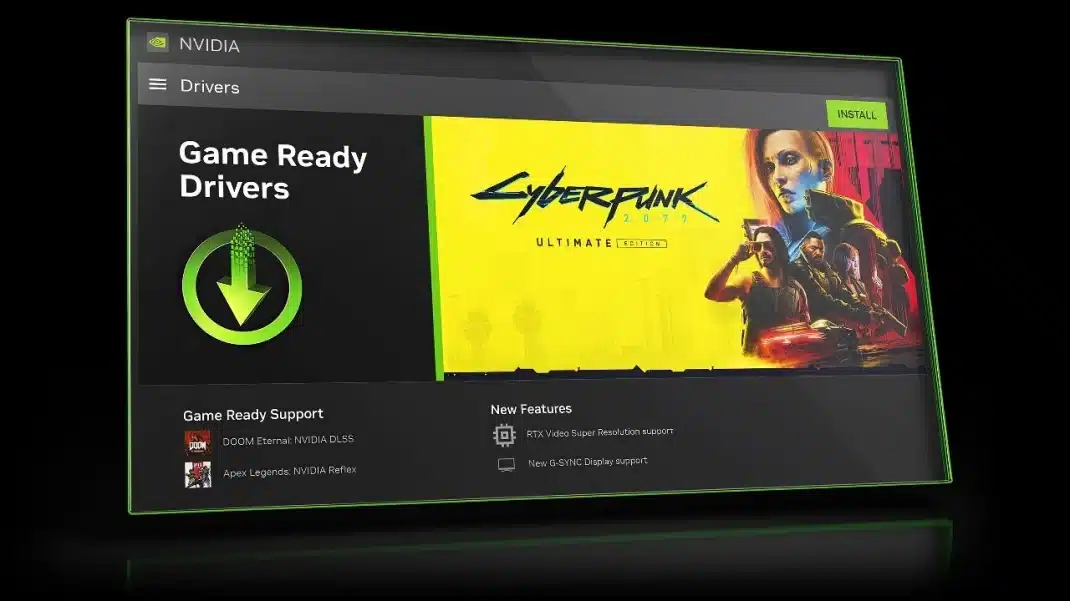
- Roll back or clean install the GPU driver. If your system was smooth on a previous driver, use Device Manager → Display Adapters → right‑click GPU → Properties → Driver → Roll Back Driver. If that button is greyed out, perform a clean installation with your vendor’s “clean install” option. The purpose is wiping residual shader cache and profile conflicts. Afterward, test without enabling extra driver features like image sharpening or frame generation.
- Check VBS and Memory Integrity. Windows updates can silently re‑enable Memory Integrity (part of VBS). Go to Windows Security → Device Security → Core isolation details. If it is on, turn it off temporarily and reboot. VBS virtualises some memory operations and can introduce persistent micro‑stutter on many gaming rigs.
- Verify power plan and CPU C‑states. After an upgrade a “Balanced” plan often overrides the “High performance” or “Ultimate Performance” plan. Set to High performance in Control Panel → Power Options. More importantly, check your motherboard’s C‑state settings in BIOS if you are comfortable; some configurations cause the OS scheduler to park cores too aggressively.
- Check for auto‑applied Windows driver updates. Windows Update sometimes pushes an older or generic GPU driver over the one you installed. Open Device Manager, find the GPU, and if the driver date is not yours, download the latest package from Nvidia, AMD or Intel and install it manually. Then use Group Policy or a tool to prevent driver updates if the problem repeats.
- Clear the shader cache manually. When the shader cache gets corrupted rather than rebuilt cleanly, stutter can become random. In the Nvidia Control Panel or AMD Software, find the shader cache option and disable it, apply, reboot, then re‑enable it. Or delete the cache folder files directly (for Nvidia:
%USERPROFILE%\AppData\LocalLow\NVIDIA\PerDriverVersion\DXCache, for AMD:%USERPROFILE%\AppData\Local\amd\DxCache). - Uninstall the latest Windows cumulative update. As a last resort, if the stutter appeared right after a specific KB update and the steps above did not help, uninstall that update from Settings → Windows Update → Update history → Uninstall updates. Pause updates for a few weeks and retest. This is rarely needed, but some patches (like KB5077181, noted in community reports) have triggered measurable gaming hitching.
Common Mistakes and Edge Cases
Mistake 1 – Jumping straight to reinstall Windows or using debloat scripts. The cause is almost always a single toggle, a driver version, or a shader cache. Blowing away the OS resets the same settings that a surgical tweak could fix in minutes.
Mistake 2 – Assuming it is always the GPU driver. A Windows update can reset your BIOS profile, turn on Secure Boot‑related features, or change PCI Express link state power management (in Advanced power settings). After a cumulative update, check “PCI Express → Link State Power Management” and set it to Off, especially on desktop setups.
Edge case – Multiple monitoring software conflicts. Tools like MSI Afterburner, RivaTuner or CapFrameX might hook into a new driver version inconsistently. Close all of them, then reintroduce one at a time to find the bad actor.
Edge case – Game‑specific after driver update. Some titles encode shaders at first launch based on the installed driver. If the driver changes, the shaders must be recompiled, but the game might not trigger it properly. Verify integrity of game files through Steam or the launcher to force a re‑cache.
Edge case – Overclocking or undervolting that was stable on the old driver. A new driver modifies the power and voltage table handling. Even if your offset passed stress tests before, the update can expose instability only during specific workload transitions. Remove all GPU overclocks while troubleshooting.
Frequently Asked Questions
Why do games stutter for the first few minutes after a driver update?
New GPU drivers reset the shader cache. DirectX 12 and Vulkan titles compile graphics pipelines on‑the‑fly, which causes visible hitching until the cache is rebuilt. Driving around a demanding area for fifteen minutes typically resolves it. If your GPU vendor offers an auto‑compilation tool (like Nvidia App’s idle shader rebuild), enable it to minimise future impact.
Should I roll back my GPU driver or the Windows update?
Start with the GPU driver, because it is safer and faster to revert. Use Device Manager’s “Roll Back Driver” or manually install a version that was stable before the stutter appeared. If the problem persists, and you can pinpoint a specific Windows cumulative update as the trigger, uninstall that update. Avoid rolling back both at the same time – you will not know which one fixed it.
Does disabling Fullscreen Optimizations fix stuttering?
It can, but only in specific cases. Fullscreen Optimizations let Windows treat a fullscreen game like a borderless window, which benefits alt‑tabbing. Some older titles or games with their own borderless mode interact badly with FSO, causing a subtle, repeating hitch. Test it per‑game; there is no universal answer. If FSO is not the cause, leaving it enabled is usually smoother.
