


High average FPS can mask a messy reality. You might see 120 FPS on the counter but still feel constant microstutter, sluggish mouse movement, and jarring hiccups every few seconds. That’s because the average frames per second statistic smooths out the drops you actually notice. The worst-performing frames—the 1% lows—dictate how fluid a game feels.
The 1% low is the average frame rate of the slowest 1% of frames captured over a test period. If your 1% low is 40 FPS while your average is 120 FPS, your game swings between buttery smoothness and a slideshow several times a second. The result: inconsistent frame delivery, also visible as spiky frame time graphs. Your monitor might be refreshing evenly, but the game is sending frames with erratic timing, making movement feel juddery even at high refresh rates. A high average FPS paired with bad 1% lows is the classic sign of a hidden bottleneck or poorly managed system resources. For the broader relationship between average FPS, frame time and uneven frame delivery, read our guide to why high FPS can still feel stuttery.
If your problem is not specifically bad 1% lows—or the stutter appears only after Alt-Tabbing, on a second monitor, after an update or under heavy GPU load—start with our PC game stuttering troubleshooter.
The Diagnosis: Finding What Causes Frame Time Spikes
Before you tweak anything, you need to isolate the culprit. Guessing wastes time and often makes things worse. If you have confirmed the spikes but cannot determine whether they come from the CPU, RAM, storage or background software, use our guide to finding the real bottleneck behind frame-time spikes.
Step 1: Real-Time Monitoring
Use MSI Afterburner together with RivaTuner Statistics Server (RTSS). Configure the on‑screen display to show:
- GPU usage and core clock
- Per‑core CPU usage (all threads, not just total)
- GPU memory (VRAM) usage
- System RAM usage
- Frame time graph (set RTSS to show a moving graph, not just a number)
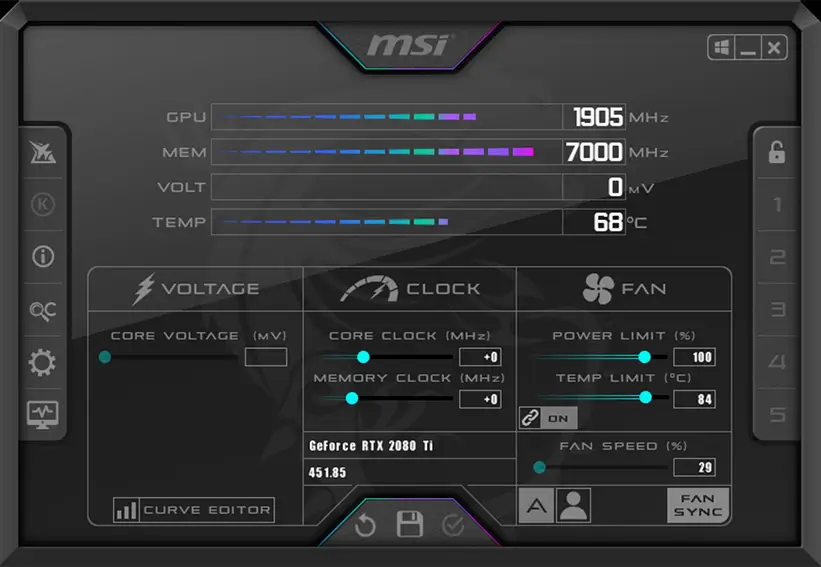
If you prefer a simple logging tool that calculates 1% and 0.1% lows after a session, ASUS GPU Tweak III lets you hit F8 to start logging and F11 to stop; the overlay then displays the 1% low. However, live frame time graphs are far more useful for seeing the exact moment a spike hits.
Step 2: Identify the Bottleneck Pattern
Play a demanding scene and watch the numbers when you feel a stutter. Correlate the spike with the sensor data:
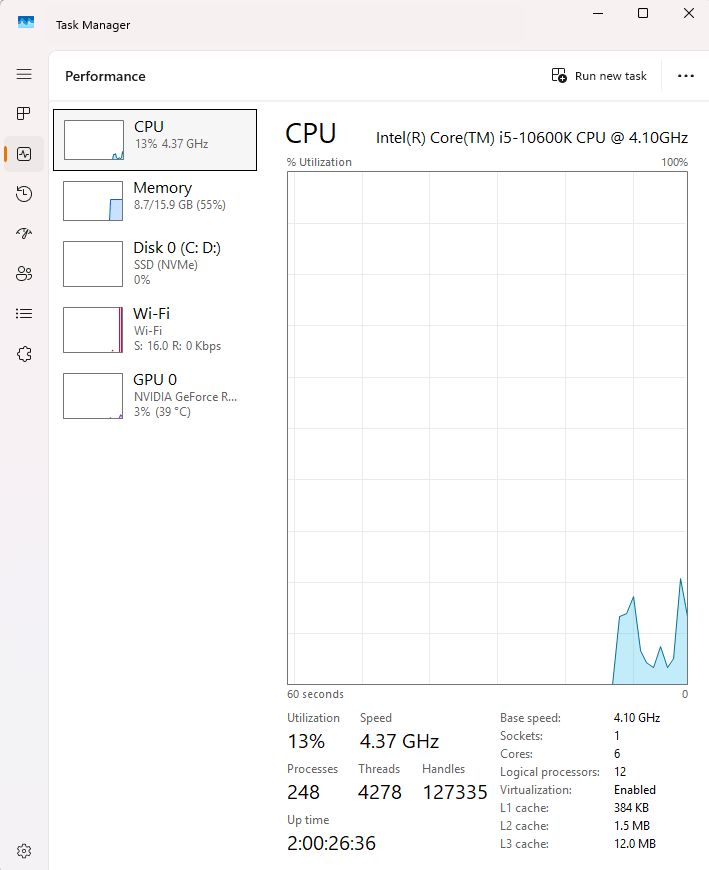
- CPU bottleneck: One or two CPU cores peg at 90‑100% while GPU usage drops suddenly, often below 80%. The frame time spike coincides with that CPU max‑out. This is common in open‑world titles with draw distances, physics, or many NPCs.
- GPU memory pressure: VRAM usage is near its limit and the GPU usage dips simultaneously with the stutter. The driver is swapping textures to system RAM, causing a split‑second freeze.
- Background process interference: GPU and CPU usage remain stable but you see a regular spike every few seconds unrelated to on‑screen action. Task Manager can reveal things like RGB software polling, a background windows update, or the Discord overlay pushing a frame drop.
- Storage stutter: Hard disk activity (or even a saturated SATA SSD on asset‑heavy games) causes a pause when streaming new areas. Watch the disk usage graph during traversal stutter.
- Power/thermal throttling: GPU core clock or CPU frequency drops suddenly below the expected boost clock at the exact moment of the stutter, often caused by hitting thermal limits or aggressive power savings.
Once you’ve matched the symptom to a cause, the fixes become obvious.
Safe Troubleshooting Order: From Quick Wins to Deeper Changes
Follow this order. Each step is safe to revert. Test after every major change using a consistent in‑game scene.
1. Update GPU and chipset drivers
A quick driver update rarely hurts. Grab the latest from NVIDIA or AMD. Use the “clean install” option in the installer to remove old profiles. For AMD systems, also update the chipset driver. This resolves shader compilation bugs and improves CPU/GPU scheduling in some titles.
2. Kill background bloat
Close everything you don’t need: web browsers, chat clients, RGB control suites, hardware monitoring tools that poll aggressively. Disable overlays entirely:
- Steam overlay – Steam Settings > In‑Game
- Discord overlay – User Settings > Game Overlay
- NVIDIA GeForce Experience overlay – Settings > General > In‑Game Overlay
- Windows Game Bar – Windows Settings > Gaming > Game Bar
If you use MSI Afterburner for monitoring, leave it running—but turn off its CPU polling interval from 1000 ms to 3000 ms to reduce its own impact. Temp Core and GPU sensors polling is fine.
3. Tame the graphics settings that wreck frame times
Certain visual options disproportionately affect frame consistency. Turn these down before touching texture quality:
- Dynamic reflections: May force the GPU to render a second version of the scene. Lower it or set to static only.
- Ambient occlusion: Expensive per‑frame calculations. Try SSAO instead of HBAO+ or ray‑traced variants.
- Shadow resolution and shadow distance: High shadow settings hammer both CPU and GPU. Dropping from Ultra to High or Medium often halves the CPU cost.
- Volumetric clouds / fog: Another common source of CPU‑side spikes.
- Texture quality: Only reduce this if VRAM usage is pinned near the limit; otherwise it has minimal impact on frame time spiking.
When in doubt, lower settings one notch at a time and watch whether 1% lows improve. Many games show a “VRAM usage” bar in their settings menu—use it.
4. Cap your frame rate with RTSS, not the in‑game limiter
In‑game FPS caps often produce uneven frame delivery even if the average looks correct. RTSS (the server that comes with Afterburner) enforces a software‑level limit that smooths frame pacing dramatically. Open RTSS, add your game’s executable, set a framerate limit 3–4 FPS below your monitor’s maximum refresh rate if you use G‑Sync/FreeSync, or just cap at a stable value your system can hold 99% of the time.
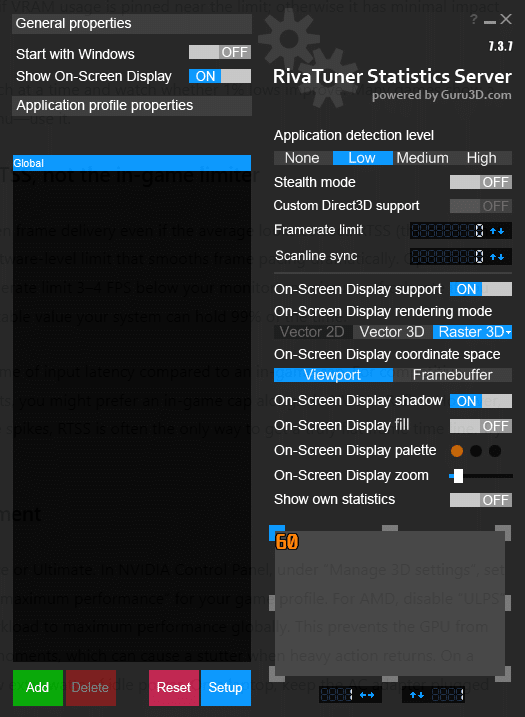
The trade‑off: RTSS adds about one frame of input latency compared to an in‑game cap. For competitive shooters where every millisecond counts, you might prefer an in‑game cap alongside NVIDIA Reflex. However, if you suffer from persistent frame time spikes, RTSS is often the only way to get a truly flat frame time line. Try it and see if the trade feels worth it.
5. Set correct power management
Windows power plan: High Performance or Ultimate. In NVIDIA Control Panel, under “Manage 3D settings”, set “Power management mode” to “Prefer maximum performance” for your game profile. For AMD, disable “ULPS” via MSI Afterburner or set the GPU workload to maximum performance globally. This prevents the GPU from briefly dropping clocks during lighter moments, which can cause a stutter when heavy action returns. On a desktop this costs nothing except a few extra watts of idle power. On a laptop, keep the AC adapter plugged in.
6. Enable Resizable BAR / Smart Access Memory
If your motherboard and GPU support it, make sure Resizable BAR (NVIDIA) or Smart Access Memory (AMD) is enabled in the BIOS, and CSM is disabled. This lets the CPU access the full VRAM at once, improving frame timing in supported games. Check your GPU driver control panel to verify it’s active.
7. Move the game to an SSD
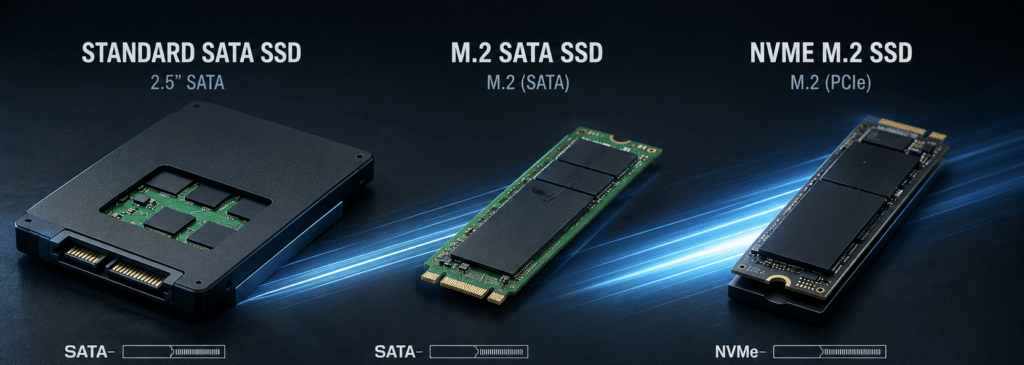
Open‑world games and titles that stream large assets constantly produce traversal stutter when installed on a mechanical hard drive. Even a modest SATA SSD eliminates the long access pauses. If you use an NVMe drive anyway but still get stutter when moving quickly, verify the SSD hasn’t been filled beyond 85% and that its firmware is up‑to‑date.
8. Clear and rebuild shader caches
Stutter in the first minutes of a game often stems from shader compilation. Modern DirectX 12 titles compile shaders on the fly, and a corrupted cache can make it worse. In the NVIDIA Control Panel or AMD Adrenalin software, find the shader cache option and delete/disable it temporarily, then restart and play the game for 10‑15 minutes so it rebuilds. Only do this if stutter persists long after your first play sessions, because a fresh cache will initially increase stutter while the game generates new shaders.
9. Tame the CPU chain
If you diagnosed a CPU bottleneck, steps are:
- Enable XMP/DOCP in BIOS to run RAM at its rated speed. Slow RAM on Ryzen systems especially kills 1% lows.
- Reduce CPU‑heavy in‑game settings (draw distance, crowd density, physics).
- If your CPU cooler is weak, a repaste and better airflow can prevent clock drops.
- Overclocking or undervolting the CPU only if you’re experienced—neither is a quick fix.
10. VRAM‑specific fixes
When VRAM is the problem: lower texture quality, shadow maps, and any “ultra” texture packs. Avoid ray tracing if you have 8GB or less, as the BVH structures alone can push you over the edge. Watch the VRAM meter stay comfortably below the maximum.
Common Mistakes That Sabotage Frame Consistency
- Capping FPS too close to refresh rate – If you cap at 144 FPS on a 144Hz G‑Sync monitor, you’ll hit the V‑Sync ceiling and introduce stutter. Always cap 3–5 FPS below max refresh.
- Leaving V‑Sync on without adaptive sync – Plain V‑Sync causes massive frame time spikes whenever the frame rate drops below the refresh rate. Use G‑Sync/FreeSync, or turn V‑Sync off and use a frame cap instead.
- Using “Ultra” shadows on a CPU‑limited system – The eye doesn’t see shadow resolution during fast movement; lower shadow settings give the CPU breathing room.
- Overclocking VRAM too aggressively – Memory error correction can cause frame time spikes that look exactly like a bottleneck. Dial back the OC if you see stuttering after overclocking memory.
- Not isolating per‑core CPU usage – Total CPU use of 40% means nothing if two cores are at 100% and the rest idle. Always monitor individual threads.
Edge Cases Worth Knowing
- Shader compilation stutter in Unreal Engine 4 titles – This is a game engine issue, not your hardware. It usually subsides after playing the same areas once. Some games offer a “pre‑compile shaders” option; use it.
- Laptop Optimus mux issues – A laptop with NVIDIA Optimus might run the game on the integrated GPU if not set correctly. Force the game to use the high‑performance GPU in Windows Graphics settings and NVIDIA Control Panel.
- Power delivery limits on budget motherboards – On cheap boards, VRM throttling can drop CPU clocks under load, producing a weird stutter not visible in GPU metrics. Monitor CPU clock and VRM temperatures with HWiNFO if you suspect this.
- When to skip frame capping – Competitive gamers using high‑end systems may find the RTSS latency penalty unacceptable. In that case, keep the in‑game cap plus NVIDIA Reflex, and accept slightly higher frame time variance.
FAQ
Why do my 1% lows drop even when my GPU is not fully used? A GPU that isn’t pinned at 99% usually points to a CPU limitation. One or two CPU cores hit 100% during complex scenes, creating a split‑second bottleneck that causes the frame time spike. Background processes can also interrupt the render pipeline without maxing the GPU.
Should I use V‑Sync, G‑Sync, or just a frame cap for smoothness? Use G‑Sync (or FreeSync) plus a frame rate cap 3‑4 FPS below the monitor’s maximum refresh. This eliminates tearing, keeps the refresh in the adaptive refresh window, and avoids the latency penalty of pure V‑Sync. If you don’t have adaptive sync, disable V‑Sync and cap the frame rate to a stable value using RTSS.
Is a higher average FPS always better if 1% lows are bad? No. A high average FPS with terrible 1% lows feels worse than a slightly lower average that delivers consistent frame times. A locked 80 FPS with 75 FPS 1% lows feels vastly smoother than 120 FPS with 40 FPS 1% lows. Prioritize frame consistency over peak averages.
