


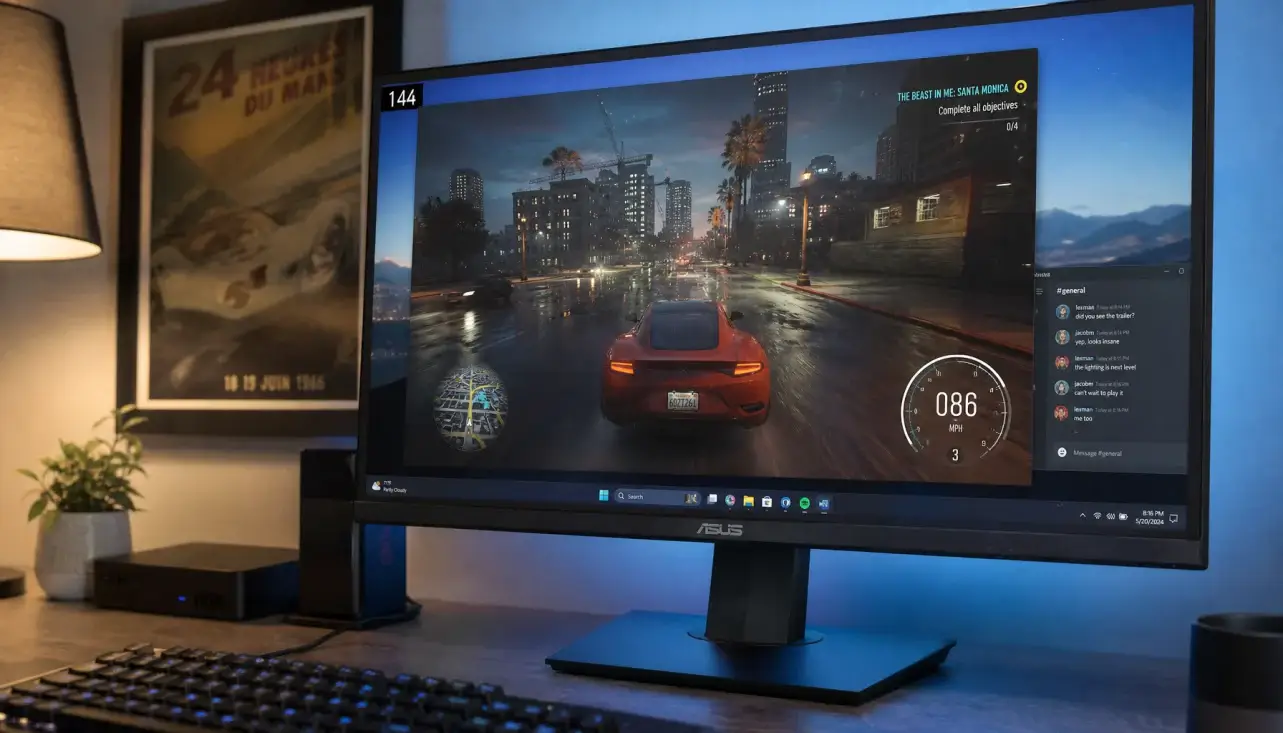
You launch your favorite game, switch from exclusive fullscreen to borderless windowed so you can Alt‑Tab instantly, and suddenly everything feels wrong. Your aim is sluggish, frame pacing stutters, your muscle memory seems broken, yet the on‑screen framerate counter hasn’t dropped. Frustration mounts because the numbers look fine, but the experience doesn’t match them.
You aren’t imagining it. Borderless windowed mode often introduces a penalty that raw FPS counters miss entirely. Understanding why this happens—and knowing exactly when it matters—is the first step to choosing the right fix.
If the game also stutters in exclusive fullscreen—or the issue is unrelated to display mode—use our PC game stuttering troubleshooter to identify the symptom that better matches your problem.
Diagnosis First – Is It Really a Borderless Problem?
Before you apply every fix in the book, isolate the symptom. The goal is to confirm that the display mode is the culprit, not a misconfigured graphics setting or a background process spike.
1. Check for Input Lag, Not Just Framerate
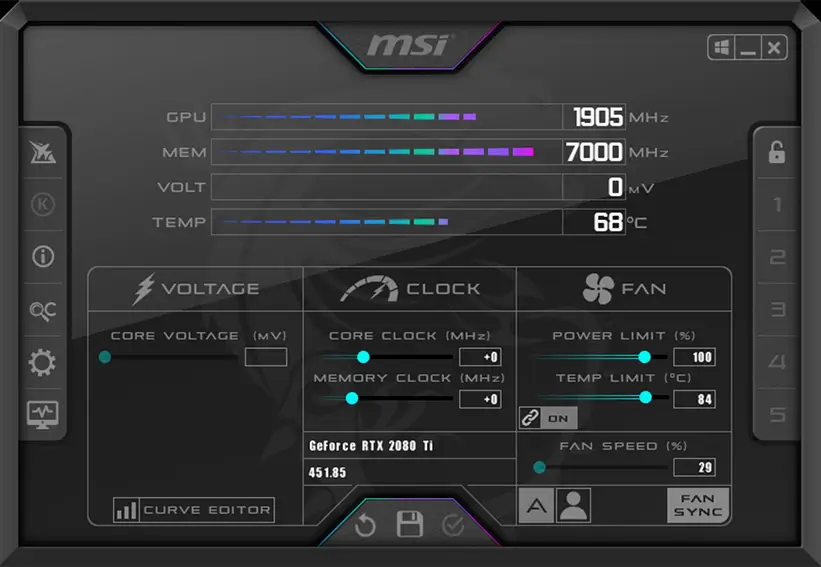
Use an uncapped framerate with an overlay like MSI Afterburner’s frametime graph. Compare exclusive fullscreen vs. borderless in the same scene. Pay attention to:
- Frametime spikes: In borderless, even small spikes can feel like micro‑stutter because the compositor adds its own timing layer.
- Input latency feel: Flick a mouse rapidly. If the crosshair drags or feels “floaty” only in borderless, you are dealing with the Windows input stack penalty.
- Sensitivity shift: On resolutions that differ from your desktop native (e.g., 4:3 stretched), borderless forces Windows scaling to intervene, altering your effective sensitivity. If you have to completely recalibrate, the mode is applying an unintended transform.
2. Verify VSync Behaviour
Borderless windowed always goes through the Desktop Window Manager (DWM). DWM by default applies its own form of vertical synchronisation to every surface it composites. You might have VSync off in‑game, yet borderless still caps your framerate to the desktop refresh rate and adds a frame queue that increases latency. This is one of the most common and silent performance killers.
3. Look at GPU Resource Sharing
When you are in exclusive fullscreen, the game owns the GPU’s display output and can prioritise its rendering pipeline. In borderless, the graphics card also draws your browser, wallpaper, Rainmeter widgets and any other windows. This distributed load can reduce the consistency of frame delivery, even if average FPS stays high.
If you tick at least one of these boxes, you have confirmed a mode‑specific penalty. Now it is time to fix it without sacrificing everything you like about borderless.
For a broader diagnosis covering Alt-Tab behaviour, second monitors, refresh-rate conflicts and VRR, see our guide to game stuttering caused by display mode and focus changes.
Why Borderless Often Runs Worse – The Technical Reality
The mechanics are straightforward but not always well explained:
- DWM compositing adds latency: Games rendered as a standard window must pass through the compositor. This introduces 1–3 frames of extra latency compared to exclusive fullscreen’s baseline of 0 ms, according to analysis by IQON Digital. For a 60 Hz display, that is 16–48 additional milliseconds, which is devastating for competitive play.
- The input stack changes: In exclusive fullscreen, raw mouse messages can reach the game directly. In borderless, input travels through the normal Windows input pipeline before being handed to the game window. That subtle detour is enough to feel off.
- Scaling mismatch: Running a game at a non‑native resolution in borderless forces Windows to scale the output. Different scaling methods produce fidgety, inconsistent mouse movement—especially noticeable in titles that rely on precise flick shots.
- Forced sync behaviour: DWM’s vertical sync cannot be fully bypassed in a window. Even if you disable VSync everywhere, you are still synchronised to the monitor’s refresh cycle, and that introduces its own latency pattern, which may never feel as clean as the tear‑prone but lower‑latency path of exclusive fullscreen.
Exceptions and Edge Cases – When Borderless Is Fine
Before you condemn borderless permanently, understand where it works well enough:
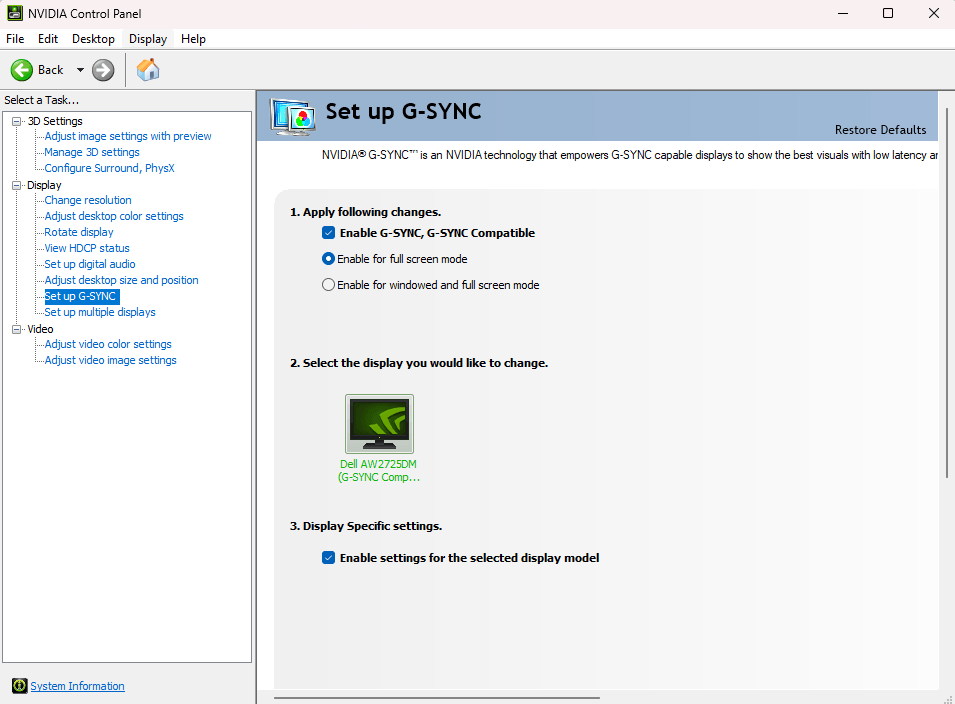
- G‑Sync + Windowed mode: If you have an NVIDIA GPU and you explicitly set G‑Sync to cover “Fullscreen and windowed mode” in the NVIDIA Control Panel, the compositor’s sync can align with variable refresh. In many modern DX12 titles, borderless can feel indistinguishable from exclusive fullscreen because the display engine no longer forces a classic fullscreen switch.
- Certain game engines: Some titles, especially those using DX12 or Vulkan, manage the swap chain in a way that nearly equalises performance between fullscreen and borderless. You may even see isolated benchmarks where borderless pulls slightly higher FPS (the “CS2 paradox”), although this is rare and heavily system‑dependent.
- Casual or story‑driven games: If you are not sensitive to input delay and you value rapid Alt‑Tab above all else, the latency penalty is not a problem.
The key is knowing your own tolerance and your hardware’s capabilities. However, if you landed here, you are probably not in the “fine” category.
Fix Guide – A Safe Step‑by‑Step Troubleshooting Order
Follow these steps in order. Each fix builds on the previous one, and you should test the game after every change. Stop when the performance feels right.
1. Switch to Exclusive Fullscreen
This is the nuclear option that bypasses all DWM interference. Most games list it as “Fullscreen” or “Exclusive Fullscreen” in the video settings. If you can live with the slightly slower Alt‑Tab, this single change eliminates the compositor and input stack penalties immediately. If the game becomes smooth while unfocused but starts stuttering again when you click back into it, use our guide to fixing games that stutter only after Alt-Tab or regaining focus.
- When to skip: If the game does not offer a true exclusive fullscreen mode (common with newer Microsoft Store titles or DX12 games), move to the next steps.
2. Disable Fullscreen Optimizations for the Game
When you launch a game in “fullscreen,” Windows 10 and 11 actually run it in a hybrid borderless‑like container called “Fullscreen Optimizations.” This preserves fast Alt‑Tab but keeps some of the compositor overhead. Disabling it forces the game back into classic exclusive fullscreen with zero added latency.
- Navigate to the game’s executable (
.exe) file. - Right‑click it, select Properties.
- Go to the Compatibility tab.
- Check Disable fullscreen optimizations.
- Click Apply and restart the game.
Important: This only helps if you are already using the in‑game “Fullscreen” option. It will not magically fix borderless mode itself, because borderless is always a window. If you intend to stay in borderless, this tick box will have no effect.
3. Turn Off VSync in Game and in Driver Settings
The DWM already applies a form of VSync. Doubling up with in‑game or driver‑level VSync can cause additional frame queuing and erratic pacing. Disable VSync everywhere:
- In the game’s graphics menu.
- In NVIDIA Control Panel (Manage 3D settings > Vertical sync > Off).
- In AMD Software (Graphics > Advanced > Wait for Vertical Refresh > Always off).
If you are using G‑Sync or FreeSync with a VRR display, you can keep on G‑Sync and V‑Sync off, but you must cap the framerate slightly below your refresh rate (e.g., 141 FPS on a 144 Hz screen). This prevents the compositor from kicking in its own internal sync.
4. Set G‑Sync / FreeSync to Windowed Mode
If you insist on borderless and have a variable refresh rate monitor, you can minimise the compositor’s negative impact.
- NVIDIA: Open NVIDIA Control Panel > Set up G‑Sync > Enable for “Fullscreen and windowed mode”.
- AMD: In AMD Software, enable FreeSync and check that “AMD Optimized” or “On” covers windowed applications.
With this setup, the compositor’s timing is aligned with the variable refresh, so the added latency becomes negligible for many people. However, you still cannot change resolution independently of your desktop.
If enabling G-Sync or FreeSync for windowed games makes the stutter worse rather than better, use our G-Sync and FreeSync stutter diagnostic guide to verify the VRR path and frame-rate ceiling.
5. Disable Windows Game Mode (If It Interferes)
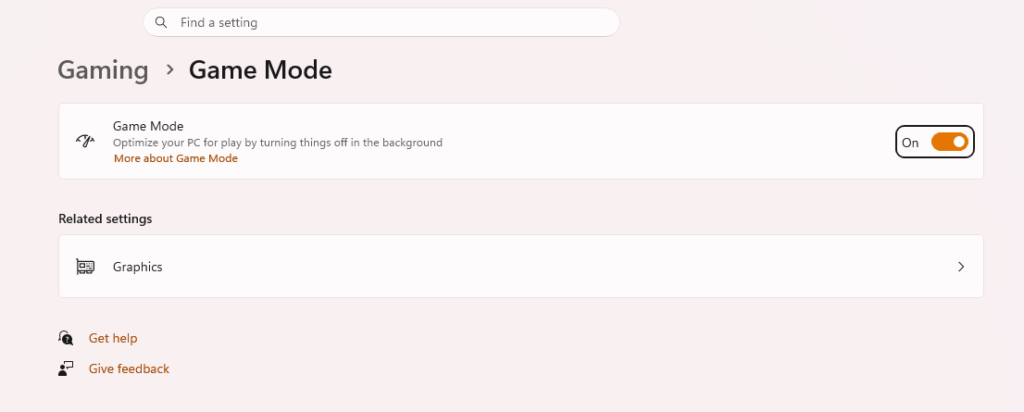
Game Mode is supposed to optimise system resources, but on some configurations it introduces background recording and scheduling quirks that can worsen borderless performance. Toggle it off in Settings > Gaming > Game Mode and test.
6. Match Desktop Resolution and Refresh Rate
If your game resolution differs from your desktop native resolution, Windows scaling kicks in during borderless mode and can ruin sensitivity and cause uneven frame pacing. Before launching the game, set your Windows desktop to the same resolution and refresh rate you intend to use in‑game. This is not a universal fix, but it resolves scaling‑related input oddities.
7. Update GPU Drivers and Check Background Apps
Outdated display drivers sometimes mishandle the flip model that modern fullscreen optimizations rely on. A clean driver installation using DDU in safe mode can clear cached settings that cause borderless stutter. Simultaneously, close hardware‑accelerated background apps (browsers, Discord overlays, Spotify) that compete for GPU time when DWM composites everything together.
8. Accept the Limitations – Know When to Stay in Exclusive Fullscreen
If after all these steps borderless still feels worse, the only reliable cure is exclusive fullscreen. Competitive players who value raw input latency already steer clear of borderless for this reason. Use borderless only when you genuinely need fluid multi‑tasking in less timing‑sensitive games.
Common Mistakes That Keep Borderless Broken
- Leaving VSync on while using G‑Sync in windowed mode: This forces a triple‑buffered queue, destroying the VRR benefit.
- Thinking fullscreen optimizations affect borderless: They don’t. You must be in exclusive fullscreen for that checkbox to matter.
- Assuming a high FPS counter means low latency: In borderless, you can see 200 FPS but feel like 60 because the DWM holds frames back. Frame timing is more revealing.
- Forgetting to disable overlays: Steam overlay, Discord overlay, or Xbox Game Bar can inject themselves awkwardly into the compositor pipeline and cause additional judder.
- Generic “disable DWM” advice: On Windows 10/11, DWM cannot be permanently killed without breaking the entire visual interface. Ignore any guide suggesting you end
dwm.exeor outdated registry tweaks to turn off Aero; those are not applicable.
Frequently Asked Questions
Why does my game feel sluggish in borderless even though the FPS counter says I’m getting 144? The DWM applies its own frame queue and vertical sync, adding a noticeable gap between when your GPU renders a frame and when it appears on screen. The framerate counter only counts frames produced, not the delay in presenting them. Use a frametime graph (RTSS) and you will see the I/O stall.
Can I ever get the same input latency in borderless as in exclusive fullscreen? Close, but rarely identical. With a VRR display set to windowed mode and no extra VSync, the gap can shrink to a point where human perception barely registers. However, you still lose the ability to change resolution without scaling, and Windows 10’s threaded optimisation for windowed games can still add a subtle overhead. For the absolute lowest latency, exclusive fullscreen remains the stronger choice.
Should I just disable fullscreen optimizations on every game? Not blindly. Fullscreen optimizations allow fast Alt‑Tab and compatibility with DXGI flip model, which can be beneficial in Windows 10/11 for newer titles that do not even offer a true exclusive mode. Disable it only if you have a game that shows stutter or lag in its fullscreen mode, or if you are certain you want bare‑metal exclusive output. Many modern games already render identically with optimizations on, so you might be solving a problem that doesn’t exist.
