


Steam Overlay stutter does not necessarily mean that simply having the overlay enabled is hurting your game. We tested Steam Overlay ourselves in Rainbow Six Siege using CapFrameX and found a much more specific pattern.
Leaving the overlay enabled in the background had little measurable effect. Opening it with Shift+Tab produced short, repeatable frame-time spikes, while using Steam’s browser caused the clearest sustained performance drop in our testing.
That distinction matters because disabling Steam Overlay completely may solve the symptom without telling you what actually caused it. Steam can display its main interface, browser, friends and chat features, and controller-related menus over a running game, so the better question is: what was Steam doing when the stutter appeared?
What We Tested
Our test system used an Intel Core i5-10600K, RTX 3070, 16GB RAM and an Alienware 180Hz G-Sync monitor. Rainbow Six Siege was used as the workload, with CapFrameX recording 60-second captures.
We tested three Steam states twice each:
- Steam Overlay enabled but untouched.
- Shift+Tab opened at roughly 15, 30 and 45 seconds.
- Steam’s overlay browser opened and kept active during part of the capture.
The game workload stayed consistent so Steam behaviour was the main variable.
| Configuration | Average FPS | 1% Low | 0.1% Low |
|---|---|---|---|
| Overlay enabled and idle | 147.5 | 106.6 | 77.1 |
| Shift+Tab opened repeatedly | 146.1 | 102.4 | 75.0 |
| Steam browser active | 141.7 | 85.3 | 64.1 |
The results were more nuanced than simply saying “Steam Overlay lowers FPS.” The idle overlay barely affected our workload. Opening Shift+Tab created brief disturbances without materially reducing average FPS, while the Steam browser produced a much clearer and longer performance penalty.
Steam Overlay Sitting Idle Was Basically Fine
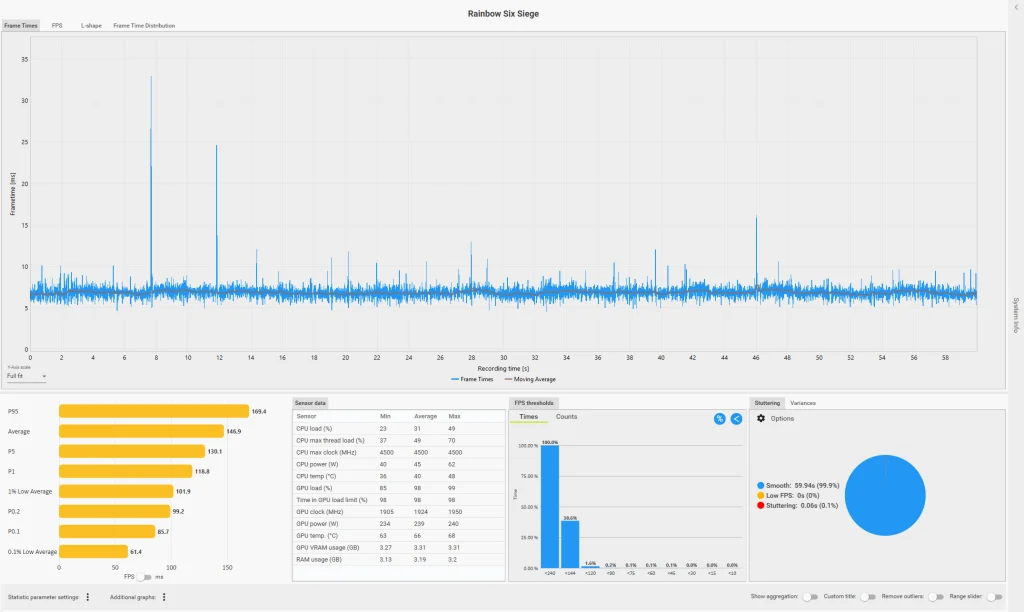
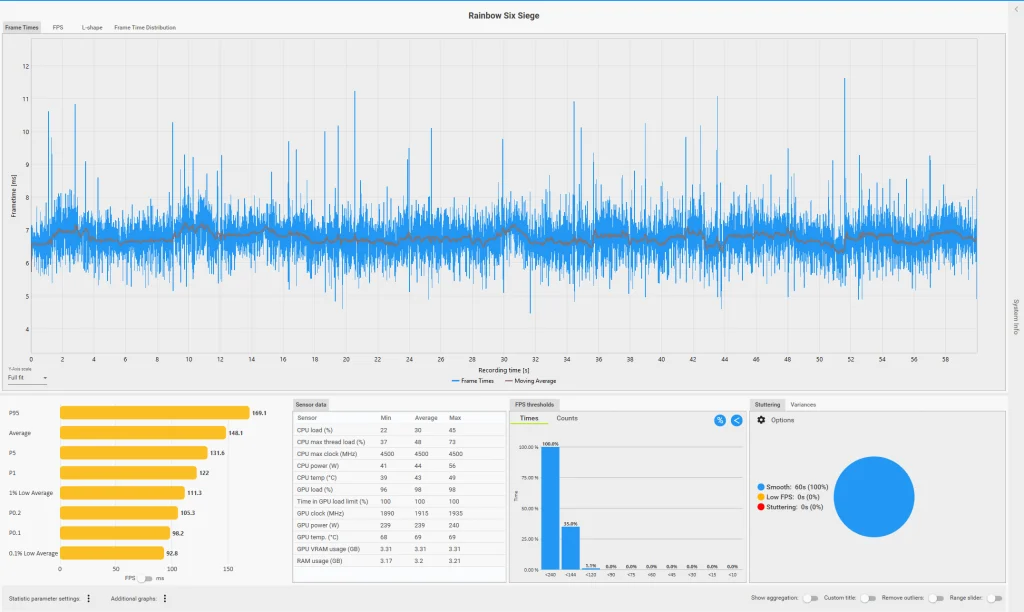
With Steam Overlay enabled but never opened, Rainbow Six Siege averaged 146.9 FPS in the first capture and 148.1 FPS in the second, giving us a two-run average of roughly 147.5 FPS. The average 1% low was about 106.6 FPS.
There were a few isolated frame-time spikes, particularly during the first capture, but there was no sustained pattern suggesting that simply having Steam Overlay enabled was wrecking performance.
On our system, the overlay sitting idle was not enough to reproduce sustained Steam Overlay stutter.
If your game is already stuttering while Steam Overlay is doing absolutely nothing, Steam may not be the real cause. In that situation, our PC game stuttering troubleshooter is a better next step for checking frame pacing, GPU load, drivers, display behaviour and other background processes.
Shift+Tab Caused Brief, Repeatable Frame-Time Spikes
For the next test, we deliberately opened Steam Overlay at approximately 15, 30 and 45 seconds during each 60-second capture.
The frame-time graphs reacted around those same points in both runs. The first capture showed larger disturbances at roughly 16, 31 and 47 seconds, while the second followed a similar pattern around 15, 30 and 46 seconds.
Despite that, average FPS only changed from around 147.5 FPS to 146.1 FPS. The 1% low fell modestly from roughly 106.6 FPS to 102.4 FPS.
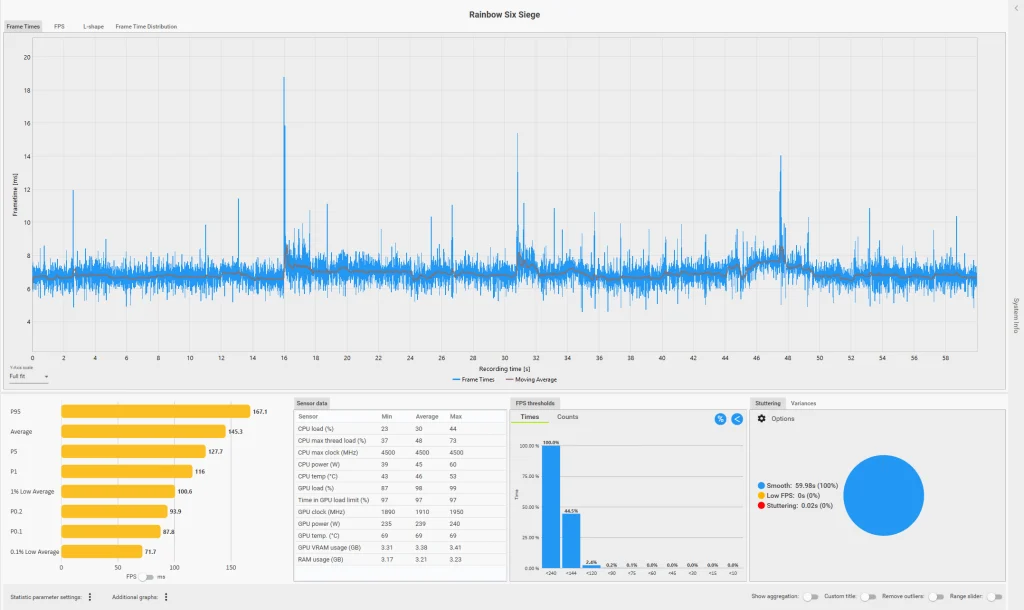
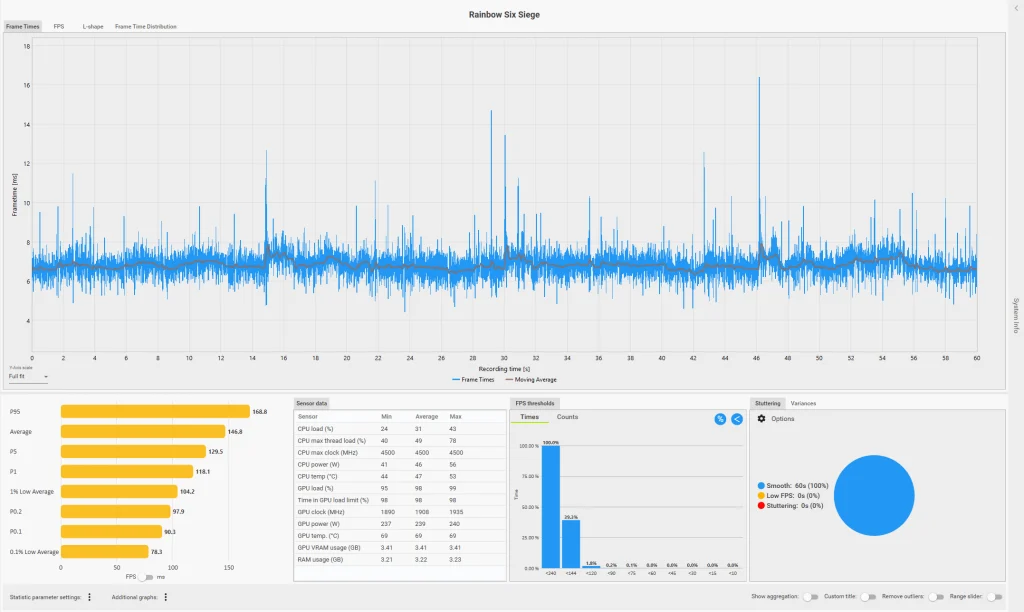
This is a good example of why average FPS can hide short hitches. The FPS counter would make the two configurations look almost identical, but the frame-time graph still reacted when Steam’s interface appeared.
CapFrameX classified essentially the whole capture as smooth, so these are better described as brief overlay-opening hitches rather than sustained stuttering.
Steam’s Browser Had the Biggest Impact
The browser test produced the clearest difference.
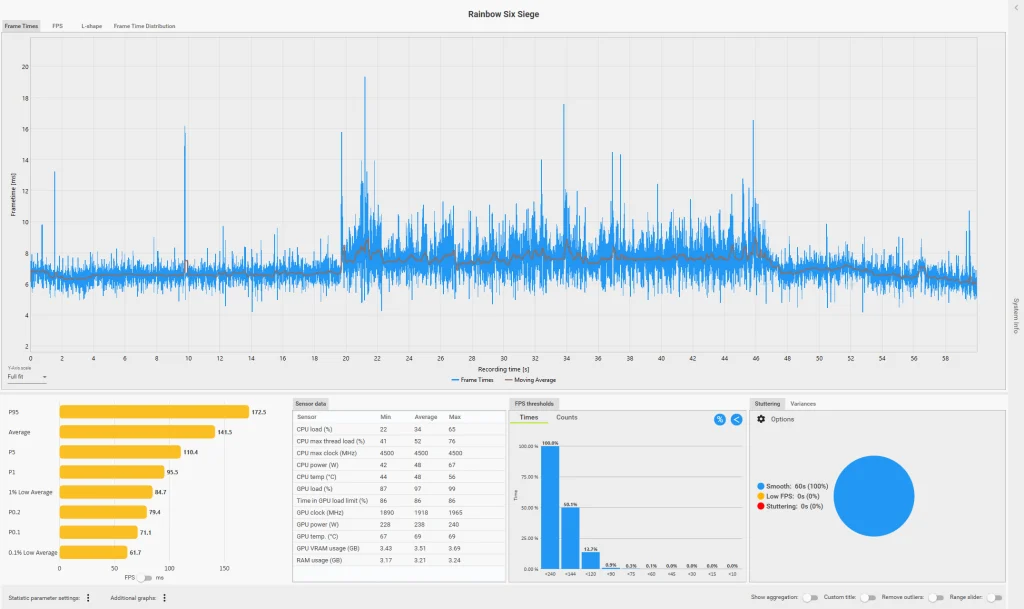
While Steam’s overlay browser was active, frame times became higher and noticeably more variable. After closing the browser, the graph moved back toward its earlier behaviour. More importantly, we reproduced the pattern in both captures.
The first browser run averaged 141.9 FPS, with an 85.8 FPS 1% low and 66.4 FPS 0.1% low. The second averaged 141.5 FPS, with an 84.7 FPS 1% low and 61.7 FPS 0.1% low.
Across both runs, that gives us approximately:
- 141.7 FPS average
- 85.3 FPS 1% low
- 64.1 FPS 0.1% low
Compared with the idle-overlay baseline, average FPS fell by roughly 4%, while the 1% low dropped by about 20%.
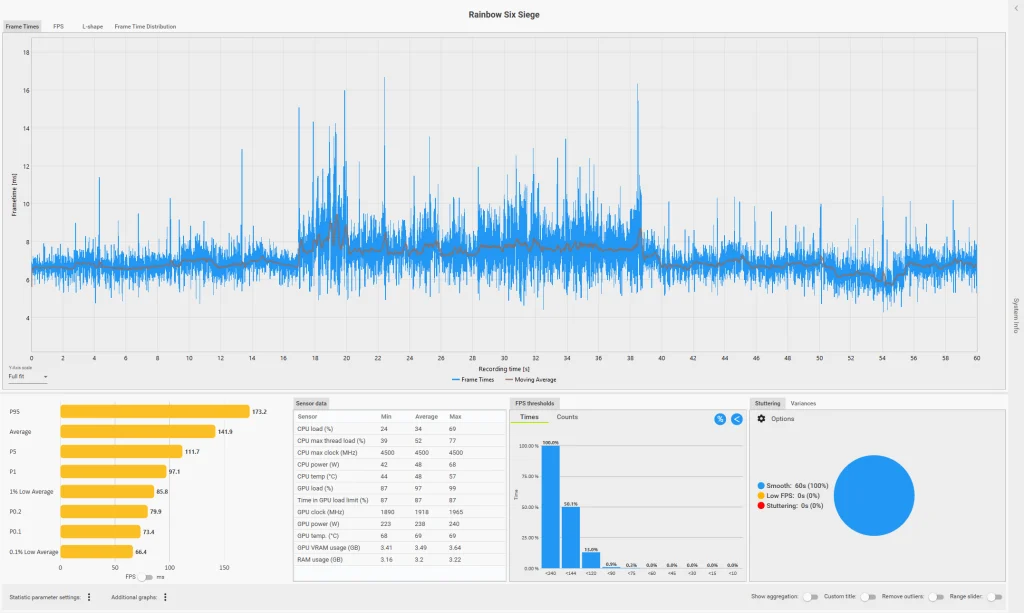
That does not mean Steam’s browser will cut everyone’s 1% lows by 20%. These figures apply to our PC and this particular Rainbow Six Siege workload.
What they do show is that the browser was a much stronger trigger on our system than simply leaving Steam Overlay enabled.
Why Steam Overlay, Browser and Controller Features Can Behave Differently
Steam Overlay is not one single workload. Having it loaded in the background is different from actively drawing the main interface, and opening a browser window introduces another workload again.
Steam Input can also display controller-related interfaces such as radial menus or touch menus depending on the layout being used. That means a player could have no issue with ordinary controller input but still encounter a hitch when an overlay-dependent menu appears.
This is why “Steam Overlay causes stutter” is too broad to be useful. The real trigger may be Shift+Tab, the browser, a controller UI element, or several overlays and background applications competing at the same time.
If Steam is only one of several programs using GPU resources in the background, our guide to stopping Discord, Chrome and Game Bar from draining your GPU while gaming covers that wider problem.
How to Fix Steam Overlay Stutter
The best approach is to start with the least invasive change and move down the list only if the problem remains.
1. Disable Steam Overlay for the Affected Game
Start here because it is quick and does not affect the rest of your Steam library.
Right-click the affected game in Steam, open Properties, go to General, and disable Enable the Steam Overlay while in-game.
Restart the game and repeat the exact scene where the stutter occurred.
If the problem disappears, you have established that Steam Overlay is involved. If nothing changes, turn it back on and continue troubleshooting rather than assuming Steam is still the problem.
2. Close Steam Browser Windows
Based on our own testing, this is one of the first things we would check.
Steam Overlay sitting idle performed relatively well, while the browser produced lower 1% lows and more variable frame times. If you regularly open guides, store pages or other web content through Steam while playing, close those windows and repeat the same gameplay section.
You may find that Steam Overlay itself works perfectly well as long as the browser is not active.
If Steam exposes a GPU-accelerated rendering in web views option in your current client version, you can also test that setting on and off. Restart Steam after changing it and compare the same workload rather than assuming one option is automatically better.
3. Test Shift+Tab Separately
If the hitch happens when the overlay itself appears, test that directly.
Open a frame-time monitor and deliberately trigger Shift+Tab at known points, such as 15, 30 and 45 seconds. If the graph produces disturbances at those same moments repeatedly, you have much stronger evidence than one random hitch during normal gameplay.
If opening the overlay causes a brief spike but leaving it open does not, you may be dealing with an activation hitch rather than constant Steam Overlay stutter.
4. Remove Steam Input Overlay Features Temporarily
Controller users should separate ordinary controller input from Steam’s visual controller interfaces.
If you use radial menus, touch menus or other overlay-dependent Steam Input features, disable those temporarily while keeping normal gamepad input active. Then retest the same section.
If the game is smooth with standard controller input but hitches whenever a Steam radial or touch menu appears, the visual Steam Input layer becomes the stronger suspect.
There is no reason to disable the controller entirely if ordinary input is working properly.
5. Disable Other Overlays One at a Time
Steam may not be the only software drawing over the game.
Other common overlays include Discord, NVIDIA’s overlay, AMD Software, Xbox Game Bar, RTSS and recording or streaming utilities. Disable one overlay at a time, restart the game if necessary, and repeat the same test.
Do not switch everything off simultaneously. If the stutter disappears, you need to know which change actually mattered.
If Steam has already been ruled out but the hitch appears specifically when Discord’s in-game layer is active, use our guide to testing Discord Overlay FPS drops and stutters.
6. Close Chrome, Discord and Other GPU-Accelerated Apps
Steam’s browser may not be the only web workload competing with the game.
Chrome, Discord and similar applications can use GPU acceleration in the background, especially when video, animated pages or multiple windows are active. Close those applications temporarily and test again.
If Steam Overlay suddenly behaves normally once other GPU-accelerated programs are gone, background resource contention becomes a much stronger possibility.
For a wider breakdown of those apps, see our guide to stopping Discord, Chrome and Game Bar from draining your GPU while gaming.
7. Compare Fullscreen and Borderless
Some games behave differently depending on their presentation mode.
Run the same scene once in fullscreen and once in borderless while leaving every other setting alone. If Steam Overlay stutter appears only in one mode, you have narrowed the problem further.
Do not change resolution, graphics settings, refresh rate and fullscreen mode at the same time. The point is to isolate one variable.
8. Update Steam and Your Graphics Driver
Do this after you have established a baseline.
Steam updates can change overlay and browser behaviour, while graphics drivers can affect presentation and hook compatibility. Update one component, repeat the same scene, and see whether the behaviour changes.
Updating Steam, your GPU driver and Windows all at once may fix the issue, but you will have no idea what actually solved it.
9. Disable Steam Overlay Globally Only If Necessary
If several games consistently exhibit the same problem and per-game disabling fixes all of them, then disabling Steam Overlay globally becomes reasonable.
Use Steam’s settings to turn the overlay off across all games.
This should be the later option, not the first one, because global disabling also removes Shift+Tab access and other overlay features from games that may have been working perfectly well.
10. Re-Enable Only the Features You Actually Need
If disabling the overlay or browser fixes the issue, you can work backward.
Re-enable Steam Overlay for one title and test it. Then use normal controller input. Then try the browser or any controller-specific visual menus you actually need.
Stop once the problem returns.
This process can reveal that the conflict is one specific feature rather than Steam Overlay as a whole.
Common Mistakes When Diagnosing Steam Overlay Stutter
One of the biggest mistakes is watching only average FPS. Our Shift+Tab test changed average performance from roughly 147.5 to 146.1 FPS, which looks insignificant, yet the frame-time graph still showed disturbances around the exact moments where we opened Steam Overlay.
A single ugly frame-time spike also proves very little. Our idle baseline contained occasional isolated spikes too. The Shift+Tab result became interesting because the disturbances repeatedly appeared around our deliberate activation points.
Another mistake is disabling every overlay simultaneously. If Steam, Discord, NVIDIA, Game Bar and RTSS all disappear and the problem goes away, you know an overlay may have been involved, but you still do not know which one.
Finally, compare the same gameplay scene. The performance difference between a quiet corridor and a large firefight can easily be greater than the Steam effect you are trying to measure.
What Our Testing Did Not Prove
Our testing does not show that Steam Overlay always lowers FPS, that Steam’s browser universally reduces 1% lows by 20%, or that every Shift+Tab activation will produce a visible hitch.
We also did not test every Steam Input configuration, every game engine or every possible combination of third-party overlays.
What we demonstrated is narrower and more useful: on our system, Steam Overlay sitting idle, actively opening Shift+Tab and using Steam’s browser produced clearly different performance behaviour.
That means isolating individual Steam features is more useful than immediately blaming the entire overlay stack.
FAQ
Does Steam Overlay cause stutter?
It can contribute to frame-time disturbances, but simply leaving it enabled did not cause sustained stutter in our testing. Shift+Tab produced brief, repeatable disturbances, while Steam’s browser had the clearest sustained effect.
Does disabling Steam Overlay increase FPS?
Not automatically. Our idle-overlay baseline already averaged around 147.5 FPS. The larger performance change appeared while Steam’s browser was active.
Why does Shift+Tab make my game hitch?
In our tests, deliberate Shift+Tab activations lined up with short frame-time disturbances in two separate captures, even though average FPS barely changed.
Why does Steam’s browser make my game stutter?
On our system, the browser produced higher and more variable frame times. Compared with the idle-overlay baseline, average FPS fell by about 4% while the 1% low dropped by roughly 20%.
Your results may be different depending on the game and hardware.
Can Steam Input cause stutter?
Standard controller input should not automatically be blamed. Test overlay-dependent controller features such as radial or touch menus separately. If the hitch appears only when those interfaces are displayed, the Steam UI layer is a stronger suspect than the controller itself.
Can Discord Overlay conflict with Steam?
Multiple overlays can run over the same game, but Discord should not automatically be blamed. If Steam is ruled out and the problem appears specifically with Discord’s overlay, follow our Discord Overlay FPS drop and stutter guide.
What if the game still stutters with Steam Overlay disabled?
Steam probably is not the main cause. Use our PC game stuttering troubleshooter to investigate frame pacing, GPU load, drivers, display settings and background software.
Bottom Line
Our Steam Overlay stutter testing produced a more nuanced result than simply saying Steam Overlay is bad for performance.
Leaving the overlay enabled but unused had little measurable impact in Rainbow Six Siege, with our two baseline runs averaging around 147.5 FPS and a 106.6 FPS 1% low. Opening Shift+Tab three times caused brief and repeatable frame-time disturbances, but average FPS remained almost unchanged at roughly 146.1 FPS.
Steam’s browser was the standout result. Average performance fell to around 141.7 FPS, the 1% low dropped to approximately 85.3 FPS, and both captures showed a noticeably more variable frame-time pattern while the browser was active.
So if Steam Overlay appears to be causing stutters, start by testing the overlay idle, Shift+Tab and the browser separately. Then work through controller UI, other overlays and GPU-accelerated background apps one at a time.
On our system, what Steam Overlay was doing mattered much more than whether it was simply enabled.
