



Before changing settings, confirm whether Discord is actually the cause. Discord’s overlay is not responsible for every FPS drop, but its symptom pattern is fairly consistent.
The Classic Symptom Pattern
You will typically see one or more of these signs:
- FPS drops shortly after Discord starts or after you join a voice channel.
- Frametime spikes or microstutter when the overlay appears, when a notification pops, or when someone joins or leaves the call.
- Input delay or erratic frame pacing in GPU-heavy shooters while the overlay is enabled.
- Performance improves noticeably when Discord is fully closed.
If the game stutters with Discord completely closed, you are probably dealing with a different problem. If the stutter remains with Discord fully closed, use our PC game stuttering troubleshooter to identify whether the real cause is frame pacing, GPU load, display behaviour, drivers or another background process.
What Is Actually Happening
The Discord overlay draws UI elements every frame. It tracks game events and renders the overlay on top of the game. That work shares the same GPU resources your game is using. On a system already near its GPU limit, the extra draw and hook overhead create frame pacing problems.
This is why the overlay may feel fine in an older or lighter game but harmful in a modern shooter. The issue is not always raw FPS. It can appear as stutter, input delay, or inconsistent frame times even when the average FPS looks acceptable.
Run a 60-Second Diagnostic Loop
Do this before toggling settings:
- Launch the problem game with Discord completely closed. Note the average FPS and whether stutters appear.
- Launch Discord but do not open the overlay. If FPS drops now, the issue may be Discord itself, not the overlay.
- Join a voice channel and keep the overlay hidden. If stutters appear when notifications or voice events fire, Discord may still be competing for GPU time.
- Press the overlay toggle and watch the frame time. If the stutter happens exactly when the overlay appears, the overlay is the primary suspect.
Once you have that result, apply the fixes below in order.
If Discord is only one of several background apps using GPU resources, see our broader guide to stopping Discord, Chrome and Game Bar from draining your GPU while gaming.
Test These Discord Settings in This Order
This order isolates the most common cause first and avoids changing settings you may not need.
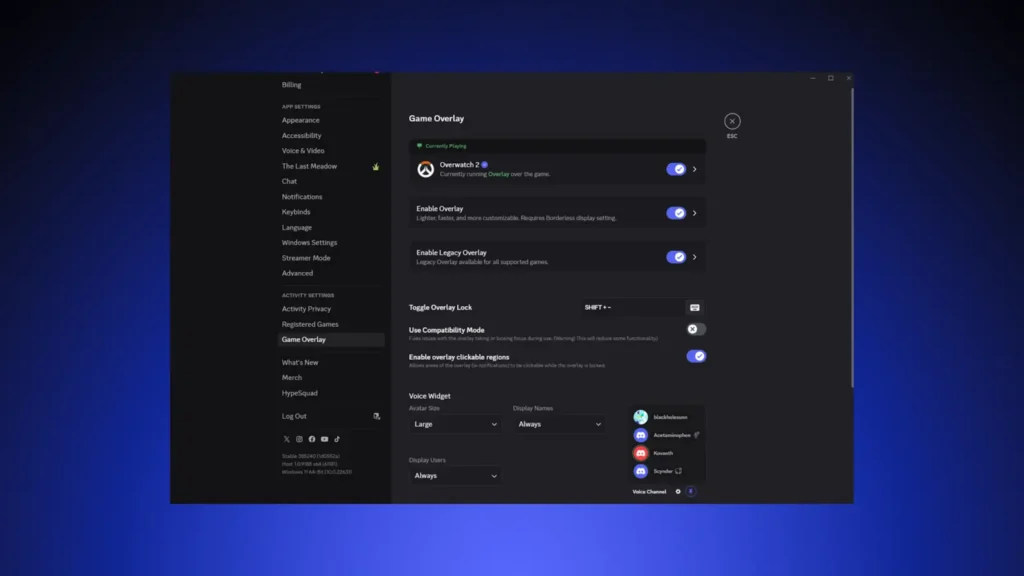
1. Turn Off Discord’s Global In-Game Overlay
This is the first setting to change because it directly removes the per-frame overlay drawing.
- Open Discord.
- Click the gear icon in the bottom-left to open User Settings.
- Go to Game Overlay.
- Turn off Enable in-game overlay.
- Fully close Discord from the system tray and reopen it.
- Launch the game and test.
If performance is now stable, stop here. If you still want the overlay in some games but not the problem game, use the per-game option next.
2. Disable the Overlay for the Specific Game
This is the better option when you want the overlay globally but need to exclude one game that cannot handle the extra overhead.
- Open User Settings.
- Go to Registered Games or Game Activity, depending on your Discord version.
- Find the game that is stuttering.
- Click the monitor or overlay icon next to it to disable the overlay for that game only.
- Relaunch the game and test.
Skip this step if disabling the global overlay already fixed the issue. Do not disable both at once without testing, because you want to isolate the change.
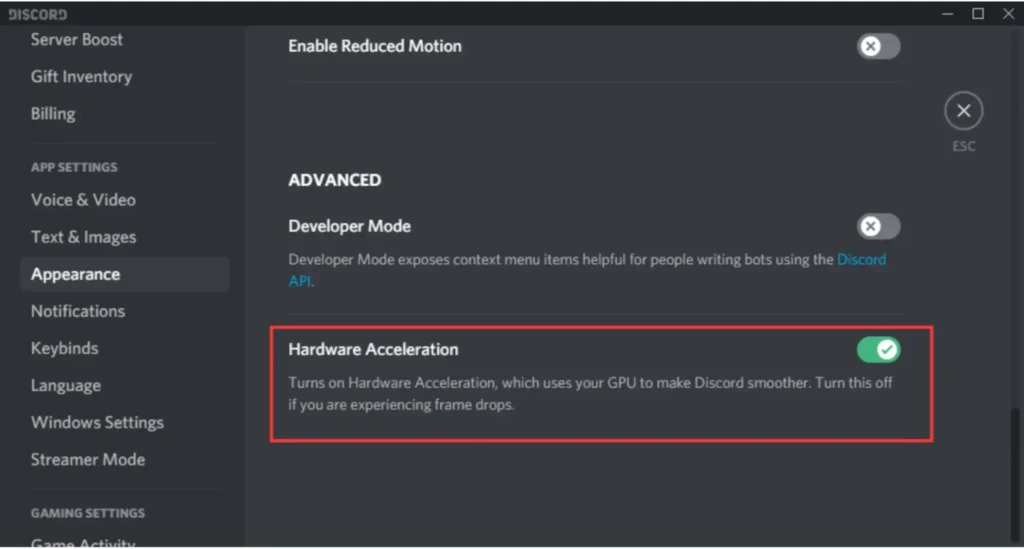
3. Turn Off Discord Hardware Acceleration
Even with the overlay off, Discord can still use the GPU to render its interface. Hardware acceleration reduces CPU load for Discord, but it can add GPU contention in games.
- Open Discord User Settings.
- Go to Advanced.
- Turn off Hardware Acceleration.
- Click Okay or restart Discord when prompted.
- Re-test the game.
Use this step when:
- The FPS drop continues with the overlay off.
- Your GPU usage is near 100% in the game.
- The stutter appears when Discord is open but is not overlay-related.
Skip it initially if the game is heavily CPU-bound. Disabling hardware acceleration moves more work to the CPU, which can help a GPU-limited game but may not help and can sometimes add CPU load in CPU-limited scenarios. Treat it as a test, not a mandatory fix.
4. Close Other Overlay Apps
Discord is rarely the only overlay running. GeForce Experience, NVIDIA overlay, Steam overlay, and Xbox Game Bar can each add similar overhead. Sometimes Discord gets blamed because it was the last app you installed, but another overlay is also hurting performance.
- Open the overlay settings for GeForce Experience, Steam, or Game Bar.
- Disable or limit any overlay that is not essential.
- Close any recording or performance monitoring overlay.
- Test the game with only Discord running.
This is especially useful when multiple overlays are enabled on a laptop or a mid-range GPU.
5. Fully Close Discord and Re-Test
Discord often keeps running in the system tray. A settings change may not take full effect if the app is still active in the background.
- Right-click the Discord icon in the system tray.
- Select Quit Discord.
- Open Task Manager and confirm no Discord process remains.
- Reopen Discord and launch the game.
A clean restart removes lingering overlay hooks. Many players see smoother frame times after this step alone.
Common Mistakes and Edge Cases
The Overlay Is Off but Games Still Stutter
Some players disable the global overlay and still see FPS drops. The usual causes are:
- A per-game overlay entry is still enabled under Registered Games or Game Activity.
- Hardware acceleration is still on and Discord is competing for GPU time.
- Discord was not fully restarted, so the setting did not apply.
- Another overlay app is still active.
Check those before assuming Discord is not the problem.
You Disabled Hardware Acceleration and It Got Worse
This can happen on CPU-limited systems. Discord hardware acceleration normally uses the GPU for interface rendering, which keeps the CPU freer. If your game is already heavy on CPU threads, turning it off can add more CPU load.
If performance gets worse, turn hardware acceleration back on and instead keep the overlay off and other overlays closed. There is no single correct setting for every system.
You Only See the Problem in One Game
A global overlay may be fine in lighter games but unacceptable in a game that is already pushing the GPU to its limit. In that case, do not disable Discord overlay everywhere. Use the per-game disable setting so you keep the overlay in games that handle it well.
You Have Multiple Discord Builds Installed
If you use Discord, Discord PTB, or Discord Canary, each build has its own settings. Disabling overlay in one does not automatically disable it in another. Check the build that is actually running while you play.
FAQ
Does disabling Discord overlay stop voice chat?
No. Disabling the in-game overlay only removes the graphical layer that appears over the game. Voice chat, notifications in the Discord app, and channel activity continue in the background.
Why does Discord still cause FPS drops with overlay off?
Usually it is one of three things: hardware acceleration is still enabled, the overlay is still enabled for that specific game under Registered Games, or Discord was not fully restarted. Another overlay app may also be running alongside Discord.
Should hardware acceleration be off for all games?
Not automatically. It is useful because it reduces GPU contention, but on CPU-heavy systems it may make frame pacing worse. Treat it as a diagnostic toggle, not a mandatory setting.
Final Test Order
After each change, close Discord fully, relaunch the game, and play for five minutes before changing anything else. The safe order is:
- Disable global Discord overlay.
- Disable overlay for the problem game.
- Turn off Discord hardware acceleration.
- Close other overlay apps.
- Fully restart Discord and test.
If the game is still stuttering with Discord fully closed, the problem is not the Discord overlay. Move on to GPU driver, game, or system-level troubleshooting.
